Category Archives: Windows Server

Quick Tip: Still using ipconfig? Use gip instead!

Since you more or less are never using cmd.exe any longer, why not go away from other classic toolsets you’ve been using forever?

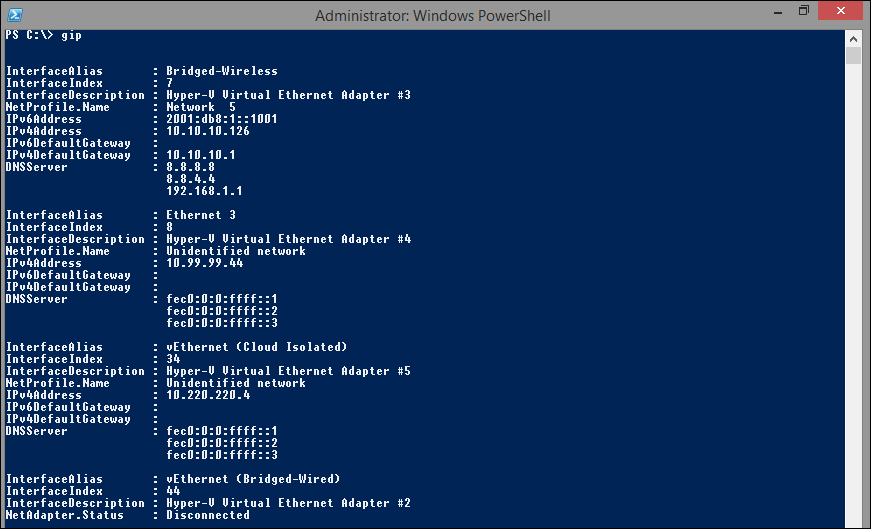
In Windows 8 and Windows Server 2012 and later, you can use the cmdlet Get-NetIPConfiguration or the alias gip to get your ip addresses instead of using ipconfig. Good stuff! (and nicer output)

2014-01-26 21-55-31/Johan

Geek tip: Top 10 shortcut commands to remember!

In the shadow of all PowerShell stuff, I’d like to share some old, but very good information with you guys.

I like knowing exactly where I’m going and I like getting there fast. Therefore, I’ve learned the file names of the most common OS utilities I use. (And yes, I might be a bit reactionary 🙂 )

Many of them are nowdays in the Win+X menu, but sometimes its nice just typing where you want to go.

  1. ncpa.cpl – Network Connections – This was once very easy to find, but in Vista and above they made it very hard to get there.
  2. certlm.msc – Local Computer Certificates – as this is something I use every day, it’s very nice to actually get there directly (only works in 8/2012 and above) (certmgr.msc for User Certificates)
  3. lusrmgr.msc – Access Local users and Groups directly
  4. appwiz.cpl – Add remove programs (turn Windows features on or off is optionalfeatures.exe)
  5. firewall.cpl – Windows Firewall
  6. compmgmt.msc –  Computer management
  7. sysdm.cpl – System Properties (change computer name, join domain etc. (but please, use POSH for that if possible)
  8. wuapp.exe – Windows Update (very useful in 8/2012 and above)
  9. eventvwr.exe – Event Viewer
  10. mstsc.exe – Remote Desktop Client (everyone knows about this one, I hope).
    In Windows 8 and above, you have to start it with <shift>+<enter> instead of just <enter> if opening more than one window.

/Johan

Analyze your VHD(x) usage with PowerShell

In this case, I wanted a quick analysis on my Hyper-V VM’s vhd files and get the disk size and free disk space before upgrading to Server 2012 R2 Hyper-V.

The snippet basically loops trough all VM’s on a host (or in a cluster if you would want that), and gives you output as below.

2014-01-11 21-01-04

2014-01-11 21-01-23

If you want information on all disks for all VM’s in a cluster you can get that with Get-VHDStat -Cluster ClusterName.

Get-VHDStat

function Get-VHDStat {
param(
[Parameter(Mandatory=$false)]
[string]
$Cluster
)

if ($Cluster) {
    $VMs = Get-ClusterGroup -Cluster $cluster | where grouptype -eq 'virtualmachine' | Get-VM
} else {
    $VMs = Get-VM 
}
	foreach ($VM in $VMs){
		$VHDs=Get-VHD $vm.harddrives.path -ComputerName $vm.computername
            foreach ($VHD in $VHDs) {
        	    New-Object PSObject -Property @{
                    Name = $VM.name
				    Type = $VHD.VhdType
				    Path = $VHD.Path
				    'Total(GB)' = [math]::Round($VHD.Size/1GB)
                    'Used(GB)' = [math]::Round($VHD.FileSize/1GB)
				    'Free(GB)' =  [math]::Round($VHD.Size/1GB- $VHD.FileSize/1GB)
                 }
	        }
    }
}

Enjoy!

/Johan

Quick Tip: Self signed certificates made easy with PowerShell!

Most solutions today require certificates in some way, which means we need them even when setting up a lab/test environment.
If you for some reason don’t have a PKI/CA infrastructure in your lab environment you will most likely end up with a self signed certificates for web sites or other parts of your environment.

Since Windows 8/8.1 or Server 2012/2012 R2 there is a really nice PowerShell cmdlet that does that for us, without no hassle.
It can even handle multiple SAN’s.
It’s just to use the New-SelfSignedCertificate cmdlet from an elevated PowerShell window.

Example 1: Create and export one certificate with the name test.365lab.net:

New-SelfSignedCertificate -DnsName test.365lab.net -CertStoreLocation cert:\LocalMachine\My
#Export certificate to c:\test_365lab_net.pfx with the password 'Password'. (the thumbprint is found in the output from the New-SelfsignedCertificate command.)
Export-PfxCertificate -Cert cert:\LocalMachine\My\5D46460D29FE8E0C3F644D8ABA3C707AA83AFC79 -FilePath c:\test_365lab_net.pfx -Password (ConvertTo-SecureString -String "Password" -Force -AsPlainText)

2014-01-04 15-57-46

Example 2: Create self signed SAN certificate with the names test.365lab.net,sts.365lab.net and 365lab.net:

New-SelfSignedCertificate -DnsName test.365lab.net,sts.365lab.net,365lab.net -CertStoreLocation cert:\LocalMachine\My

2014-01-04 16-06-34

To check out your newly create certificates in the GUI, fire up the Computer Certificates Store mmc, which from Windows 8 / Server 2012 and above can be started with ‘certlm.msc‘ (OH YES!).
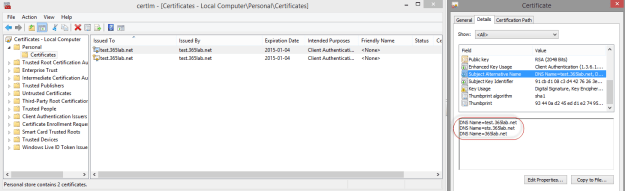
2014-01-04 16-10-55

Note that I generally never recommend doing self signed certificates in production environments, they are only for testing purposes!

/Johan
Directaccess in Windows 8 and Server 2012 – Hotfix frenzy

Windows Server 2012 DirectAccess includes a number of enhanced features and improvements as below:
⦁ Direct Access and RRAS coexistence
⦁ Simplified Direct Access management/setup for small and medium organization administrators
⦁ Built-in NAT64 and DNS64 support for accessing IPv4-only resources
⦁ Support for Direct Access server behind a NAT device
⦁ Load balancing support
⦁ Support for multiple domains
⦁ Support for OTP (token based authentication)
⦁ Automated support for force tunneling
⦁ Multisite support
⦁ Windows PowerShell support
⦁ User and server health monitoring

I’ve now done a couple of DirectAccess implementations (both small scale and large scale) and I must say that most things works very well and straightforward.

There are however a couple of hotfixes that you may have to apply, if you for example are enabling external load balancing in your implementation.
Below is a summary of the hotfixes that have been useful in my different implementations of DirectAccess

Windows Server 2012 and Windows 8 – DirectAccess Related Hotfixes:
KB2782560: DNS64 does not resolve computer names when you use DirectAccess and external load balancing in Windows Server 2012.

KB2788525: You cannot enable external load balancing on a Windows Server 2012-based DirectAccess server.

KB2769240: You cannot connect a DirectAccess client to a corporate network in Windows 8 or Windows Server 2012.

KB2748603: The process may fail when you try to enable Network Load Balancing in DirectAccess in Window Server 2012.

SCM 3.0 Windows 8 Baseline breaks Direct Access IPHTTPS Connectivity

When playing with SCM 3.0 and Windows 8 in my lab environment recently, I got an unpleasant surprise with my Direct Access connectivity in the Environment.

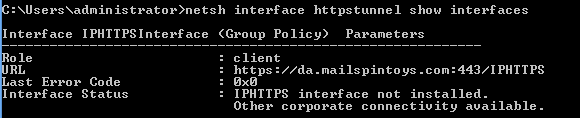
The Windows 8 client wouldn’t connect with IPHTTPS. When doing the usual troubleshooting with the netsh commands (netsh interface httpstunnel show interfaces) etc. I got the output “IPHTTPS interface not installed”.

Da_mailspintos
That output usually shows up when you’re inside the corporate network.

When troubleshooting further I found out that the system event log were full with error 36874/Schannel as below.

Schannel

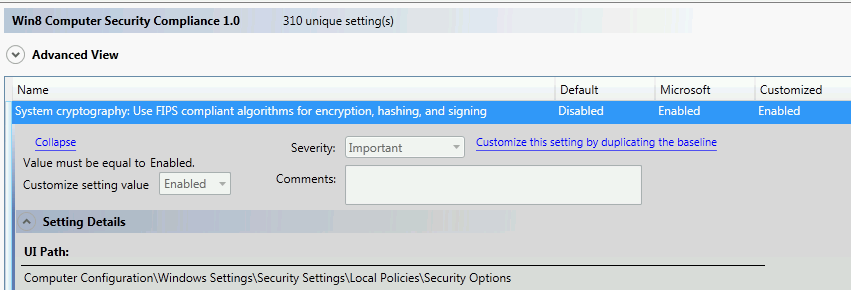
The setting causing the problem was “System cryptography: Use FIPS compliant algorithms for encryption, hashing, and signingunder “Computer Configuration\Windows Settings\Security Settings\Local Policies\Security Options” .

The setting was Enabled by SCM and is by default Disabled.

SCM30

After changing back the setting to Disabled I restored the IPHTTPS connectivity in my environment.

I am planning to follow this up as FIPS compliance is important for many organisations.