Author Archives: Johan Dahlbom

Office 365: Monitor and finish remote mailbox moves

A while ago, I posted a script that helps you out informing end users and starting remote mailbox moves in hybrid migration scenarios.
In the script we started our mailbox moves with the -SuspendWhenReadyToComplete switch. That switch means we manually have to go in and resume the mailbox moves with the Resume-MoveRequest cmdlet.

In this follow up script, we automate that process by monitoring active mailbox moves and handle resuming and removing of them. We also have the possibility to send out emails to our end users when the move has been completed (if uncommenting row 78).

Note: The script only works as intended if you have created one moverequest per user, as done in my script that start the migrations.

<#  
.SYNOPSIS 
    Script that monitors remote mailbox moves in Exchange Online and handles resuming, removing of them. 
.NOTES 
    Author: Johan Dahlbom 
    Blog: 365lab.net 
    Email: johan[at]dahlbom.eu 
    The script are provided “AS IS” with no guarantees, no warranties, and they confer no rights.     
#>

#region variables
$CloudUsername = "migration@365lab.net"
$CloudPassword = ConvertTo-SecureString "password" -AsPlainText -Force
$CloudCred = New-Object System.Management.Automation.PSCredential $CloudUsername, $CloudPassword
$PSScriptRoot = Split-Path -Parent -Path $MyInvocation.MyCommand.Definition
$Logfile = ($PSScriptRoot + "\HybridMigrations.log")
$enduserinfo = @"
Hi $($MoveRequest.batchname),<p>

You've just been moved to Office 365, if you have questions regarding the move, or if anything is not working as intended, let us know!
<p>
<strong>Best Regards
IT Department
</strong>
"@
#endregion variables

#region functions
#Function to send out email with defined parameters
function Send-MigrationMail {
param(
    [Parameter(Mandatory=$true)]
    [string]$Message,
    [Parameter(Mandatory=$true)]
    [string]$Recipient
)
$emailFrom = "Office 365 <migration@365lab.net>"
$smtpserver = "mailserver.365lab.net"
$subject = "Migration batch Finished"
$cc = "migrationadmin@365lab.net"
 
Send-MailMessage -From $emailfrom -To $Recipient -Cc $cc -SmtpServer $smtpserver -Subject $subject -Body $Message -BodyAsHtml
 
}
#Function to write information to a log file and to console output
function Write-Log {
Param (
    [Parameter(Mandatory=$true)]
    [string]$Logstring
)
Add-Content $Logfile -value $logstring -ErrorAction Stop
Write-Output $logstring
}
#endregion functions

#Connect to Exchange Online
if (!(Get-Command Get-CloudMoveRequest -ErrorAction SilentlyContinue)) {
    $session = New-PSSession -ConfigurationName Microsoft.Exchange -Authentication Basic -ConnectionUri https://ps.outlook.com/powershell -AllowRedirection:$true -Credential $CloudCred
    Import-PSSession $session -Prefix Cloud -CommandName @("Get-MoveRequest","Resume-MoveRequest","Remove-MoveRequest","Get-MoveRequestStatistics") -AllowClobber
}

#Run the following as long as there are active move requests
while (Get-CloudMoveRequest)
{
	$MoveRequests = Get-CloudMoveRequest
	foreach ($MoveRequest in $MoveRequests) {
		switch ($MoveRequest.status) { 
			"InProgress" 	{ 
				Write-Output "INFO: Move request for $($MoveRequest.Batchname) at $((Get-CloudMoveRequestStatistics -Identity $MoveRequest.BatchName).PercentComplete)% $(Get-date -format u)" 
			}
			"AutoSuspended" {
				Write-Log "INFO: Completing mailbox move for $($MoveRequest.BatchName) at $(get-date -Format u)"
				Resume-CloudMoveRequest -identity $moverequest.batchname
			}
			"Completed" 	{
				Write-Log "INFO: Removing completed MoveRequest $($MoveRequest.Batchname) at $(get-date -Format u)"
                #Uncomment row below to send information to end users when migration has been completed.
                #Send-MigrationMail -Message $enduserinfo -Recipient $moverequest.batchname 
				Remove-CloudMoveRequest -identity $moverequest.batchname -confirm:$false 
			}
		}
	}
	
	Write-Host "------------------------------------------------------------------------------"
	Start-Sleep 60
}

 Write-Log "INFO: All migration batches finished at $(Get-Date -format u)"
 #Send information to admin then the batches are complete.
 Send-MigrationMail -Message "Migration batch finished at $(Get-Date -format u)<br>Logfile attached." -Recipient migrator@365lab.net
 

Hope this is at any help, just let me know if you have suggestions that can improve the script.

/Johan

Adding .guru domains to Office 365 (Always use PowerShell!)

A couple of weeks ago, general availability for the .guru tld was announced. The new tld means that geeks like me can show off their ‘expertise’ by having a cool domain!

Now to the problem. When trying to add the new cool domain to my Office 365 tenant, I tried to do it in the Admin Center, as I usually do when adding single domain.
Unfortunately they have not yet added support for the new cool .guru tld in Admin Center.
o365.guru-admincenter

Fortunately, when adding the domain with the New-MsolDomain cmdlet, it went through with no problems.
2014-02-27 21-13-59

So, a friendly reminder to all of you geeks out there with .guru domains –
Whenever possible, use PowerShell! 🙂

/Johan

Office 365: Enable Multi Factor Authentication with PowerShell

Now when Multi Factor Authentication is free in Office 365 for all users, you might want to automate the activation of the service. And yes, you guessed it right, the way to do that is with PowerShell! 🙂 If you are running Office 365 in a Small Business or Small Business premium plan, this is currently the only way to enable MFA.

In this case we use the Windows Azure Active Directory Module for Windows PowerShell, which can be downloaded from here.

Enable Multi-Factor Authentication for users with PowerShell
In order to enable MFA for a user with PowerShell, we need to use the the object Microsoft.Online.Administration.StrongAuthenticationRequirement and put that with some additional settings in to the StrongAuthenticationRequirements attribute.

Note: After enabling MFA, the user will have to login through the portal and enroll their MFA methods and eventual app passwords before they will be able to logon to the services again.

#Create the StrongAuthenticationRequirement object and insert required settings
$mf= New-Object -TypeName Microsoft.Online.Administration.StrongAuthenticationRequirement
$mf.RelyingParty = "*"
$mfa = @($mf)
#Enable MFA for a user
Set-MsolUser -UserPrincipalName aaron.beverly@365lab.net -StrongAuthenticationRequirements $mfa

#Enable MFA for all users (use with CAUTION!)
Get-MsolUser -All | Set-MsolUser -StrongAuthenticationRequirements $mfa

#Disable MFA for a user
$mfa = @()
Set-MsolUser -UserPrincipalName aaron.beverly@365lab.net -StrongAuthenticationRequirements $mfa

MFA_2

Find your Multi Factor Authentication enabled users
If we want to know what users that have MFA enabled, the attribute StrongAuthenticationRequirements tells us that a user has MFA enabled, and the attribute StrongAuthenticationMethods tells us that a user has enrolled their MFA methods (Phone, App, Text etc.).

#Find all MFA enabled users
Get-MsolUser | Where-Object {$_.StrongAuthenticationRequirements -like "*"}  | select UserPrincipalName,StrongAuthenticationMethods,StrongAuthenticationRequirements

#Find all MFA enabled users that have enrolled their MFA methods
Get-MsolUser | Where-Object {$_.StrongAuthenticationMethods -like "*"}  | select UserPrincipalName,StrongAuthenticationMethods,StrongAuthenticationRequirements

As seen in the screenshot below, only one of my MFA enabled users have actually enrolled their MFA methods.
MFA-Enabled-Enrolled

Not to hard, right? Consider adding this as a step for certain users (eg. admins or other user groups) in your automated process of enabling users in Office 365.

/Johan

Office 365, ADFS and double logons: WAP to the rescue!

One of the things that are causing a lot of headache using ADFS with ADFS-proxy in combination with Office 365, is the fact that you have to type in your username twice when logging on to the portal or to the webmail externally. One way to avoid this is just go to the webmail directly using the address http://outlook.com/domain.com, but it might not be the easiest address to remember for your end users.

Luckily enough, this has been sorted out when using the Web Application Proxy in Windows Server 2012 R2. The Web Application Proxy in Server 2012 R2 replaces the ADFS proxy in earlier versions of Windows Server, and have been expanded with functionality to publish other resources in a secure manner as well.

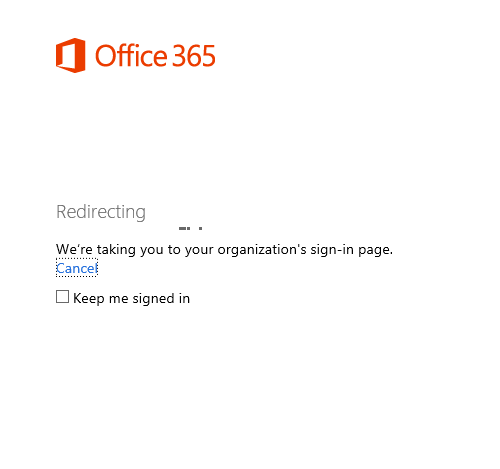
Here we are logging on as usual to mail.office365.com (or portal.microsoftonline.com), and of course the usual redirection is taking place after going to the password field.
2014-02-13 18-06-31

2014-02-13 18-06-52

Earlier, this would have been the place where you were putting in your username once again. Not this time though, your username have now been passed along to the Web Application Proxy and you can continue by just typing in your password!
2014-02-13 18-10-18

Never thought I could be impressed by such a small feature…
I think we’ll see lots of customers upgrading their ADFS infrastructure due to this! 🙂

/Johan

Windows Azure Multi Factor Authentication in Office 365

Windows Azure Multi Factor Authentication is a great service/Product that gives you a complete MFA solution both on premise and in the cloud. The best thing is that as of yesterday, it’s free for all accounts and not just for admin accounts.

Now you don’t have any excuses to not secure your admin accounts that have potentially access to multiple thousands of email accounts and other sensitive information.

One thing that I have not been testing until today, was to activate MFA for a Federated Administrator(DirSynced account with global administrator rights).
It works completely transparent for the user/admin, they just log on as they normally do to the ADFS server, and then the Azure MFA will kick in and require additional authentication.
How awesome is that?

Here’s how to activate MFA for an admin user (regardless if you’re using ADFS or not):

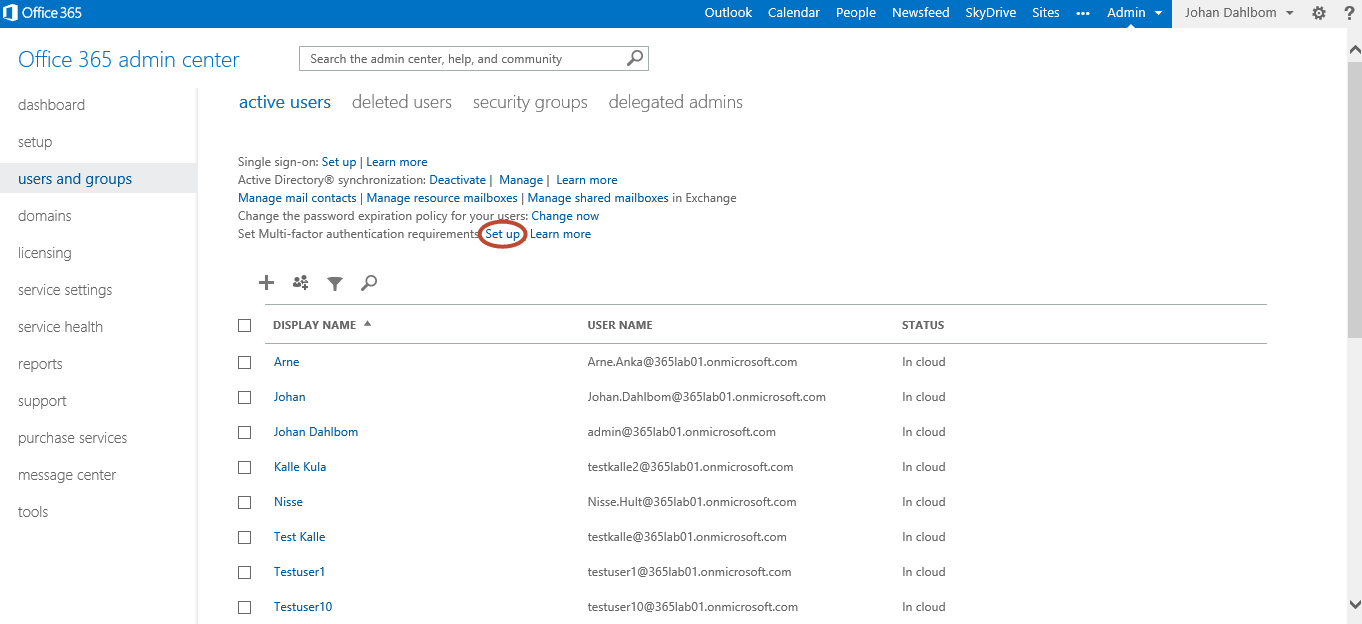
1. Logon to the O365-portal, under users and groups, find the “Set Multi-factor authentication requirements” row and click “Set up”.
2014-02-10 19-17-06

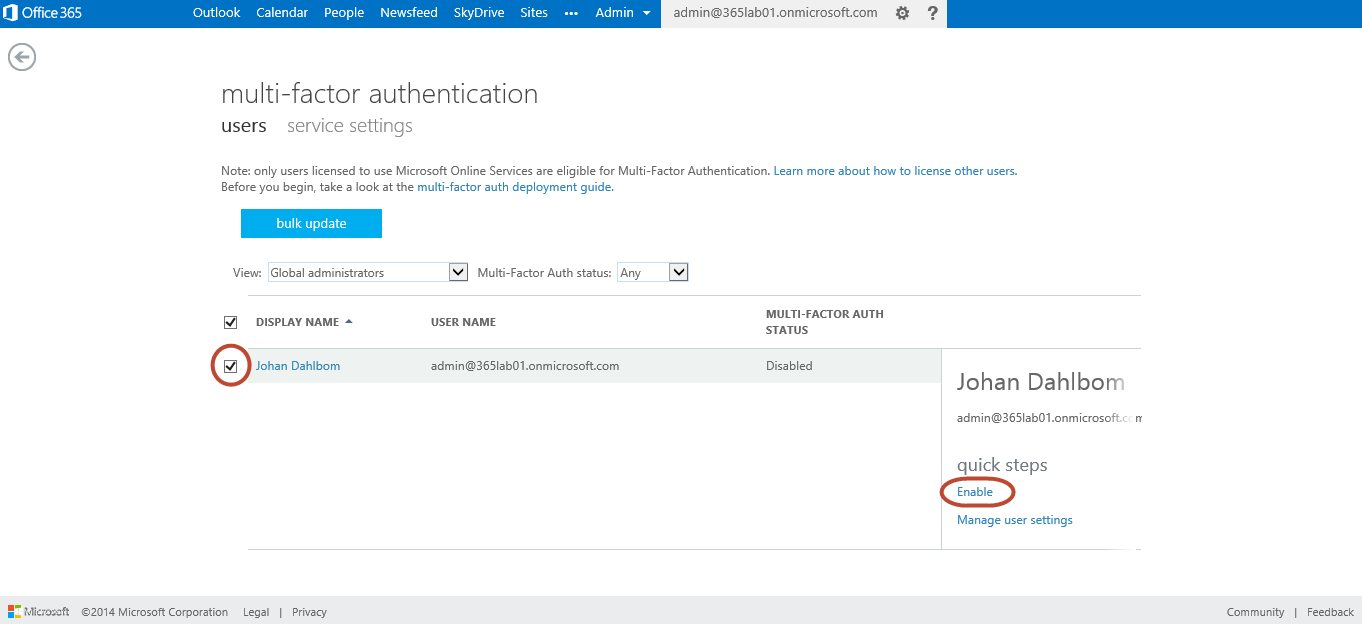
2. Choose the account(s) that you want to enable MFA for and click enable and then enable MFA.
2014-02-10 19-22-30
2014-02-10 19-27-38

3. After activated MFA, at next logon, the admin have to put in additional info about the second factor of authentication preferred. See the process to enroll devices as follows.
2014-02-10 19-37-24
Personally, I prefer using the mobile app as a second factor of authentication since its the easiest method, but it’s also possible to use text messages and phone for that.
2014-02-10 19-42-52
After verifying the activation with the Multi Factor Authentication app in my phone, I’m almost set, apart from one thing.
AzureMfaVerify
If you indend to use this account to connect to Office 365 with Outlook or ActiveSync, you will also need to create one or more app passwords that will be static passwords that can be used in cases where MFA doesn’t work.
2014-02-10 19-54-14

After creating eventual app passwords, you have now configured the specific account for multi factor authentication. Note that Microsoft is planning to add native multi-factor authentication for applications such as Outlook, Lync, Word, Excel, PowerPoint, PowerShell, and OneDrive for Business, with a release date planned for later in 2014.

Was it Hard? – No!
Should you use it whenever possible? – Yes!

Now, what’s your excuse to not activate Windows Azure Multi Factor Authentication for your Admin accounts?

/Johan

Quick Tip: Why are you still using nslookup?

Still using nslookup when troubleshooting and verifying DNS records?
Since Windows 8 and Windows Server 2012 arrived, I’ve been switching to the cmdlet Resolve-DnsName instead.
Two of the benefits are:

  • It gives ju way nicer and much more structured data that easily can be used in scripting scenarios.
  • It’s faster to write, just type Reso<tab> in your Powershell window.

Examples on output below:

2014-02-08 21-08-09

/Johan

PowerShell GPO Reporting: WSUS

In addition to my earlier creations that gives you an inventory of your GPO Deployed Printers and GPP Drive Maps, I’ve now created a similiar script that makes inventory of WSUS settings in all your GPO’s.
This can very much come in handy when having an extensive amount of GPO’s that are controlling WSUS settings (e.g. for different maintenance schedules).

See the example below of the output:
2014-02-05 07-17-52

<#
.SYNOPSIS     
Function that find certain information about all your WSUS related GPO's.
.NOTES     
           File Name: Get-GPOWsusInfo    
           Author   : Johan Dahlbom, johan[at]dahlbom.eu     
           The script are provided “AS IS” with no guarantees, no warranties, and it confer no rights. 
           Blog     : 365lab.net
#>
function Get-GPOWsusInfo {

try
{
Import-Module GroupPolicy -ErrorAction Stop
}
catch
{
throw "Module GroupPolicy not Installed"
}
        $GPO = Get-GPO -All

        foreach ($Policy in $GPO){

                $GPOID = $Policy.Id
                $GPODom = $Policy.DomainName
                $GPODisp = $Policy.DisplayName

                [xml]$xml = Get-GPOReport -Id $GPOID -ReportType xml
                $GPOSec = Get-GPPermissions -All -Guid $GPOID
                $WSUSBase = Get-GPRegistryValue -Guid $GPOID -Key HKEY_LOCAL_MACHINE\Software\Policies\Microsoft\Windows\WindowsUpdate -ErrorAction SilentlyContinue
                $WSUSAU = Get-GPRegistryValue -Guid $GPOID -Key HKEY_LOCAL_MACHINE\Software\Policies\Microsoft\Windows\WindowsUpdate\AU   -ErrorAction SilentlyContinue

                    if ($WsusBase) {

                        New-Object PSObject -Property @{
                           	GPOName = $GPODisp
                            GPOLinks = $xml.gpo.Linksto.SOMPath
                            GPOFilter = ($GPOSec | Where-Object {$_.Permission -eq "GpoApply"}).trustee.name
                            ScheduleDay = ($WSUSAU | Where-Object {$_.ValueName -eq "ScheduledInstallDay"}).Value.tostring().Replace("0","0 - Every Day").Replace("1","1 - Sunday").Replace("2","2 - Monday").Replace("3","3 - Tuesday").Replace("4","4 - Wednesday").Replace("5","5 - Thursday").Replace("6","6 - Friday").Replace("7","7 - Saturday")
                            Installtime =  ($WSUSAU | Where-Object {$_.ValueName -eq "ScheduledInstallTime"}).Value.tostring() + ':00'
                            AutoUpdateSetting = ($WSUSAU | Where-Object {$_.ValueName -eq "AUOptions"}).Value.tostring().Replace("2","2 - Notify for download and notify for install").Replace("3","3 - Auto download and notify for install").Replace("4","4 - Auto download and schedule the install").Replace("5","5 - Allow local admin to choose setting")
                            WSUSTargetGroup = ($WSUSBase | Where-Object {$_.ValueName -eq "TargetGroup"}).Value
                            WSUSServer = ($WSUSBase | Where-Object {$_.ValueName -eq "WUServer"}).Value
                        }
                    }

           }
}

Hope you find this useful!
When I find the time I’ll create a more complete set of GPO reporting functions with more functionality than they have today, maybe with help from Ramblingcookiemonster that has extended and created additions to the GP Preferences functions.

Until next time, Happy GPO Reporting!

/Johan

DirSync Configuration Error: “There is no such object on the server”

Recently, I ran across an issue deploying DirSync at a Customer.
The installation went well, but running the “Directory Sync Configuration Wizard” failed with the error message “There is no such object on the server”.
2014-02-03 09-14-26

Investigating the event logs, the configuration seemed to stop at the following event:
2014-02-03 09-19-06
Looking in to AD after the wizard had failed, no account had been created.
I then noticed that the Users container in the domain root was missing.
Since it is there DirSync by default tries to create the sync account and the container didn’t exist, it failed.

After recreating the Users container (can be done with either AdsiEdit or PowerShell), the Configuration Wizard completed successfully.

Recreate the users container with PowerShell

New-ADObject -Description "Default container for upgraded user accounts" ` 
             -Name Users ` 
             -Type Container `
             -ProtectedFromAccidentalDeletion $true

Hope this helps you if you are running in to this problem!

/Johan

Office 365: Start hybrid migrations and inform users

Lately I’ve been doing quite a few Hybrid setups.
One of the things that cause quite a lot of pain when doing migrations in general is getting information out to your users.
Even if you have a good communication plan, only 20% of your users read the information and only 5% of them reflect and understand it. 🙂

To make this a bit easier, I’ve created a small script that starts Hybrid migration batches and sends out information to the end user.
This is of course just an example, but gives you a good idea of what you are able to do with quite simple means.

HybridMigrationEmail

Getting started:

  • Review all relevant variables in the script
  • Change the text in BodyHybrid.txt to fit in to your needs, the html in that file will be the information sent in the email. The words ActiveSyncDevices,OWAAddress,EmailAddress and Firstname will automatically be replaced by its corresponding variables. (and no the css is not the best 🙂 )
  • Create the PDF Office365Info.pdf and put it in the same folder as the script, that file will be attached to the email.
  • Create input file Prepare-Mailboxes.csv with samAccountNames of the users that you want to migrate. (Note that I am assuming that the users Email Address and UserPrincipalName are the same in the script)
    Also note that the MoveRequest settings in the script might not fit your needs (Baditemlimit, Largeitemlimit).

As we are using the switch -SuspendWhenReadytoComplete in the script, the batches will autosuspend at 95% completion.
That means you’ll have to complete them manually with for example the following line:

Get-CloudMoveRequest | Where-Object {$_.Status -eq "AutoSuspended"} | Resume-CloudMoveRequest. 

Another good option to get in better control of your remote mailbox moves is to use Michael Halls excellent tool based on PowerShell and Excel that does that for you.

Start-HybridMigrations.ps1

<#
.SYNOPSIS
    Starts hybrid migrations based on input (samAccountName) from a csv file.
.DESCRIPTION
    The script starts hybrid migrations and sends out information emails based on the file "BodyHybrid.txt".
    PowerShell V3.0 required
.NOTES
    File Name: Start-HybridMigrations.ps1
    Author   : Johan Dahlbom, johan[at]dahlbom.eu
    The script are provided “AS IS” with no guarantees, no warranties, and they confer no rights.
#>

#Import Required Modules
Import-Module ActiveDirectory

#Define Mail Information and Logging
$Users = Get-Content Prepare-MailboxMoves.csv
$BodyHybrid = Get-Content BodyHybrid.txt -Raw
$OWAAddress = 'http://outlook.com/365lab.net'
$Attachment = Get-Childitem .\Office365Info.pdf
$PSScriptRoot = Split-Path -Parent -Path $MyInvocation.MyCommand.Definition
$Logfile = ($PSScriptRoot + "\HybridMigrations.log")

#Define Exchange Online Variables
$ExchServ = "exchangecas.corp.365lab.net"
$HybridServer = "webmail.365lab.net"
$DeliveryDomain = "365lab.mail.onmicrosoft.com"
$OnPremiseUsername = "cloud\svc_mailmigration"
$OnPremisePassword = ConvertTo-SecureString "password" -AsPlainText -Force
$CloudUsername = "svc-cloudmigration@365lab.onmicrosoft.com"
$CloudPassword = ConvertTo-SecureString "password" -AsPlainText -Force
$CloudCred = New-Object System.Management.Automation.PSCredential $CloudUsername, $CloudPassword
$OnPremCred = New-Object System.Management.Automation.PSCredential $OnPremiseUsername, $OnPremisePassword

#Connect to OnPremise Exchange
    if (!(Get-Command Get-ActiveSyncDeviceStatistics -ErrorAction SilentlyContinue)) {
    try {
        Add-PSSnapin Microsoft.Exchange.Management.PowerShell.E2010
    } catch {
            $Session = New-PSSession -ConfigurationName Microsoft.Exchange -ConnectionUri "http://$ExchServ/powershell" -Authentication Kerberos
            Import-PSSession -Session $Session -CommandName  Get-ActiveSyncDeviceStatistics -FormatTypeName * | Out-Null
        }
    }
#Connect to Exchange Online
    if (!(Get-Command New-CloudMoveRequest -ErrorAction SilentlyContinue))
    {
	    $session = New-PSSession -ConfigurationName Microsoft.Exchange -Authentication Basic -ConnectionUri https://ps.outlook.com/powershell -AllowRedirection:$true -Credential $CloudCred
	    Import-PSSession $session -Prefix Cloud
    }

function LogWrite {
Param ([string]$Logstring)
Add-Content $Logfile -value $logstring -ErrorAction Stop
Write-Host $logstring
}

function Send-MigrationMail {
param(
[Parameter(Mandatory=$true)]
[string]$Message,
[Parameter(Mandatory=$true)]
[string]$Recipient
)
    $emailFrom = "Office 365 Migration <office365@365lab.net>"
    $smtpserver = "smtpyrelay.365lab.net"
    $subject = "Email Migration Started"
    $cc = "migrator@365lab.net"

    Send-MailMessage -From $emailfrom -To $Recipient -Cc $cc -SmtpServer $smtpserver -Subject $subject -Body $Message -BodyAsHtml -Attachments $Attachment

}
LogWrite "$(get-date -Format u)"
foreach($aduser in $users) {
	$emailAddress = (Get-ADuser $aduser -properties UserPrincipalName).UserPrincipalName
	$firstname = (Get-ADuser $aduser).givenname
        #Find the number of Active ActiveSyncDevices that the user have in the local Exchange solution. If not, set to 0.
		$ActiveSyncDevices = (Get-ActiveSyncDeviceStatistics -Mailbox $aduser | Where-Object {$_.LastSuccessSync -gt (Get-Date).AddDays(-30)}).count
        if (!($ActiveSyncDevices)) {
            $ActiveSyncDevices = "0"
        }
	    #Start Email Migration for user
        try {
            New-CloudMoveRequest -Identity $emailaddress -Remote -RemoteHostName $HybridServer -RemoteCredential $OnPremCred -TargetDeliveryDomain $DeliveryDomain -BatchName $emailAddress -SuspendWhenReadyToComplete -BadItemLimit 50 -LargeItemLimit 50
	} catch {
            $err = $_
            Logwrite "ERROR: Failed to start migration on $($emailAddress)`r`n$($err)"
        }

        #Verify that the move request was successful and send information email
        if ((Get-CloudMoveRequest | Where-Object {$_.BatchName -eq $emailAddress} -ErrorAction SilentlyContinue)) {
            LogWrite "INFO: Started migration of user $($emailAddress) $(get-date -format u)"
            Send-MigrationMail -Recipient $emailAddress -Message $BodyHybrid.Replace('firstname',"$firstname").Replace('ActiveSyncDevices',"$ActiveSyncDevices").Replace("emailaddress","$emailaddress").Replace("OWAAddress","$OWAAddress")
        }else{
            LogWrite "ERROR: Could not start migration for user $($emailAddress), please verify that user exists"
        }
}

The script would of course be possible to extend with lots of things like license assignment, watching the mailboxes as they move and lots and lots of other things, but that’s for another day.
Just let me know if you have suggestions on improvements or other things that should be changed.
Download the script complete with the HTML-template and example csv file from here.

Happy migrations!

/Johan

Quick Tip: Still using ipconfig? Use gip instead!

Since you more or less are never using cmd.exe any longer, why not go away from other classic toolsets you’ve been using forever?

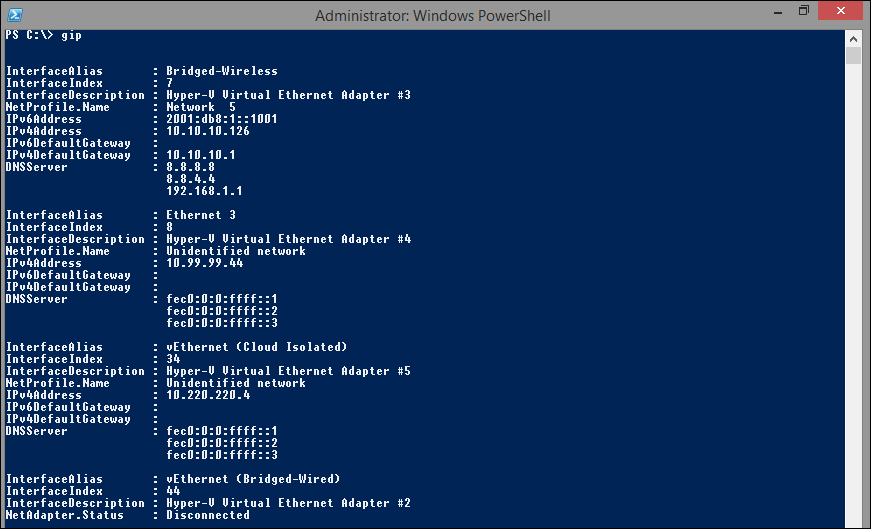
In Windows 8 and Windows Server 2012 and later, you can use the cmdlet Get-NetIPConfiguration or the alias gip to get your ip addresses instead of using ipconfig. Good stuff! (and nicer output)

2014-01-26 21-55-31/Johan