Category Archives: Office 365

Office 365, ADFS and double logons: WAP to the rescue!

One of the things that are causing a lot of headache using ADFS with ADFS-proxy in combination with Office 365, is the fact that you have to type in your username twice when logging on to the portal or to the webmail externally. One way to avoid this is just go to the webmail directly using the address http://outlook.com/domain.com, but it might not be the easiest address to remember for your end users.

Luckily enough, this has been sorted out when using the Web Application Proxy in Windows Server 2012 R2. The Web Application Proxy in Server 2012 R2 replaces the ADFS proxy in earlier versions of Windows Server, and have been expanded with functionality to publish other resources in a secure manner as well.

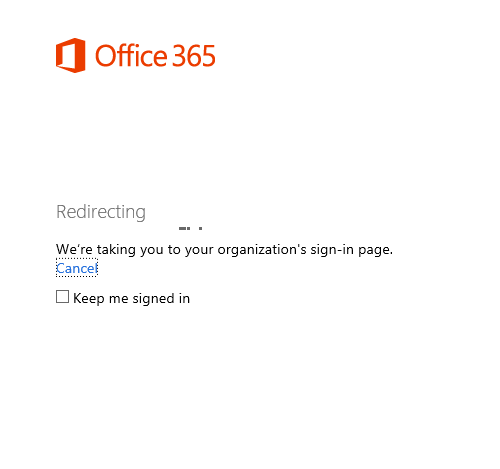
Here we are logging on as usual to mail.office365.com (or portal.microsoftonline.com), and of course the usual redirection is taking place after going to the password field.
2014-02-13 18-06-31

2014-02-13 18-06-52

Earlier, this would have been the place where you were putting in your username once again. Not this time though, your username have now been passed along to the Web Application Proxy and you can continue by just typing in your password!
2014-02-13 18-10-18

Never thought I could be impressed by such a small feature…
I think we’ll see lots of customers upgrading their ADFS infrastructure due to this! 🙂

/Johan

Windows Azure Multi Factor Authentication in Office 365

Windows Azure Multi Factor Authentication is a great service/Product that gives you a complete MFA solution both on premise and in the cloud. The best thing is that as of yesterday, it’s free for all accounts and not just for admin accounts.

Now you don’t have any excuses to not secure your admin accounts that have potentially access to multiple thousands of email accounts and other sensitive information.

One thing that I have not been testing until today, was to activate MFA for a Federated Administrator(DirSynced account with global administrator rights).
It works completely transparent for the user/admin, they just log on as they normally do to the ADFS server, and then the Azure MFA will kick in and require additional authentication.
How awesome is that?

Here’s how to activate MFA for an admin user (regardless if you’re using ADFS or not):

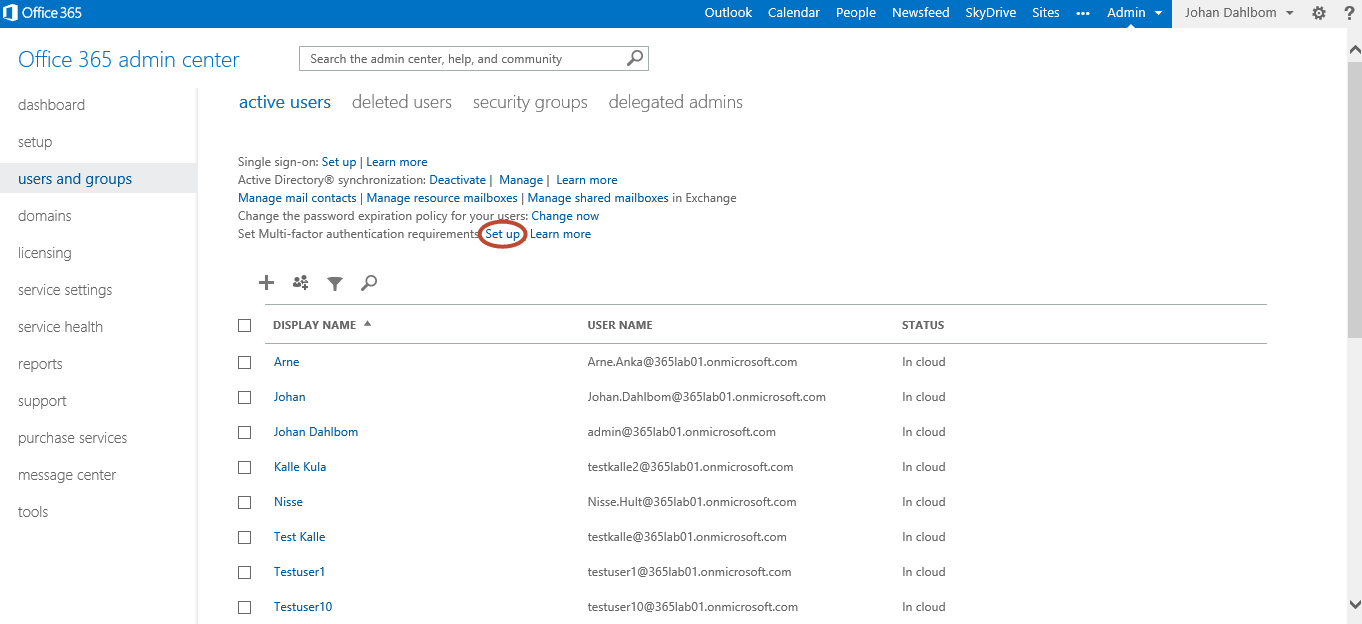
1. Logon to the O365-portal, under users and groups, find the “Set Multi-factor authentication requirements” row and click “Set up”.
2014-02-10 19-17-06

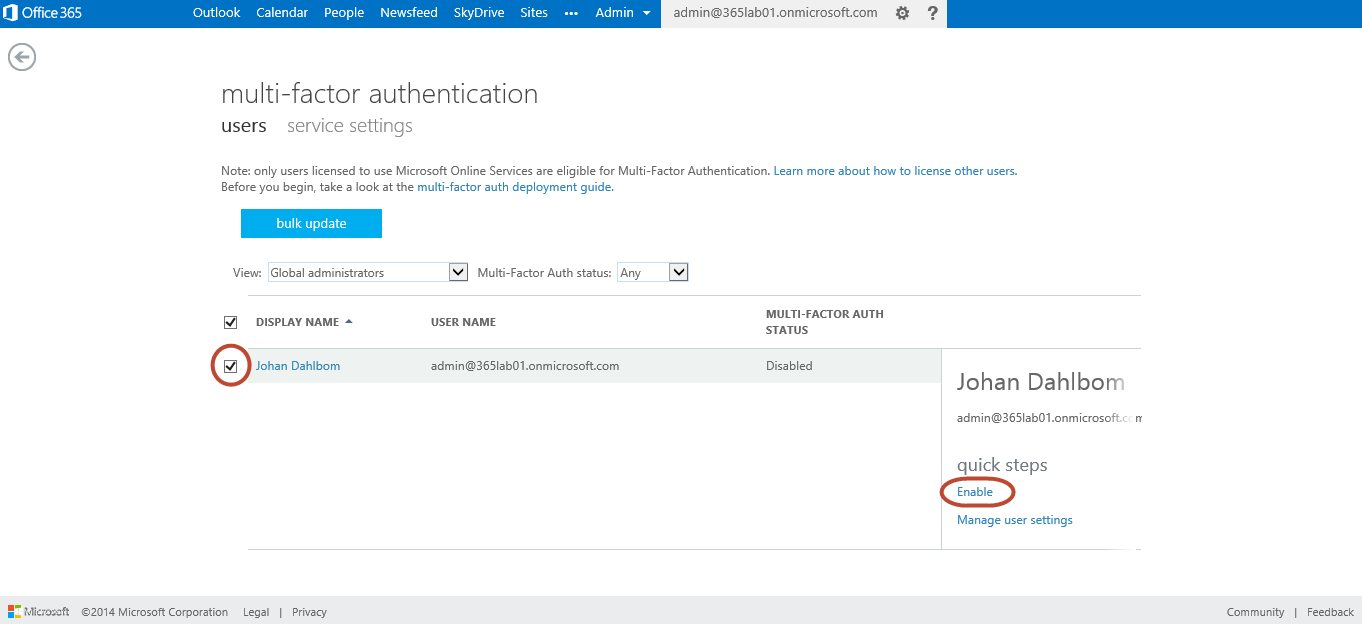
2. Choose the account(s) that you want to enable MFA for and click enable and then enable MFA.
2014-02-10 19-22-30
2014-02-10 19-27-38

3. After activated MFA, at next logon, the admin have to put in additional info about the second factor of authentication preferred. See the process to enroll devices as follows.
2014-02-10 19-37-24
Personally, I prefer using the mobile app as a second factor of authentication since its the easiest method, but it’s also possible to use text messages and phone for that.
2014-02-10 19-42-52
After verifying the activation with the Multi Factor Authentication app in my phone, I’m almost set, apart from one thing.
AzureMfaVerify
If you indend to use this account to connect to Office 365 with Outlook or ActiveSync, you will also need to create one or more app passwords that will be static passwords that can be used in cases where MFA doesn’t work.
2014-02-10 19-54-14

After creating eventual app passwords, you have now configured the specific account for multi factor authentication. Note that Microsoft is planning to add native multi-factor authentication for applications such as Outlook, Lync, Word, Excel, PowerPoint, PowerShell, and OneDrive for Business, with a release date planned for later in 2014.

Was it Hard? – No!
Should you use it whenever possible? – Yes!

Now, what’s your excuse to not activate Windows Azure Multi Factor Authentication for your Admin accounts?

/Johan

DirSync Configuration Error: “There is no such object on the server”

Recently, I ran across an issue deploying DirSync at a Customer.
The installation went well, but running the “Directory Sync Configuration Wizard” failed with the error message “There is no such object on the server”.
2014-02-03 09-14-26

Investigating the event logs, the configuration seemed to stop at the following event:
2014-02-03 09-19-06
Looking in to AD after the wizard had failed, no account had been created.
I then noticed that the Users container in the domain root was missing.
Since it is there DirSync by default tries to create the sync account and the container didn’t exist, it failed.

After recreating the Users container (can be done with either AdsiEdit or PowerShell), the Configuration Wizard completed successfully.

Recreate the users container with PowerShell

New-ADObject -Description "Default container for upgraded user accounts" ` 
             -Name Users ` 
             -Type Container `
             -ProtectedFromAccidentalDeletion $true

Hope this helps you if you are running in to this problem!

/Johan

Office 365: Start hybrid migrations and inform users

Lately I’ve been doing quite a few Hybrid setups.
One of the things that cause quite a lot of pain when doing migrations in general is getting information out to your users.
Even if you have a good communication plan, only 20% of your users read the information and only 5% of them reflect and understand it. 🙂

To make this a bit easier, I’ve created a small script that starts Hybrid migration batches and sends out information to the end user.
This is of course just an example, but gives you a good idea of what you are able to do with quite simple means.

HybridMigrationEmail

Getting started:

  • Review all relevant variables in the script
  • Change the text in BodyHybrid.txt to fit in to your needs, the html in that file will be the information sent in the email. The words ActiveSyncDevices,OWAAddress,EmailAddress and Firstname will automatically be replaced by its corresponding variables. (and no the css is not the best 🙂 )
  • Create the PDF Office365Info.pdf and put it in the same folder as the script, that file will be attached to the email.
  • Create input file Prepare-Mailboxes.csv with samAccountNames of the users that you want to migrate. (Note that I am assuming that the users Email Address and UserPrincipalName are the same in the script)
    Also note that the MoveRequest settings in the script might not fit your needs (Baditemlimit, Largeitemlimit).

As we are using the switch -SuspendWhenReadytoComplete in the script, the batches will autosuspend at 95% completion.
That means you’ll have to complete them manually with for example the following line:

Get-CloudMoveRequest | Where-Object {$_.Status -eq "AutoSuspended"} | Resume-CloudMoveRequest. 

Another good option to get in better control of your remote mailbox moves is to use Michael Halls excellent tool based on PowerShell and Excel that does that for you.

Start-HybridMigrations.ps1

<#
.SYNOPSIS
    Starts hybrid migrations based on input (samAccountName) from a csv file.
.DESCRIPTION
    The script starts hybrid migrations and sends out information emails based on the file "BodyHybrid.txt".
    PowerShell V3.0 required
.NOTES
    File Name: Start-HybridMigrations.ps1
    Author   : Johan Dahlbom, johan[at]dahlbom.eu
    The script are provided “AS IS” with no guarantees, no warranties, and they confer no rights.
#>

#Import Required Modules
Import-Module ActiveDirectory

#Define Mail Information and Logging
$Users = Get-Content Prepare-MailboxMoves.csv
$BodyHybrid = Get-Content BodyHybrid.txt -Raw
$OWAAddress = 'http://outlook.com/365lab.net'
$Attachment = Get-Childitem .\Office365Info.pdf
$PSScriptRoot = Split-Path -Parent -Path $MyInvocation.MyCommand.Definition
$Logfile = ($PSScriptRoot + "\HybridMigrations.log")

#Define Exchange Online Variables
$ExchServ = "exchangecas.corp.365lab.net"
$HybridServer = "webmail.365lab.net"
$DeliveryDomain = "365lab.mail.onmicrosoft.com"
$OnPremiseUsername = "cloud\svc_mailmigration"
$OnPremisePassword = ConvertTo-SecureString "password" -AsPlainText -Force
$CloudUsername = "svc-cloudmigration@365lab.onmicrosoft.com"
$CloudPassword = ConvertTo-SecureString "password" -AsPlainText -Force
$CloudCred = New-Object System.Management.Automation.PSCredential $CloudUsername, $CloudPassword
$OnPremCred = New-Object System.Management.Automation.PSCredential $OnPremiseUsername, $OnPremisePassword

#Connect to OnPremise Exchange
    if (!(Get-Command Get-ActiveSyncDeviceStatistics -ErrorAction SilentlyContinue)) {
    try {
        Add-PSSnapin Microsoft.Exchange.Management.PowerShell.E2010
    } catch {
            $Session = New-PSSession -ConfigurationName Microsoft.Exchange -ConnectionUri "http://$ExchServ/powershell" -Authentication Kerberos
            Import-PSSession -Session $Session -CommandName  Get-ActiveSyncDeviceStatistics -FormatTypeName * | Out-Null
        }
    }
#Connect to Exchange Online
    if (!(Get-Command New-CloudMoveRequest -ErrorAction SilentlyContinue))
    {
	    $session = New-PSSession -ConfigurationName Microsoft.Exchange -Authentication Basic -ConnectionUri https://ps.outlook.com/powershell -AllowRedirection:$true -Credential $CloudCred
	    Import-PSSession $session -Prefix Cloud
    }

function LogWrite {
Param ([string]$Logstring)
Add-Content $Logfile -value $logstring -ErrorAction Stop
Write-Host $logstring
}

function Send-MigrationMail {
param(
[Parameter(Mandatory=$true)]
[string]$Message,
[Parameter(Mandatory=$true)]
[string]$Recipient
)
    $emailFrom = "Office 365 Migration <office365@365lab.net>"
    $smtpserver = "smtpyrelay.365lab.net"
    $subject = "Email Migration Started"
    $cc = "migrator@365lab.net"

    Send-MailMessage -From $emailfrom -To $Recipient -Cc $cc -SmtpServer $smtpserver -Subject $subject -Body $Message -BodyAsHtml -Attachments $Attachment

}
LogWrite "$(get-date -Format u)"
foreach($aduser in $users) {
	$emailAddress = (Get-ADuser $aduser -properties UserPrincipalName).UserPrincipalName
	$firstname = (Get-ADuser $aduser).givenname
        #Find the number of Active ActiveSyncDevices that the user have in the local Exchange solution. If not, set to 0.
		$ActiveSyncDevices = (Get-ActiveSyncDeviceStatistics -Mailbox $aduser | Where-Object {$_.LastSuccessSync -gt (Get-Date).AddDays(-30)}).count
        if (!($ActiveSyncDevices)) {
            $ActiveSyncDevices = "0"
        }
	    #Start Email Migration for user
        try {
            New-CloudMoveRequest -Identity $emailaddress -Remote -RemoteHostName $HybridServer -RemoteCredential $OnPremCred -TargetDeliveryDomain $DeliveryDomain -BatchName $emailAddress -SuspendWhenReadyToComplete -BadItemLimit 50 -LargeItemLimit 50
	} catch {
            $err = $_
            Logwrite "ERROR: Failed to start migration on $($emailAddress)`r`n$($err)"
        }

        #Verify that the move request was successful and send information email
        if ((Get-CloudMoveRequest | Where-Object {$_.BatchName -eq $emailAddress} -ErrorAction SilentlyContinue)) {
            LogWrite "INFO: Started migration of user $($emailAddress) $(get-date -format u)"
            Send-MigrationMail -Recipient $emailAddress -Message $BodyHybrid.Replace('firstname',"$firstname").Replace('ActiveSyncDevices',"$ActiveSyncDevices").Replace("emailaddress","$emailaddress").Replace("OWAAddress","$OWAAddress")
        }else{
            LogWrite "ERROR: Could not start migration for user $($emailAddress), please verify that user exists"
        }
}

The script would of course be possible to extend with lots of things like license assignment, watching the mailboxes as they move and lots and lots of other things, but that’s for another day.
Just let me know if you have suggestions on improvements or other things that should be changed.
Download the script complete with the HTML-template and example csv file from here.

Happy migrations!

/Johan

Office 365: Migrating DirSync to new AD domain

Disclaimer
This blog post was written for older versions of Office 365 and Azure AD, and has not been tested in the latest version. Always make sure that you have a valid backup before making any changes to your system.

In a migration scenario you might need to replace the Active Directory domain used to sync your users to Office 365. I will go through the steps you need to change AD domain.

In this scenario I assume that ADFS is not used. If it is, you first have to disable federation. I suggest looking at my previous post where I described how to switch from ADFS to Password Sync.

The steps we have to go through are:

  1. Disable DirSync in old domain
  2. Populate new AD domain with users and attributes
  3. Prepare Office 365 users for new domain
  4. Install DirSync in the new domain.
  5. Verify Sync

First, disabling DirSync is very easy. Just go to the Office 365 admin center and click the Deativate link under users and groups.

dirsync-change-domain-1This will take up to 72 hours. When this process is over all user accounts are managed in the Office 365 portal, and there is no connection to your old domain. This change will not cause any service interruption, all users will be able to use their services as normal.

In the meantime you can uninstall the Azure Active Directory Sync tool on the old DirSync server.

The second step is to populate your new AD domain with all user accounts. It is now important that you copy all information from the old domain, (i.e. phone numbers, titles etc), and for Exchange Online it is especially important that these attributes are copied:

  • userPrincipalName
  • proxyAddresses
  • legacyExchangeDN

UserPrincipalName is your login name to Office 365. I don’t think I have to explain why this attribute is important 🙂 . ProxyAddresses are all your email addresses, both primary and alias. The last attribute, legacyExchangeDN, is used if you previously have migrated from an Exchange on-premises to Office 365. It is used for internal addressing in Exchange. If it is removed you will not be able to reply to old emails, meeting invitations, and your Suggested Contacts will also fail.

I will not go through here how to migrate these attributes here, check out our post on how to sync attributes from cloud identities to active directory.

The third step is where the magic happens. Office 365 uses the ObjectGUID attribute to keep track of the user accounts in in your on-premises Active Directory. It is translated to an ImmutableID in Azure Active Directory. If you rename your users, the ObjectGUID is untouched. Hence the name ImmutableID.

dirsync-change-domain-2The problem is that when you move to a new domain, all ObjectGUIDs are changed, and we need to generate a new ImmutableID.

Office 365 generates these IDs for us, we just have to clear the attribute on all users in Office 365. This is easily done with PowerShell:

Set-MsolUser -UserPrincipalName "aaron.beverly@365lab.net" -ImmutableId "$null"

The next step is to activate DirSync in the Office 365 portal again, and then reinstall the Azure Active Directory Sync tool on a server in the new domain. I strongly recommend using a new server for this step. Re-using the old server (after joining it to the new domain) might break your sync.

After the installation a full sync is done. The Sync tool will identify and match the users in Office 365 and Active Directory by the primary email address. If a match is found a new ImmutableID is created and written to Azure Active Directory.

Finally, after the initial sync is done we can look in Synchronization Service Manager to check that all users were matched and that we don’t have any sync errors.

/ Andreas

Change from ADFS to Password Sync in Office 365

Disclaimer
This blog post is reflecting how the process was made in early 2014, and has since then been replaced with built-in tools in ADConnect.

Some time ago Johan wrote a post about how to convert a federated domain to a standard domain in Office 365. Much has happened since, and one feature that has been added is to synchronize the passwords between on-premises Active Directory and Office 365.

An important reason to implement ADFS and federation is to keep all user passwords the same, to reduce support and Helpdesk calls. The drawback is that a high availability server (or even better, an ADFS farm distributed over several locations) is needed on-premises. If your internet connection is dropping, no-one will able to access Exchange or SharePoint even though it is located “in the Cloud”.

Now when Password Sync is available, some organizations choose to retire their ADFS servers to implement Password Sync instead. It is now possible to have the same password in all systems without those high availability servers.

The process to move to a non-federated state with Password Sync is similar to how Johan described the process, but to minimize the service interruption for your end-users there are a few things to think of. All steps below are performed on the server hosting the Azure Active Directory Sync tool.

  1. First of all you need to upgrade to the latest version of Azure Active Directory Sync tool. The upgrade process is simple; just uninstall the old version and install the new one. The installation may take a few minutes. Make sure that you check the Password Sync option during installation. End by running the Configuration Wizard.
  2. Check the Synchronization Service Manager (miisclient.exe) to make sure that the synchronization was successful. You may have to log off and log in again to be able to access Synchronization Service Manager.
  3. Time for PowerShell 🙂
    #Connect to MSOnline
    Import-Module MSOnline
    
    #Enter credentials
    Connect-MsolService
    
    #Set context and credentials
    Set-MsolADFSContext -Computer srv01
    
    #From here on the Office 365 services will be unavailable 
    #for the end-users until all passwords are in in sync.
    
    #This is where we change our federated domain to a standard domain.
    #This command generates a text file with new random passwords for all users.
    #In the next step we will replace these passwords with passwords synced from AD.
    Convert-MSOLDomainToStandard -DomainName "mydomain.com" -SkipUserConversion $false -PasswordFile C:\userpwd.txt
    
    #Make sure that all user passwords has ForceChangePassword flag set to False
    Get-MsolUser -Synchronized | Set-MsolUserPassword -ForceChangePassword $false
    
    
  4. Now all users are converted. A file with new temporary passwords for each user is saved to the path you specified, but we will not use it. Instead, we now have to initialize a full password sync.

To see the status of the password sync you should check the Application Log in Event Viewer for event id 657. When all passwords are synchronised the users will be able to access their services again. This will take a few minutes depending on the number of users in your environment.

/ Andreas

Managing Office 365 e-mail addresses easy with PowerShell when using DirSync

In most cases you uninstall your local Exchange server after migrating your e-mail to Exchange Online. If you also choose to implement DirSync you place the administration in your local domain instead of the Office 365 Administration Portal.

This means that there is no longer a GUI tool to handle some of the settings related to your mailboxes. Of course you can keep a machine with your old Exchange 2010 Management Console, but often the reason for moving to the cloud is to reduce the complexity and minimize the number of machines.

We don’t have the same problem with other attributes, for example displayname or phone numbers that you’ll find in Users and Computers or the Administrative Center introduced in Windows Server 2008. It does get a bit trickier when you are about to modify primary email address or add alias addresses.

Currently there are no available GUI tools from Microsoft to handle these types of updates easy (but keep your eyes open, things might change 😉 ). However, there are a few third-party tools to achieve this, unless you want to use the Attribute Editor in Users and Computers, or Adsiedit.

Since I’m a big fan of PowerShell I wanted to build a small set of tools to handle simple changes of email addresses. These functions are easy for you to use in your own scripts.

First of all, a function that lists all email addresses of a user:

function Get-O365AliasAddress {
<#
.SYNOPSIS
    Displays all email addresses assigned to a user.
.PARAMETER Identity
    The user to query.
.EXAMPLE
    Get-O365AliasAddress -Identity user01
.EXAMPLE
    Get-ADUser user01 | Get-O365AliasAddress
.NOTES
    Author: Andreas Lindahl
    Blog: 365lab.net
    Email: andreas.lindahl[at]jsc.se
    The script are provided “AS IS” with no guarantees, no warranties, and they confer no rights.
#>

    [CmdletBinding()]
    param (
        [Parameter(ValueFromPipelineByPropertyName=$true,Mandatory=$True,ValueFromPipeline=$True,
        HelpMessage="The name of the user to get addresses of")]
        [string]$Identity
    )

    Import-Module ActiveDirectory

    $result = @()

    (Get-ADUser -Identity $Identity -Properties proxyAddresses).proxyAddresses | foreach {
        $proxy =  $_.split(":")
        $object = New-Object System.Object
        $object | Add-Member –Type NoteProperty –Name Type –Value $proxy[0]
        $object | Add-Member –Type NoteProperty –Name Address –Value $proxy[1]
        $object | Add-Member –Type NoteProperty –Name IsPrimary –Value ($proxy[0] -ceq $($proxy[0].ToUpper()))
        $result += $object
    }
    return $result
}

Next, a function that adds an alias to an existing user

function Add-O365AliasAddress {
<#
.SYNOPSIS
    Adds an alias address to a user.
.PARAMETER Identity
    The user to modify.
.PARAMETER Address
    The address to add.
.PARAMETER Type
    The type of address. Default is smtp.
.PARAMETER SetAsDefault
    Indicates if the address should be de default address of the user
.EXAMPLE
    Add-O365AliasAddress -Identity user01 -Address test@365lab.net -SetAsPrimary
.NOTES
    Author: Andreas Lindahl
    Blog: 365lab.net
    Email: andreas.lindahl[at]jsc.se
    The script are provided “AS IS” with no guarantees, no warranties, and they confer no rights.
#>

    [CmdletBinding()]
    param (
        [Parameter(ValueFromPipelineByPropertyName=$true,Mandatory=$True,ValueFromPipeline=$True,
        HelpMessage="The name of the user")]
        [string]$Identity,

        [Parameter(Mandatory=$True,
        HelpMessage="The address to add")]
        [string]$Address,

        [Parameter(
        HelpMessage="The type of the address to add")]
        [string]$Type="smtp",

        [Parameter(
        HelpMessage="Indicates that the address will be set as the default address")]
        [switch]$SetAsDefault
    )

    Import-Module ActiveDirectory

    $Type = $Type.ToLower()

    $defaultaddress = ''
    $proxyaddresses = ''
    $proxyaddress = ''

    #Get all existing proxyAddresses of the same type
    $proxyaddresses = (Get-ADUser -Identity $Identity -Properties proxyAddresses).proxyAddresses | where-object { $_ -like "$Type*" }

    #Get current default address of this type
    foreach ($proxyaddress in $proxyaddresses) {
        $pa = $proxyaddress.split(':')
        if ($pa[0] -ceq $pa[0].ToUpper()) {
            $defaultaddress = $proxyaddress
        }
    }

    #If this is the first address, it will be the default
    if ($proxyaddresses.count -eq 0) {
        $SetAsDefault = $true
    }

    if ($SetAsDefault) {

        #New default address to set. Start by removing the old one, but keep it as alias.
        if ($defaultaddress) {
            $pa = $defaultaddress.split(':')
            $newdefaultaddress = "$($pa[0].ToLower()):$($pa[1])"
            Set-ADUser -Identity $Identity -Remove @{proxyaddresses=$defaultaddress} -Add @{proxyaddresses=$newdefaultaddress}
        }

        #Set new default address. In case it already exists, remove it first (it might already be used as alias)
        if ($Type -eq 'SMTP') {
            Set-ADUser -Identity $Identity -Remove @{proxyaddresses="$($Type.ToLower()):$Address" } -Add @{proxyaddresses="$($Type.ToUpper()):$Address" } -EmailAddress $Address
        } else {
            Set-ADUser -Identity $Identity -Remove @{proxyaddresses="$($Type.ToLower()):$Address" } -Add @{proxyaddresses="$($Type.ToUpper()):$Address" }
        }

    } else {
        #Just add the new address
        Set-ADUser -Identity $Identity -Add @{proxyaddresses="$($Type):$Address" }
    }
}

Finally we also need a script to delete addresses

function Remove-O365AliasAddress {
<#
.SYNOPSIS
    Removes an alias address from a user.
.PARAMETER Identity
    The user to modify.
.PARAMETER Address
    The address to remove.
.PARAMETER Type
    The type of address. Default is smtp.
.EXAMPLE
    Remove-O365AliasAddress -Identity user01 -Address test@365lab.net
.NOTES
    Author: Andreas Lindahl
    Blog: 365lab.net
    Email: andreas.lindahl[at]jsc.se
    The script are provided “AS IS” with no guarantees, no warranties, and they confer no rights.
#>

    [CmdletBinding()]
    param (
        [Parameter(ValueFromPipelineByPropertyName=$true,Mandatory=$True,ValueFromPipeline=$True,
        HelpMessage="The name of the user")]
        [string]$Identity,

        [Parameter(Mandatory=$True,
        HelpMessage="The address to remove")]
        [string]$Address,

        [Parameter(
        HelpMessage="The type of the address to remove")]
        [string]$Type="smtp"

    )

    Import-Module ActiveDirectory

    $Type = $Type.ToLower()
    $defaultaddress = ''
    $newdefaultaddress = ''
    $proxyaddresses = ''

    #Get all existing proxyAddresses of the same type
    $proxyaddresses = (Get-ADUser -Identity $Identity -Properties proxyAddresses).proxyAddresses | where-object { $_ -like "$Type*" }

    #Get current default address of this type
    foreach ($proxyaddress in $proxyaddresses) {
        $pa = $proxyaddress.split(':')
        if ($pa[0] -ceq $pa[0].ToUpper()) {
            $defaultaddress = $proxyaddress
        }
    }

    if ($defaultaddress -eq "$($Type):$Address") {
        #We are trying to remove the default address. Now it becomes a bit tricky...
        #First, find the next address of the same type that we can use as default address
        foreach ($proxyaddress in $proxyaddresses) {
            if ($proxyaddress -ne "$($Type):$Address") {
                $newdefaultaddress = $proxyaddress
                break
            }
        }
    }

    #Now we can remove the address
    Set-ADUser -Identity $Identity -Remove @{proxyaddresses="$($Type):$Address"}
    if ($Type -eq 'smtp' -and $defaultaddress -eq "$($Type):$Address") {
        Set-ADUser -Identity $Identity -Clear mail
    }

    if ($newdefaultaddress) {
        #Set $newdefaultaddress as new default address
        Write-Warning "New default address set: $newdefaultaddress"
        Add-O365AliasAddress -Identity $Identity -Address $newdefaultaddress.split(":")[1] -Type $Type -SetAsDefault
    }
}

Now we can play with these functions:

O365AliasAddress

I have put together a PowerShell Module for you to import. Just load it with the Import-Module cmdlet.

Import-Module O365ProxyAddresses

The module can be downloaded here.

I hope that you will find these functions useful in your daily user administration tasks. Please leave your comments below and feel free to suggest improvements.

Happy coding!

/ Andreas

Quick Tip: Using a custom domain to connect to Office 365 Webmail

Office365-sign-inAfter migrating to Office 365 it can be hard to communicate the new webmail addresses to all end-users. Especially when performing a cut-over migration all users suddenly need to be informed about the new address to use.

Office 365 uses many different host names, for example portal.microsoftonline.com and login.microsoftonline.com, both taking you to the portal page where users can access all services or download desktop software. But you still have to use the Outlook link in the portal page to access your mail. How can we make this simpler for the end-users?

If your tenant is set up with ADFS you want to use the address outlook.com/yourdomain.com. This automatically logs you on directly to the webmail using your domain credentials, allowing single sign-on to Office 365. Unfortunately with a custom domain this can only be achieved using a local web server that handles the redirect to the correct web page.

So, what to do then? I don’t want to set up a web server just to handle a redirect. Luckily there is an easy workaround to this: Use DNS to create a CNAME (for example mail.mydomain.com) that point to mail.office365.com. This presents a login screen for the users, and they will then be logged on directly to the webmail page.

The CNAME can be created using PowerShell cmdlets for DNS, which was introduced in Windows Server 2012:

Add-DnsServerResourceRecordCName -HostNameAlias mail.office365.com -Name mail -ZoneName mydomain.com

If you are using ADFS the users must check the “Keep me signed in” checkbox to handle single sign-on in the future.

/ Andreas

Mail flow rules for alias email addresses in Exchange Online

Stumbled upon an ‘issue/feature’ with mail flow rules (transport rules) that I’ve encountered before a couple of days ago and thought it was a good idea sharing.
It’s always good to get a reminder of things from time to time, even if it might be a bit obvious 🙂
The ‘issue’ do of course apply to Exchange On premise environments as well.

Case:
The user Kalle Kula have three email addresses as following:
SMTP:kalle.kula@corp.365lab.net (primary)
smtp:kalle.kula@spam.365lab.net
smtp:kalle.kula@365lab.onmicrosoft.com

If an email is sent to the address kalle.kula@spam.365lab.net (one of the alias email address for the user), we want to append a disclamer that states “This email was sent to the domain spam.365lab.net”

How to do it:
1. In Exchange Admin Center, under mail flow -> rules, create a new dislaimer rule.
2014-01-02 13-18-37
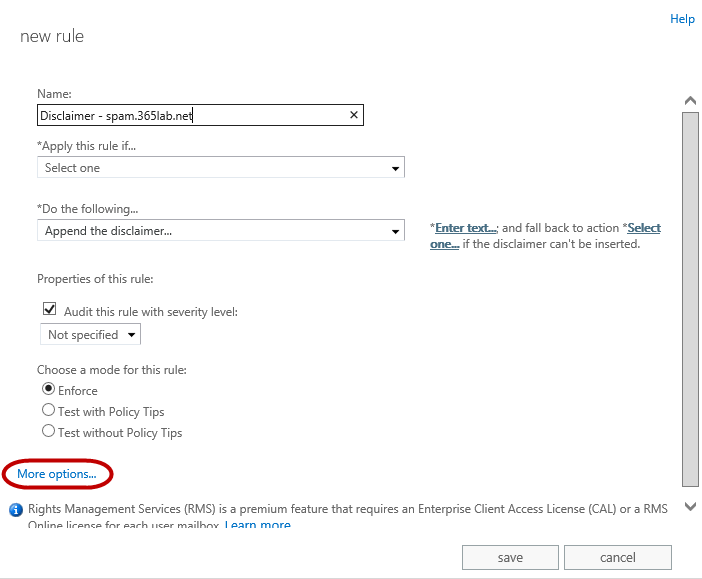
2. To be able to do more granular selection and actions, click “More Options” in the bottom left corner.

2014-01-02 13-22-46
3. Then create your rule with the following options.

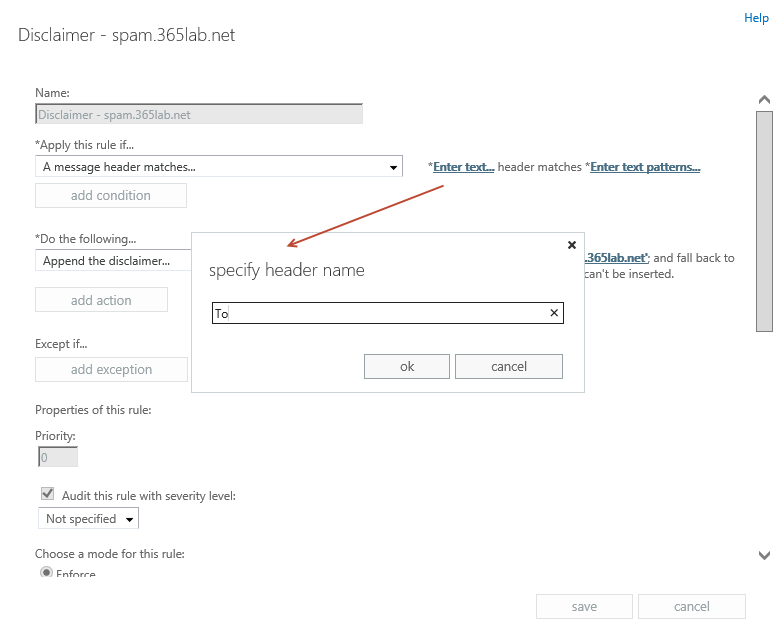
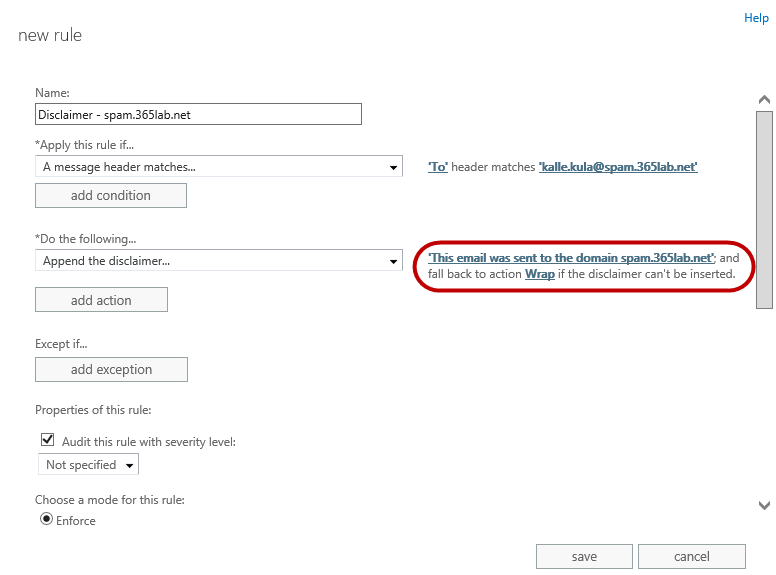
The logical thing here would have been to apply the rule if the recipient address matches my particular address, but that does only work for primary email addresses. So therefore we need to apply it on the header “To” and match the text pattern kalle.kula@spam.365lab.net (the alias address)

2014-01-02 13-36-072014-01-02 13-37-172014-01-02 13-39-00  

Add your disclaimer and set fall back action.
2014-01-02 13-42-27
The only thing you need to do now for the policy to be applied on future emails is to choose mode: Enforce, save it and you’re done!

If you want to check whether a rule has been used or not, you can use EAC as well.
2014-01-02 14-07-11

PowerShell version:
To do the same as above with PowerShell, you can use the following PowerShell lines:

 
#Connect to Exchange Online with PowerShell
$cred = Get-Credential
$O365 = New-PSSession -ConfigurationName Microsoft.Exchange -ConnectionUri https://ps.outlook.com/powershell -Credential $cred -Authentication Basic -AllowRedirection 
$importcmd = Import-PSSession $O365 
#Create the Mail Flow rule (transport rule)
New-TransportRule -Name "Disclaimer - spam.365lab.net" `
                   -HeaderMatchesPatterns {kalle.kula@spam.365lab.net} `
                   -HeaderMatchesMessageHeader To `
                   -ApplyHtmlDisclaimerText "This email was sent to the domain spam.365lab.net" `
                   -ApplyHtmlDisclaimerLocation Append `
                   -ApplyHtmlDisclaimerFallbackAction Wrap `
                   -Mode Enforce 

Further documentation on mail flow rules (transport rules) you find on http://technet.microsoft.com/en-us/library/dd351127(v=exchg.150).aspx.

/Johan

Office 365 PowerShell tip: Automatically assign licenses based on AD attribute

Important note: The end of an era with licensing scripts is near… and the beginning of a new one with Azure AD Group Based Licensing is here. Group Based Licensing is now in preview and currently requires a paid Azure AD Subscription. Try it out and give Microsoft your feedback on how they can make it even better! 

Using DirSync in combination with Office 365 / Windows Azure Active Directory is great.
It automates user creation and makes you able to master all user creation changes from on premises.
There is just one(or two) things you need to do manually, assign licenses…
This can be done both in the portal or with PowerShell.

Depending on how your license structure looks like and how large environment you have, you might want to automate this in a more convenient way. There is a Wiki article on TechNet with a few examples on how to automate it as well (both with Security Groups and AD attributes). http://social.technet.microsoft.com/wiki/contents/articles/15905.how-to-use-powershell-to-automatically-assign-licenses-to-your-office365-users.aspx

Until Microsoft has come up with an integrated solution for this in DirSync or something else, we have to stick with PowerShell…

The case:
In my case we want to assign Office 365 licenses based on a local AD attribute of your choice fully automated and minimal input.
We also want a bit of logging so we are able to find and fix errors as easy as possible.

In order to assign a license in Office 365, we need to assign two attributes on a user(of course the user must exist…):
UsageLocation and Licenses
Also, if a user has a valid license assigned, the boolean IsLicensed will be set to True.
2013-12-30 15-26-24

The ‘Licenses’ attribute contains “tenantname:LICENSESKU”, which in my case above is “mstlegacy:ENTERPRISEPACK” for an E3 license.
So, when assigning a license with PowerShell we need to know the SKUID of the particular license we are using.

We can also disable specific parts of a license, for example SharePoint when we assign the license. More details about ‘manual’ PowerShell assignment of licenses in Office 365 you’ll find here.

Solution

My script activates Office 365 users based on the AD attribute of your choise.
It requires you to populated the AD attribute with a string that identifies the license type for the particular user.
Default AD attribute used in the script is employeeType.

Supported license types with AD attributes as below (attribute to the left):
E1 – Office 365 for Enterprises E1
E3 – Office 365 for Enterprises E3
K1 – Deskless user without Office
E2 – Deskless user with Office
A1S – Office 365 for Education A1 (Students)
A2S – Office 365 for Education A2 (Students)
A3S – Office 365 for Education A3 (Students)
A1F – Office 365 for Education A1 (Faculty)
A2F – Office 365 for Education A2 (Faculty)
A3F – Office 365 for Education A3 (Faculty)
2014-01-01 15-31-22
In case the AD attribute Country is populated in your AD, it will automatically use that attribute to populate UsageLocation of the user in Office 365, otherwise it will default back to the parameter $DefaultCountry.

It will log all changes and errors to the logfile MSOL-UserActivation.log within the same folder you run the script.
Running the script
Prereqs:

Example – first time use:
As a preparation have to change the default value of $AdminUser parameter or use the parameter -AdminUser to an actual adminuser of your tenant.
On first use it’ll then ask you for the password and then store encrypted with DPAPI to a file in the same folder where you run the script. This so you can run without user interaction in the future.

.\ActivateMSOLUser.ps1 -AdminUser DirSync@mstlegacy.onmicrosoft.com

2013-12-30 16-31-16
(Hopefully you will type in the correct password… 🙂 )

After you’ve finished with the first time configuration, you are ready to actually start assigning licenses.
Example 1 – Activate all K1,K2 and E3 licenses with default AD attribute (employeeType)

.\ActivateMSOLUser.ps1 -AdminUser dirsync@mstlegacy.onmicrosoft.com -Licenses K1,K2,E3

2013-12-30 16-45-58
As seen above, 2 unlicensed users were found in Office 365, but only one of them had the required local AD attribute (employeeType in this case), set to ‘E3’.
I also go two errors since I didn’t have any K1 or K2 licenses in my tenant.

Example 2 – Activate all E3 licenses with custom AD attribute (msDS-cloudExtensionAttribute1) and MasterOnPremise

.\ActivateMSOLUser.ps1 -AdminUser dirsync@mstlegacy.onmicrosoft.com -Licenses E3 -LicenseAttribute msDS-cloudExtensionAttribute1 -MasterOnPremise

2013-12-30 16-57-28
In the above example we found one user to activate, but with the switch -MasterOnPremise we looked in to our local ad instead checking Office 365 for unlicensed users, and reported back to the attribute when the license was successfully assigned.
This can be useful if you for some reason have a lot of unlicensed users in Office 365 that you intend to keep that way.

Note: Since the -MasterOnPremise function writes back to your AD, the account that runs the script will in that case need write permissions to that AD attribute.

2013-12-30 17-03-59

Next Step
In order to make this fully automated, you will also need to schedule this as a task that runs (preferably) as often as your DirSync goes which by default is every 3 hours, an article on how to do that is here.

I’ve been running the script for a while and it works very well, of course some parts can be done more efficient. If you find any bugs or other issues, let me know!

The script can be downloaded from here, or cut’n’paste it from below…

Happy Licensing!
/Johan

ActivateMSOLUsers.ps1

<# .SYNOPSIS     The script automatically assigns licenses in Office 365 based on AD-attributes of your choice. .DESCRIPTION     Fetches your Office 365 tenant Account SKU's in order to assign licenses based on them.     Sets mandatory attribute UsageLocation for the user in Office 365 based on local AD attribute Country (or default)     If switch -MasterOnPremise has been used:     Assigns Office 365 licenses to the user based on an AD-attribute and reports back to the same attribute if a license was successfully assigned.     If not:     Looks after unlicensed users in Office365, checks if the unlicensed user has the right attribute in ad to be verified, otherwise not. .PARAMETER MasterOnPremise     Switch, If used, it  Assigns Office 365 licenses to the user based on an AD-attribute and reports back to the same attribute if a license was successfully assigned.     .PARAMETER Licenses     Array, defines the licenses used and to activate, specific set of licenses supported. "K1","K2","E1","E3","A1S","A2S","A3S","A1F","A2F","A3F" .PARAMETER LicenseAttribute     String, the attribute  used on premise to identify licenses .PARAMETER AdminUser     Adminuser in tenant .PARAMETER DefaultCountry     Defaultcountry for users if not defined in active directory              .NOTES     File Name: ActivateMSOLUsers.ps1     Author   : Johan Dahlbom, johan[at]dahlbom.eu     The script are provided “AS IS” with no guarantees, no warranties, and they confer no rights.     #>
param(
[parameter(Mandatory=$false)]
[Switch]
$MasterOnPremise = $false,

[parameter(Mandatory=$false,HelpMessage="Please provide the SKU's you want to activate")]
[ValidateSet("K1","K2","E1","E3","A1S","A2S","A3S","A1F","A2F","A3F")]
[ValidateNotNullOrEmpty()]
[array]
$Licenses,

[parameter(Mandatory=$false)]
[string]
$LicenseAttribute = "employeeType",

[parameter(Mandatory=$false)]
[string]
$AdminUser = "admin@tenant.onmicrosoft.com",

[parameter(Mandatory=$false)]
[string]
$DefaultCountry = "SE"
)
#Define variables
$PSScriptRoot = Split-Path -Parent -Path $MyInvocation.MyCommand.Definition
$Logfile = ($PSScriptRoot + "\MSOL-UserActivation.log")
$TimeDate = Get-Date -Format "yyyy-MM-dd-HH:mm"
$SupportedSKUs = @{
                    "K1" = "DESKLESSPACK"
                    "K2" = "DESKLESSWOFFPACK"
                    "E1" = "STANDARDPACK"
                    "E3" = "ENTERPRISEPACK"
                    "A1S" = "STANDARDPACK_STUDENT"
                    "A2S" = "STANDARDWOFFPACK_STUDENT"
                    "A3S" = "ENTERPRISEPACK_STUDENT"
                    "A1F" = "STANDARDPACK_FACULTY"
                    "A2F" = "STANDARDWOFFPACK_FACULTY"
                    "A3F" = "ENTERPRISEPACK_FACULTY"

                    }

################################################
##### Functions

#Function to Import Modules with error handling
Function Import-MyModule
{
Param([string]$name)
    if(-not(Get-Module -name $name))
    {
        if(Get-Module -ListAvailable $name)
        {
            Import-Module -Name $name
            Write-Host "Imported module $name" -ForegroundColor Yellow
        }
        else
        {
            Throw "Module $name is not installed. Exiting..."
        }
    }
    else
    {
        Write-Host "Module $name is already loaded..." -ForegroundColor Yellow }
    }

#Function to log to file and write output to host
Function LogWrite
{
Param ([string]$Logstring)
Add-Content $Logfile -value $logstring -ErrorAction Stop
Write-Host $logstring
}
#Function to activate your users based on ad attribute
Function Activate-MsolUsers
{
Param([string]$SKU)

    begin {
        #Set counter to 0
        $i = 0
    }

        process {

            #Catch and log errors
            trap {
                $ErrorText = $_.ToString()
		        LogWrite "Error: $_"
                $error.Clear()
                Continue
            }

            #If the switch -MasterOnPremise has been used, start processing licenses from the AD-attribute

            if ($MasterOnPremise) {

		    $UsersToActivate = Get-ADUser -filter {$LicenseAttribute -eq $SKU} -Properties $LicenseAttribute,Country -ErrorAction Stop

                if ($UsersToActivate)
			    {
			    $NumUsers = ($UsersToActivate | Measure-Object).Count

			    LogWrite "Info: $NumUsers user(s) to activate with $SKU"
                foreach($user in $UsersToActivate) {

                          trap {
                                $ErrorText = $_.ToString()
		                        LogWrite "Error: $_"
                                $error.Clear()
                                Continue
                            }
                        $UPN = $user.userprincipalname
                        $Country = $user.Country
                        LogWrite "Info: Trying to assign licenses to: $UPN"
                                if (!($country)) {
                                    $Country = $DefaultCountry }

                        if ((Get-MsolUser -UserPrincipalName $UPN -ErrorAction Stop)) {

                                Set-MsolUser -UserPrincipalName $UPN -UsageLocation $country -Erroraction Stop
                                Set-MsolUserLicense -UserPrincipalName $UPN -AddLicenses $SKUID -Erroraction Stop
									#Verify License Assignment
									if (Get-MsolUser -UserPrincipalName $UPN | Where-Object {$_.IsLicensed -eq $true}) {
										Set-ADUser $user -Replace @{$LicenseAttribute=$SKU+' - Licensed at ' + $TimeDate}
										LogWrite "Info: $upn successfully licensed with $SKU"
                                        $i++;
									}
									else
									{
										LogWrite "Error: Failed to license $UPN with $SKU, please do further troubleshooting"

									}
                        }
				    }
			    }
            }
	#If no switch has been used, process users and licenses from MSOnline
            else {
			    $UsersToActivate = Get-MsolUser -UnlicensedUsersOnly -All
				    if ($Userstoactivate)
				    {
				    $NumUsers = $UsersToActivate.Count
				    LogWrite "Info: $NumUsers unlicensed user(s) in tenant: $($SKUID.ToLower().Split(':')[0]).onmicrosoft.com"
				    foreach ($user in $UsersToActivate) {
                                trap {
                                        $ErrorText = $_.ToString()
		                                LogWrite "Error: $_"
                                        $error.Clear()
                                        Continue
                                }

					        $UPN = $user.UserPrincipalName
					        $ADUser = Get-Aduser -Filter {userPrincipalName -eq $UPN} -Properties $LicenseAttribute,Country -ErrorAction Stop
					        $Country = $ADUser.Country
							    if (!($Country)) {
								$Country = $DefaultCountry
							    }
					        if ($ADUser.$LicenseAttribute -eq $SKU) {
						        LogWrite "Info: Trying to assign licenses to: $UPN"
						        Set-MsolUser -UserPrincipalName $UPN -UsageLocation $country -Erroraction Stop
						        Set-MsolUserLicense -UserPrincipalName $UPN -AddLicenses $SKUID -Erroraction Stop

						        #Verify License Assignment
						        if (Get-MsolUser -UserPrincipalName $UPN | Where-Object {$_.IsLicensed -eq $true}) {
							    LogWrite "Info: $upn successfully licensed with $SKU"
                                $i++;
						        }
						   else
						        {

                                LogWrite "Error: Failed to license $UPN with $SKU, please do further troubleshooting"

						        }
				        }
			        }
		        }
	        }
        }

    End{
    LogWrite "Info: $i user(s) was activated with $license ($SKUID)"
	}
}
################################################
#Import modules required for the script to run
Import-MyModule MsOnline
Import-MyModule ActiveDirectory

	#Start logging and check logfile access
	try
	{
		LogWrite -Logstring "**************************************************`r`nLicense activation job started at $timedate`r`n**************************************************"
	}
	catch
	{
		Throw "You don't have write permissions to $logfile, please start an elevated PowerShell prompt or change NTFS permissions"
	}

    #Connect to Azure Active Directory
	try
	{
		$PasswordFile = ($PSScriptRoot + "\$adminuser.txt")
		if (!(Test-Path  -Path $passwordfile))
			{
				Write-Host "You don't have an admin password assigned for $adminuser, please provide the password followed with enter below:" -Foregroundcolor Yellow
				Read-Host -assecurestring | convertfrom-securestring | out-file $passwordfile
			}
		$password = get-content $passwordfile | convertto-securestring -ErrorAction Stop
		$credentials = new-object -typename System.Management.Automation.PSCredential -argumentlist $adminuser,$password -ErrorAction Stop
		Connect-MsolService -credential $credentials -ErrorAction Stop
	}
	catch [system.exception]
	{
        $err = $_.Exception.Message
		LogWrite "Error: Could not Connect to Office 365, please check connection, username and password.`r`nError: $err"
        exit
	}

if (!$licenses) {
    LogWrite "Error: No licenses specified, please specify a supported license`r`nInfo: Supported licenses are: K1,K2,E1,E3,A1S,A2S,A3S,A1F,A2F,A3F!"
}
else
{

#Start processing license assignment
    foreach($license in $Licenses) {

        $SKUID = (Get-MsolAccountSku | Where-Object {$_.AccountSkuId -like "*:$($SupportedSKUs.Get_Item($license))"}).AccountSkuId

            if ($SKUID)
	        {
		        Activate-MsolUsers -SKU $license
	        }
	        else
	        {
		    LogWrite "Error: No $license licenses in your tenant!"
	        }
    }
}
LogWrite -Logstring "**************************************************"