Author Archives: Johan Dahlbom

Dirsync installation error – “The user name or password is incorrect”

Implementing DirSync is most times pretty straight forward, as long as you have the proper AAD and AD permissions on your accounts. From experience, it might get a bit more complicated is when you have multi-domain forests in your environment.

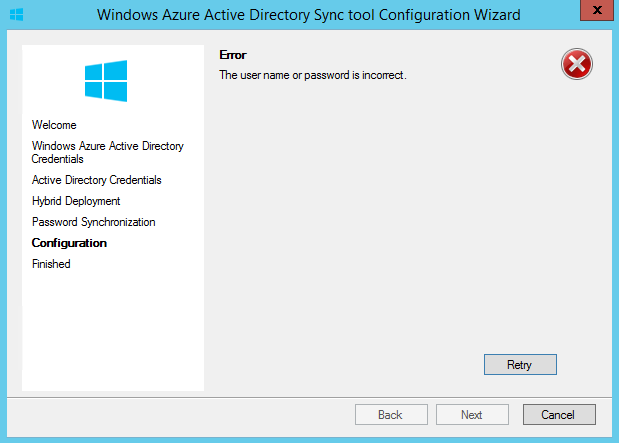
A while ago while going through DirSync Configuration Wizard in a multi-domain environment, I got a the error “The user name or password is incorrect“. The DirSync server was installed in the root domain.

2014-07-08 19-40-41

Since the wizard is validating both the AD and AAD credentials while going through the wizard, I found the error very strange.

Cause
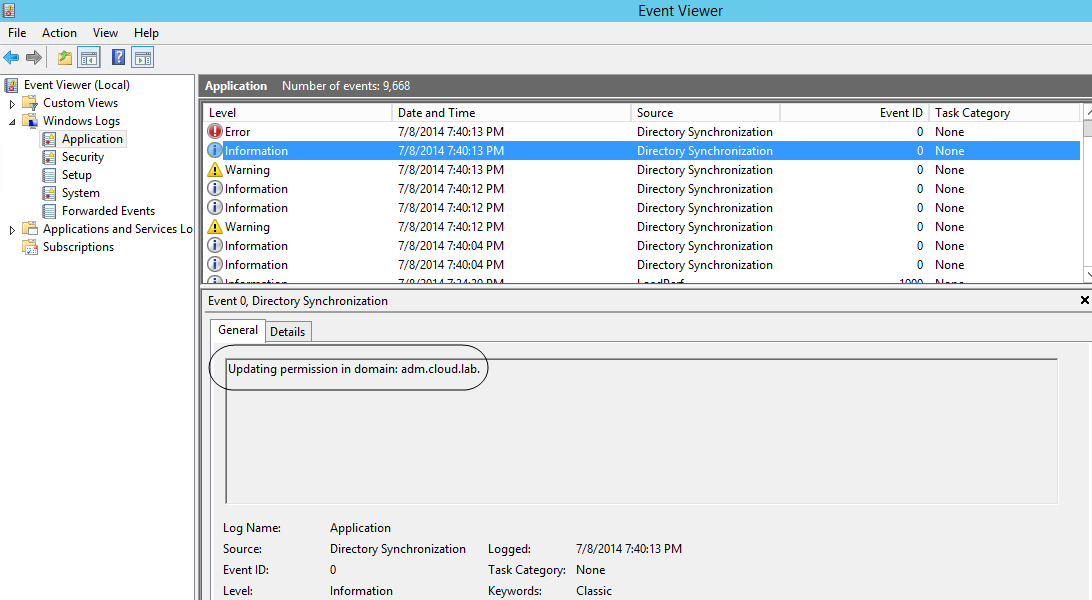
Looking in to the event log, I found that the last event before the error was an informational one – “Updating permissions in the domain “child.domain.com”. Looking in the root domain, the wizard had updated the permissions for the AAD-account there, but not in the child domain.

2014-07-08 19-44-15

Apparently, the solution to the problem was very easy and somewhat logical (depending on how you see it).

The Enterprise Admin AD account used in the wizard, was existing with the same samAccountName in both the root and the child domain. After using an account that was not present in the child domain, the wizard went through fine. Another “solution” that would have worked had been to make sure the password was the same on the accounts. I do however not like synchronizing passwords between accounts, so I chose to use another account.

2014-07-08 20-19-18
Good luck with your DirSync installations!

/Johan

Lync Online: External Communiations/Federation not working – “Do it over again…”

Working with IT can sometimes be a pain. You do everything by the book, but it is still not working. (if I got a penny every time i ran in to that… 🙂 )

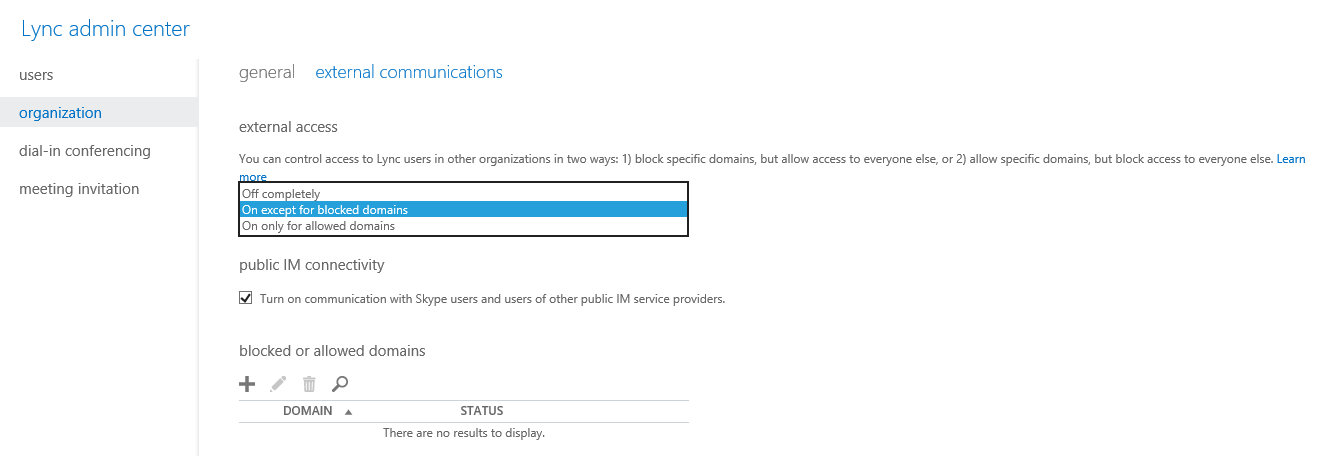
Enabling External Communiations/Federation in Lync Online is one of the easiest things to do, enable a tick box and make sure that you have all dns records added for Lync Online to work properly.

2014-04-07 07-58-15 2014-04-07 07-56-50

What if its not working anyway? Recently that was exactly my case, I had done the extremely difficult operations above, yet external federation was not working.

Solution
After troubleshooting forth and back by enabling logging in the Lync clients, it seemed like my external communiations settings had not been provisioned to back end. The solution I tried then was the following:
Simply disable external communications in the portal and wait 24 hours before you enable it again.
2014-04-07 08-03-50
24%20hours_lit 2014-04-07 08-08-03
That did the trick! Sometimes there are easy ways to solve problems. 🙂

/Johan

Office 365: Assign licenses based on groups using PowerShell – Advanced version

Important note: The end of an era with licensing scripts is near… and the beginning of a new one with Azure AD Group Based Licensing is here. Group Based Licensing is now in preview and currently requires a paid Azure AD Subscription. Try it out and give Microsoft your feedback on how they can make it even better! 

The never ending story about Office 365 licensing continues… This time it’s an extension of my script to assign licenses based on groups, with additional functionality to remove and change licenses for users.
I’ve come across scenarios where this have been a requirement a couple of times, and wanted to see how much work that was required to get the job done. 🙂

If you just want to assign licenses for users based on groups, plain and simple, this is not the script for you…

Running the script
The script is tested in a tenant with two different license types (E1 and E3). Therefore, the functionality has been verified against that, so if you have three or four different licenses to assign in your tenant, you have to do your own testing! 🙂

The following functions are included in the script:

  • Assignment of licenses for new users based on groups/licenseSKU’s in the $licenses hashtable
  • Switch of licensetype if a user is moved from one group to another
  • Removal of license if the user no longer is a member in any of the license assignment groups

LicenseFix

IMPORTANT: Since the script actually will remove licenses for users that are not in any of the groups, you have to make sure that you populate the license assignment groups prior to first time running the script.

Apart from the above, the script requirements and setup details are the same as in this post.

LicenseO365Users.ps1

<#   .SYNOPSIS      Script that assigns Office 365 licenses based on Group membership in WAAD. .DESCRIPTION     The script assigns of licenses for new users based on groups/licenseSKUs in the $licenses hashtable.     It switch licensetype if a user is moved from one group to Another.     It removes the license if the user no longer is a member in any of the license assignment Groups.     Updated 2015-03-25 to support multiple skus for each user.     The script REQUIRES PowerShell 3.0 or later! .NOTES      Author: Johan Dahlbom      Blog: 365lab.net      Email: johan[at]dahlbom.eu      The script are provided “AS IS” with no guarantees, no warranties, and they confer no rights.      #>
#Import Required PowerShell Modules
Import-Module MSOnline

#Office 365 Admin Credentials
$CloudUsername = 'admin@365lab.net'
$CloudPassword = ConvertTo-SecureString 'Password' -AsPlainText -Force
$CloudCred = New-Object System.Management.Automation.PSCredential $CloudUsername, $CloudPassword

#Connect to Office 365
Connect-MsolService -Credential $CloudCred

$Licenses = @{
                 'E1' = @{
                          LicenseSKU = 'mstlabs:STANDARDPACK'
                          Group = 'E1_Users'
                        }                        

                 'E3' = @{
                          LicenseSKU = 'mstlabs:ENTERPRISEPACK'
                          Group = 'E3_Users'
                        }
            }

$UsageLocation = 'SE'

#Get all currently licensed users and put them in a custom object
$LicensedUserDetails = Get-MsolUser -All | Where-Object {$_.IsLicensed -eq 'True'} | ForEach-Object {
 [pscustomobject]@{
            UserPrincipalName = $_.UserPrincipalName
            License = $_.Licenses.AccountSkuId
            }
 }

#Create array for users to change or delete
$UsersToChangeOrDelete = @()

foreach ($license in $Licenses.Keys) {

  #Get current group name and ObjectID from Hashtable
  $GroupName = $Licenses[$license].Group
  $GroupID = (Get-MsolGroup -All | Where-Object {$_.DisplayName -eq $GroupName}).ObjectId
  $AccountSKU = Get-MsolAccountSku | Where-Object {$_.AccountSKUID -eq $Licenses[$license].LicenseSKU}

  Write-Output "Checking for unlicensed $license users in group $GroupName with ObjectGuid $GroupID..."
  #Get all members of the group in current scope
  $GroupMembers = (Get-MsolGroupMember -GroupObjectId $GroupID -All).EmailAddress
  #Get all already licensed users in current scope
  $ActiveUsers = ($LicensedUserDetails | Where-Object {$_.License -eq $licenses[$license].LicenseSKU}).UserPrincipalName
  $UsersToHandle = ''

    if ($GroupMembers) {
        if ($ActiveUsers) {
            #Compare $Groupmembers and $Activeusers
            #Users which are in the group but not licensed, will be added
            #Users licensed, but not, will be evaluated for deletion or change of license
            $UsersToHandle = Compare-Object -ReferenceObject $GroupMembers -DifferenceObject $ActiveUsers -ErrorAction SilentlyContinue -WarningAction SilentlyContinue
            $UsersToAdd = ($UsersToHandle | Where-Object {$_.SideIndicator -eq '<='}).InputObject             $UsersToChangeOrDelete += ($UsersToHandle | Where-Object {$_.SideIndicator -eq '=>'}).InputObject
        } else {
            #No licenses currently assigned for the license in scope, assign licenses to all group members.
            $UsersToAdd = $GroupMembers
        }

    } else {
      Write-Warning  "Group $GroupName is empty - will process removal or move of all users with license $($AccountSKU.AccountSkuId)"
      #If no users are a member in the group, add them for deletion or change of license.
      $UsersToChangeOrDelete += $ActiveUsers
    }

  #Check the amount of licenses left...
  if ($AccountSKU.ActiveUnits - $AccountSKU.consumedunits -lt $UsersToAdd.Count) {
        Write-Warning 'Not enough licenses for all users, please remove user licenses or buy more licenses'
  }

     foreach ($User in $UsersToAdd){

        #Process all users for license assignment, if not already licensed with the SKU in order.
          if ((Get-MsolUser -UserPrincipalName $User).Licenses.AccountSkuId -notcontains $AccountSku.AccountSkuId) {
            try {
                  #Assign UsageLocation and License.
                  Set-MsolUser -UserPrincipalName $User -UsageLocation $UsageLocation -ErrorAction Stop -WarningAction Stop
                  Set-MsolUserLicense -UserPrincipalName $User -AddLicenses $AccountSKU.AccountSkuId -ErrorAction Stop -WarningAction Stop
                  Write-Output "SUCCESS: Licensed $User with $license"
            } catch {
                  Write-Warning "Error when licensing $User"

            }

          }
     }
}

#Process users for change or deletion
if ($UsersToChangeOrDelete -ne $null) {
        foreach ($User in $UsersToChangeOrDelete) {
          if ($user -ne $null) {

            #Fetch users old license for later usage
            $OldLicense = ($LicensedUserDetails | Where-Object {$_.UserPrincipalName -eq $User}).License

             #Loop through to check if the user group assignment has been changed, and put the old and the new license in a custom object.
             #Only one license group per user is currently supported.
             $ChangeLicense = $Licenses.Keys | ForEach-Object {
                  $GroupName = $Licenses[$_].Group
                  if (Get-MsolGroupMember -All -GroupObjectId (Get-MsolGroup -All | Where-Object {$_.DisplayName -eq $GroupName}).ObjectId | Where-Object {$_.EmailAddress -eq $User}) {
                     [pscustomobject]@{
                        OldLicense = $OldLicense
                        NewLicense = $Licenses[$_].LicenseSKU
                     }
                  } 

              }

              if ($ChangeLicense) {
                    #The user were assigned to another group, switch license to the new one.
                    try {
                          Set-MsolUserLicense -UserPrincipalName $User -RemoveLicenses $ChangeLicense.OldLicense -AddLicenses $ChangeLicense.NewLicense -ErrorAction Stop -WarningAction Stop
                          Write-Output "SUCCESS: Changed license for user $User from $($ChangeLicense.OldLicense) to $($ChangeLicense.NewLicense)"
                    } catch {
                          Write-Warning "Error when changing license on $User`r`n$_"
                    }

              } else {  

                    #The user is no longer a member of any license group, remove license
                    Write-Warning "$User is not a member of any group, license will be removed... "
                    try {
                          Set-MsolUserLicense -UserPrincipalName $User -RemoveLicenses $OldLicense -ErrorAction Stop -WarningAction Stop
                          Write-Output "SUCCESS: Removed $OldLicense for $User"
                    } catch {
                          Write-Warning "Error when removing license on user`r`n$_"
                    }
              }
         }
    }
}

Hope this helps you if having this scenario, please let me know if you have features requests or other things that can improve the script!

/Johan

Conditional mail routing in Exchange Online Protection

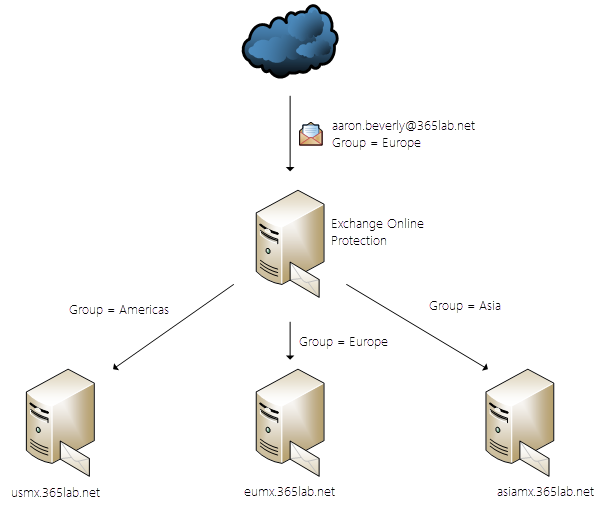
In this post we will go through how to achieve conditional mail routing in Exchange Online Protection, without the need of having forwarding addresses per user. This means we can deliver incoming emails sent to the same domain to different back end servers, based on other criterias than forwarding addresses, like certain attributes or group membership.

If interested in how to do this using the mail users and forwarding addresses method, Andreas wrote a post a while ago about using Exchange Online as a mail gateway for decentalized email domains.

Scenario:

  • Exchange Online Protection is in place for all incoming emails.
  • You have a single Exchange organization, but different servers across the globe. You want to have external incoming emails directly to the correct mailbox server without transferring them trough your WAN connection.
  • DirSync from your tenant to EOP is already activated and in place, which means all users and Groups are already in WAAD.
  • Our incoming email routing will look like in the sketch below, based on AD Group membership.

Setup

As we in this case already have decided to base our email routing on AD groups which is already in sync with WAAD, the things we need to configure in EOP for each target server are following:

1. Create an outbound connector with support for Criteria Based Routing (CBR). Of course more than one smart host can be added for redundancy purposes. cbr

New-OutboundConnector -Name "CBR - eumx.365lab.net" `
                      -ConnectorType OnPremises `
                      -SmartHosts "eumx.365lab.net" `
                      -UseMXRecord $false `
                      -IsTransportRuleScoped $true 

2. Create a mail flow/transport rule for each destination connector/ad group.cbr-transport

New-TransportRule -Name "CBR - eumx.365lab.net" ` 
                  -SentToMemberOf "Europe@365lab.net" `
                  -RouteMessageOutboundConnector "CBR - eumx.365lab.net"

To avoid mail flow issues for users that are not in any of the groups, make sure you keep your existing default outbound connector.

/Johan

Office 365: Migrate from Cloud identities to Dirsync

In some scenarios, you may have to transfer the the source of authority for your already cloud-only created user accounts in Office 365. One scenario when this is required, is when changing from cloud only identities to synchronized identities from your local Active Directory. Another scenario is when you migrate your AD users from one domain to another, as described in this post.

To make the transitioning to DirSync as smooth as possible, you have to take a couple of precautions to make sure that existing Office 365 accounts are properly matched with the accounts in your local Active Directory.

This can be done using one of the following two methods:

  • Soft matching of each user. For a soft match to properly work, you need to make sure that the primary email address (both in mail and in proxyaddresses) and userprincipalname in the cloud and in the local Active Directory matches.
  • For the users that are to be matched, construct an ImmutableID for each user in the local AD and synchronize that value to WAAD prior activation and doing the first Directory Synchronization. The ImmutableID is basically a Base64-encoded value of the ObjectGuid attribute.

Solution
To make this transition easier, I have created a script that and copies the required attributes from WAAD to your local Active Directory automatically. The script can use both methods to match the users.

If you run the script without any parameters, the following attributes will be updated for all matching users in your local Active Directory:

  • GivenName
  • sn (SurName)
  • DisplayName
  • mail
  • proxyAddresses

If using the -UpdateImmutableID switch, an ImmutableID will be created for the user and synced back to WAAD. Please note, that process will only work without additional steps if you have not been using DirSync before.

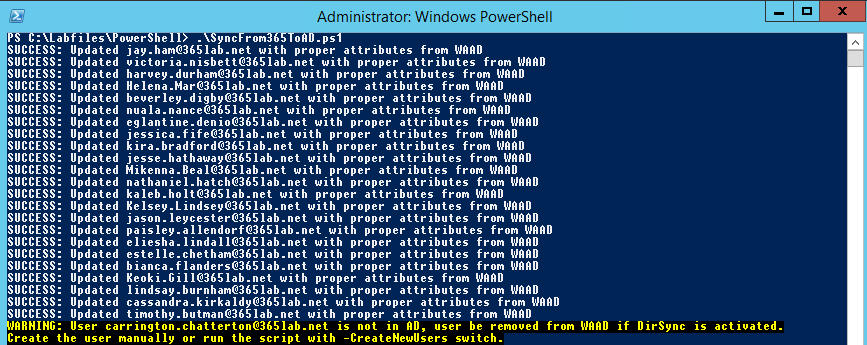
With the -CreateNewUsers switch, you have the possibility to let the script create users that are in WAAD but not in your local AD. The SamAccountname will be “firstname.lastname” and a random password will be generated for the new user.

2014-04-18 20-53-32
2014-04-18 20-56-44
2014-04-18 20-57-41

Note: a pre-requisite for the script to work properly is that you’ve already populated the UserPrincipalName attribute for all users in your local Active directory. Of course this must match with the UPN’s used in Office 365/WAAD.

SyncFrom365toAD.ps1

<#  
.SYNOPSIS 
    Script that synchronizes attributes from users in WAAD to the local active directory.
.PARAMETER UpdateImmutableID 
    Constructs and inserts the ImmutableID attribute in WAAD.
.PARAMETER TargetOU
    OU to create new users in.
.PARAMETER CreateNewUsers
    Creates new users for users that are not matching the WAAD users UPN.
.NOTES 
    Author: Johan Dahlbom 
    Blog: 365lab.net 
    Email: johan[at]dahlbom.eu 
    The script are provided “AS IS” with no guarantees, no warranties, and they confer no rights.     
#>
param(
[parameter(Mandatory=$false)]
[switch]$UpdateImmutableID = $false,
[parameter(Mandatory=$false)]
[switch]$CreateNewUsers = $false,
[parameter(Mandatory=$false)]
[string]$TargetOU = "OU=Users,OU=365Lab,DC=cloud,DC=lab"
)
 
#Load required Modules and Assemblys
Import-Module MSOnline
Import-Module ActiveDirectory
[Reflection.Assembly]::LoadWithPartialName("System.Web") | Out-Null
 
Connect-MsolService
 
$WAADUsers = Get-MsolUser -All | Where-Object {$_.UserPrincipalName -notlike "*.onmicrosoft.com"}
 
foreach ($WAADUser in $WAADUsers) {
    $ADuser = Get-ADUser -Filter {UserPrincipalName -eq $WAADUser.UserPrincipalName}
      
    try {
 
        $Mail = $($WAADUser.ProxyAddresses | Where-Object {$_ -cmatch "^SMTP"}).substring(5)
         
        if ($ADuser) {
        #Update AD user with attributes from WAAD
        Set-ADUser -Identity $ADuser `
            -EmailAddress $Mail `
            -GivenName $WAADUser.FirstName `
            -SurName $WAADUser.LastName `
            -DisplayName $WAADUser.DisplayName `
            -Replace @{ProxyAddresses=[string[]]$WAADUser.ProxyAddresses} `
            -ErrorAction Stop -WarningAction Stop
 
        Write-Output "SUCCESS: Updated $($ADuser.userprincipalname) with proper attributes from WAAD"
         
        } else {
 
            if ($CreateNewUsers) {
 
                     #Generate password for the user aduser
                     $NewUserPassword = [System.Web.Security.Membership]::GeneratePassword(13,0)
 
                     #Generate samaccountname "firstname.lastname"
                     $SAM = [Text.Encoding]::ASCII.GetString([Text.Encoding]::GetEncoding("Cyrillic").GetBytes("$($WAADUser.Firstname).$($WAADUser.Lastname)".ToLower()))
                                           
                     New-ADUser -Path $TargetOU `
                        -Name $WAADUser.DisplayName `
                        -UserPrincipalName $WAADUser.UserPrincipalName `
                        -SamAccountName $sam `
                        -Enabled $true `
                        -EmailAddress $Mail `
                        -GivenName $WAADUser.FirstName `
                        -SurName $WAADUser.LastName `
                        -DisplayName $WAADUser.DisplayName `
                        -OtherAttributes @{ProxyAddresses=[string[]]$WAADUser.ProxyAddresses} `
                        -AccountPassword (ConvertTo-SecureString $NewUserPassword -AsPlainText -force) `
                        -ErrorAction Stop -WarningAction Stop
 
                     Write-Output "SUCCESS: Created user $sam with password $NewUserPassword"

            } else {
                    
                     Write-Warning "User $($WAADUser.UserPrincipalName) is not in AD, user might not be synchronized correctly or become a duplicate user.`r`nCreate the user manually or run the script with -CreateNewUsers switch."
            
            }
        }
               
        #If UpdateImmutableID switch has been used, construct and set ImmutableID for the WAAD user.
        if ($UpdateImmutableID) {
            $ADuser = Get-ADUser -Filter {UserPrincipalName -eq $WAADUser.UserPrincipalName}
            if ($ADuser) {
                $ImmutableID = [system.convert]::ToBase64String($ADuser.ObjectGUID.ToByteArray())
                Set-MsolUser -UserPrincipalName $WAADUser.UserPrincipalName -ImmutableId $ImmutableID -ErrorAction Stop -WarningAction Stop
            }
        }
      
   } catch [Microsoft.Online.Administration.Automation.MicrosoftOnlineException] {
             
            Write-Warning "Error when updating ImmutableID $ImmutableID for $Mail`r`n$_"
 
   } catch {
            
            Write-Warning "Error when creating user $Mail`r`n$_"
        
   }
 
}

Good luck running the script and with your Dirsync implementation!

/Johan

Office 365: Assign licenses based on groups using PowerShell

Important note: The end of an era with licensing scripts is near… and the beginning of a new one with Azure AD Group Based Licensing is here. Group Based Licensing is now in preview and currently requires a paid Azure AD Subscription. Try it out and give Microsoft your feedback on how they can make it even better! 

Update 2016-01-07: Updated the script with a new function to support nested groups.

As a follow up to my earlier post about assigning Office 365 licenses based on ad attribute, I’ve now created another script that uses another approach to assign the licenses.
Instead of using ad attributes, we are here using security groups to assign the licenses.

Since you want to automate license assignment, I am assuming that you are using DirSync.
In this script, the groups and group members are enumerated directly in Windows Azure Active Directory. This means that the groups you will use to assign licenses, must be synchronized to WAAD. If you are looking for a more advanced script with change and removal functions, check this one out.

Note: Users that already have a license are not processed by the script, nor are licenses removed from users that are not longer member of the groups.

Getting started
Getting started with the script is very easy. In the $Licenses hash table, you define the licenses to assign, the group to use for assignment and the license SKU.
The license SKU id’s for your tenant are found with the Get-MsolLicenseSKU cmdlet, as below:

2014-04-15 22-10-25

Here you will find a good translation table that will help you interpret the License SKU ID to the actual license type. When you have done that, just to put in your O365 credentials and UsageLocation in the script and then you’re all set to schedule the script.

2014-04-15 22-37-53

LicenseO365Users.ps1

#2016-01-07 - Updated the script with a new function to support nested groups.
#Import Required PowerShell Modules
#Note - the Script Requires PowerShell 3.0!
Import-Module MSOnline

#Office 365 Admin Credentials
$CloudUsername = 'admin@tenant.onmicrosoft.com'
$CloudPassword = ConvertTo-SecureString 'password' -AsPlainText -Force
$CloudCred = New-Object System.Management.Automation.PSCredential $CloudUsername, $CloudPassword

#Connect to Office 365
Connect-MsolService -Credential $CloudCred
function Get-JDMsolGroupMember {
    param(
        [CmdletBinding(SupportsShouldProcess=$true)]
        [Parameter(Mandatory=$true, ValueFromPipeline=$true,ValueFromPipelineByPropertyName=$true,Position=0)]
        [ValidateScript({Get-MsolGroup -ObjectId $_})]
        $ObjectId,
        [switch]$Recursive
    )
    begin {
        $MSOLAccountSku = Get-MsolAccountSku -ErrorAction Ignore -WarningAction Ignore
        if (-not($MSOLAccountSku)) {
            throw "Not connected to Azure AD, run Connect-MsolService"
        }
    }
    process {
        $UserMembers = Get-MsolGroupMember -GroupObjectId $ObjectId -MemberObjectTypes User -All
        if ($PSBoundParameters['Recursive']) {
            $GroupsMembers = Get-MsolGroupMember -GroupObjectId $ObjectId -MemberObjectTypes Group -All
            $GroupsMembers | ForEach-Object -Process {
                $UserMembers += Get-JDMsolGroupMember -Recursive -ObjectId $_.ObjectId
            }
        }
        Write-Output ($UserMembers | Sort-Object -Property EmailAddress -Unique) 

    }
    end {

    }
}

$Licenses = @{
                 'E1' = @{
                          LicenseSKU = 'mstlabs:STANDARDPACK'
                          Group = 'E1_Users'
                        }                           

                 'E3' = @{
                          LicenseSKU = 'mstlabs:ENTERPRISEPACK'
                          Group = 'Office 365 E5'
                        }
            }
$UsageLocation = 'SE'

foreach ($license in $Licenses.Keys) {

    $GroupName = $Licenses[$license].Group
    $GroupID = (Get-MsolGroup -All | Where-Object {$_.DisplayName -eq $GroupName}).ObjectId
    $AccountSKU = Get-MsolAccountSku | Where-Object {$_.AccountSKUID -eq $Licenses[$license].LicenseSKU}

    Write-Output "Checking for unlicensed $license users in group $GroupName with ObjectGuid $GroupID..."

    $GroupMembers = (Get-JDMsolGroupMember -ObjectId $GroupID -Recursive | Where-Object {$_.IsLicensed -eq $false}).EmailAddress

    if ($AccountSKU.ActiveUnits - $AccountSKU.consumedunits -lt $GroupMembers.Count) {
        Write-Warning 'Not enough licenses for all users, please remove user licenses or buy more licenses'
      }

        foreach ($User in $GroupMembers) {
          Try {
            Set-MsolUser -UserPrincipalName $User -UsageLocation $UsageLocation -ErrorAction Stop -WarningAction Stop
            Set-MsolUserLicense -UserPrincipalName $User -AddLicenses $AccountSKU.AccountSkuId -ErrorAction Stop -WarningAction Stop
            Write-Output "Successfully licensed $User with $license"
          } catch {
            Write-Warning "Error when licensing $User`r`n$_"
          }

        }

}

Looking for other script options using groups?
Office 365: Assign licenses based on groups using PowerShell – Advanced version – adds and removes licenses for the users as well.
Office 365: Assign individual parts of licenses based on groups using PowerShell – script with the ability to add and remove serviceparts of a license.

There are lots of things that are not in the script that could also be automated, please help us prioritize with the features you’d like to have the most.

/Johan

Lync Online: “The user is not found or has not yet been provisioned for Lync Online”

This is an issue that I’ve been seeing a couple of times, but a couple of weeks a go, a nice colleague of mine helped me find a more sustainable solution in that particular case.

Issue:
When you are using Dirsync to synchronize your users from your local AD to WAAD, quite a lot of attributes follow your synchronized objects to WAAD.
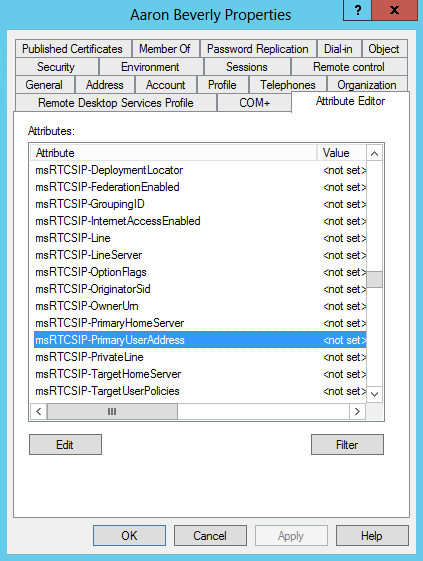
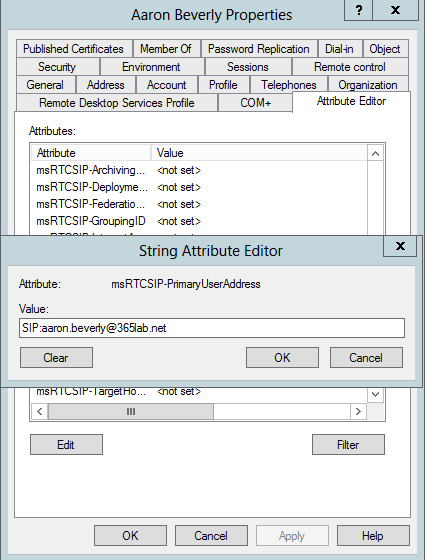
Having a Lync Server on premise, your Lync activated users has some 7 attributes starting with msRTCSIP-, as below:

    • msRTCSIP-ApplicationOptions
    • msRTCSIP-DeploymentLocator
    • msRTCSIP-Line
    • msRTCSIP-OwnerUrn
    • msRTCSIP-PrimaryUserAddress
    • msRTCSIP-UserEnabled
    • msRTCSIP-OptionFlags

The problem with these attributes are, that they prevent your Lync Online users to be provisioned.
The error you will get when trying to verify settings on a particular lync user, is “The user is not found or has not yet been provisioned for Lync Online. Please verify that the user exists, wait 60 minutes, and then try again. If the problem continues, contact Microsoft Customer Service and Support.”

Solutions:

Option 1. Setup your Lync Server as a Hybrid deployment, as described here.
The problem in my particular case was that the Lync deployment the customer had, did not include an edge server, which is required for a hybrid deployment.

Option 2. Clear the msRTCSIP-* attributes for all Lync users on premise.
This is an option that works very well in smaller environments where you are not required to do some testing before rolling a solution out. 🙂 Since you’re clearing the attributes, Lync for the affected users will stop working on premise.
Clearing the attributes for ALL Lync enabled users on premise, can easily be done with the following PowerShell line using the ActiveDirectory module:

Get-ADUser -Filter {proxyaddresses -like "sip:*"} | 
  Set-ADUser -Clear  msRTCSIP-ApplicationOptions,msRTCSIP-DeploymentLocator,msRTCSIP-Line,msRTCSIP-OwnerUrn,msRTCSIP-PrimaryUserAddress,msRTCSIP-UserEnabled,msRTCSIP-OptionFlags

After clearing the attributes, you first need to force a synchronization of Dirsync, and then you do of course need to repoint your Lync related dns records to Office 365.

Option 3. Exclude the msRTCSIP-* attributes from the Directory Synchronization.
This is something that is needed if you want to try out Lync Online for a couple of users before moving them all to Lync Online.
Note: this requires some ‘major’ Changes in the Synchronization service that Dirsync runs on. Do the steps with caution!

Here is how to do it:
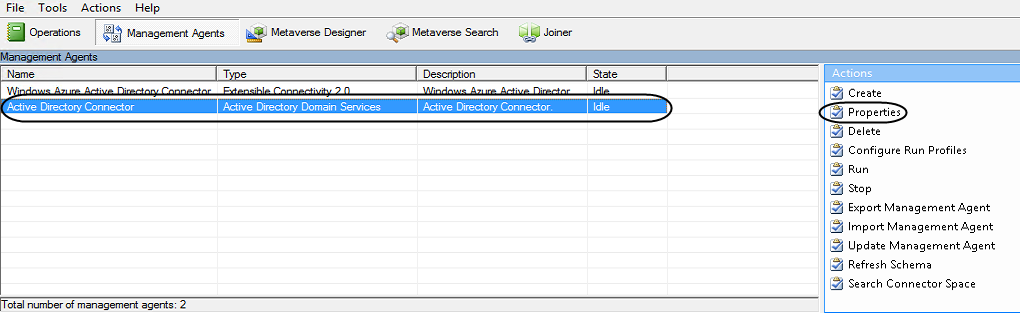
1. Start the Synchronization Service Manager (miisclient.exe) on the DirSync server. In the “Management agents” pane, select properties on the Active Directory connector.

2. In the management agent designer, select “Configure attribute flow” and remove the msRTCSIP for both the User and inetOrgPerson Data Source from the attribute flow as below. Note that you can only remove one attribute at a time.


3. If you have not yet made your first Directory synchronization, you’re now all set to to do that.
If not (which probably is the case since you found this post 🙂 ), you need to to clear the Active Directory Connector space before the problem will be solved. This operation would be equivalent dangerous to installing a new DirSync server in the same domain, e.g. no worries at all.
You will not lose any custom settings as OU or custom attributes that you are using to set your DirSync scope.

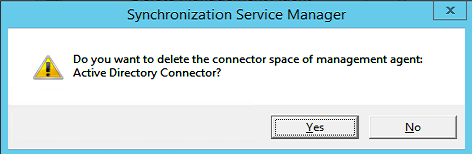
Deleting the Active Directory connector space is done with steps as below (it’s safe to click delete):

After the connector space has been deleted, run a Full Dirsync again, wait around 30 minutes and hopefully your Lync Online users have now been provisioned properly.

Hope this helps you if running in to this problem, and remember that it’s always more than one solution to a problem!

/Johan


Logging on as Domain Admin to end user workstations? Think again!

We’ve all been there.
An end user has a problem with their computer or needs manual installation of some software. Either we elevate with an admin account logged on as the end user, or we switch user and are logging on with our admin account.
Far too often, the admin accounts used to help out end users, are very privileged accounts, 2/5 times I see this at my customers those accounts are Domain Admins.

Why is this a problem? Well, first of all, you should never expose very privileged credentials to “non trusted” computers. Secondly, at the time you log on, your credentials are exposed and can with Benjamin “gentilkiwi” Delpy’s tool mimikatz be extracted in clear text through the lsass process.

Ok, but the user is not local admin, so they will not be able to do it anyway? That is true, but far too many let end users be local admins, and of course there are ways to get around that if you’re a non admin user as well.

Example:
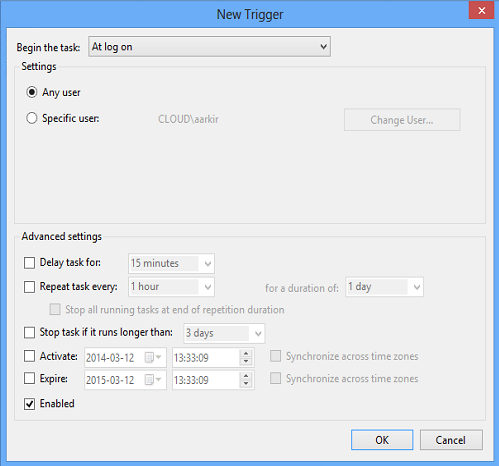
The end user Aaron that has been privileged enough to get local admin rights on his computer. He puts the powershell-script Invoke-Mimikatz.ps1 as a task to run at logon for all users.
2014-03-12 13-33-19

2014-03-12 13-44-04
In this example, I’ve just put in the row below in at the end of the script to dump the credentials to a file on the c-disk. This could of course be dumped anywhere if you wanted to.

Invoke-Mimikatz -dumpcreds | 
    Out-File -Append  c:\evilplace\$env:computername.txt

Effect:
Now, when his fellow administrator logs on to his computer to help him with some software installation, the admin credentials will be dumped to a file and Aaron is from now on Domain Admin!

2014-03-12 13-54-02

Scary? Yes!
Lesson learned: Think both once and twice before logging on with privileged credentials to non trusted computers.

This is of course nothing new, it’s been out for quite a while. Look in to the following matrix that clarifies when this is an issue or not (in most cases it is…:( )

/Johan