Author Archives: Johan Dahlbom

Geek tip: Top 10 shortcut commands to remember!

In the shadow of all PowerShell stuff, I’d like to share some old, but very good information with you guys.

I like knowing exactly where I’m going and I like getting there fast. Therefore, I’ve learned the file names of the most common OS utilities I use. (And yes, I might be a bit reactionary 🙂 )

Many of them are nowdays in the Win+X menu, but sometimes its nice just typing where you want to go.

  1. ncpa.cpl – Network Connections – This was once very easy to find, but in Vista and above they made it very hard to get there.
  2. certlm.msc – Local Computer Certificates – as this is something I use every day, it’s very nice to actually get there directly (only works in 8/2012 and above) (certmgr.msc for User Certificates)
  3. lusrmgr.msc – Access Local users and Groups directly
  4. appwiz.cpl – Add remove programs (turn Windows features on or off is optionalfeatures.exe)
  5. firewall.cpl – Windows Firewall
  6. compmgmt.msc –  Computer management
  7. sysdm.cpl – System Properties (change computer name, join domain etc. (but please, use POSH for that if possible)
  8. wuapp.exe – Windows Update (very useful in 8/2012 and above)
  9. eventvwr.exe – Event Viewer
  10. mstsc.exe – Remote Desktop Client (everyone knows about this one, I hope).
    In Windows 8 and above, you have to start it with <shift>+<enter> instead of just <enter> if opening more than one window.

/Johan

Analyze your VHD(x) usage with PowerShell

In this case, I wanted a quick analysis on my Hyper-V VM’s vhd files and get the disk size and free disk space before upgrading to Server 2012 R2 Hyper-V.

The snippet basically loops trough all VM’s on a host (or in a cluster if you would want that), and gives you output as below.

2014-01-11 21-01-04

2014-01-11 21-01-23

If you want information on all disks for all VM’s in a cluster you can get that with Get-VHDStat -Cluster ClusterName.

Get-VHDStat

function Get-VHDStat {
param(
[Parameter(Mandatory=$false)]
[string]
$Cluster
)

if ($Cluster) {
    $VMs = Get-ClusterGroup -Cluster $cluster | where grouptype -eq 'virtualmachine' | Get-VM
} else {
    $VMs = Get-VM 
}
	foreach ($VM in $VMs){
		$VHDs=Get-VHD $vm.harddrives.path -ComputerName $vm.computername
            foreach ($VHD in $VHDs) {
        	    New-Object PSObject -Property @{
                    Name = $VM.name
				    Type = $VHD.VhdType
				    Path = $VHD.Path
				    'Total(GB)' = [math]::Round($VHD.Size/1GB)
                    'Used(GB)' = [math]::Round($VHD.FileSize/1GB)
				    'Free(GB)' =  [math]::Round($VHD.Size/1GB- $VHD.FileSize/1GB)
                 }
	        }
    }
}

Enjoy!

/Johan

Friendly Reminder – do NOT assign passwords through Group Policy Preferences

This is an issue that have been out for quite a while, but I see it a lot when checking customers environments, so it’s always good to remind yourself about this kind of important things.

Through GPP, you have the ability to do lots of stuff, one of them is fiddling with builtin local accounts on computers and even change password on those.

A common case is applying GPP settings as below to your client computers.
2014-01-09 11-48-522014-01-09 11-49-06
Note the warning about where the password will be stored.

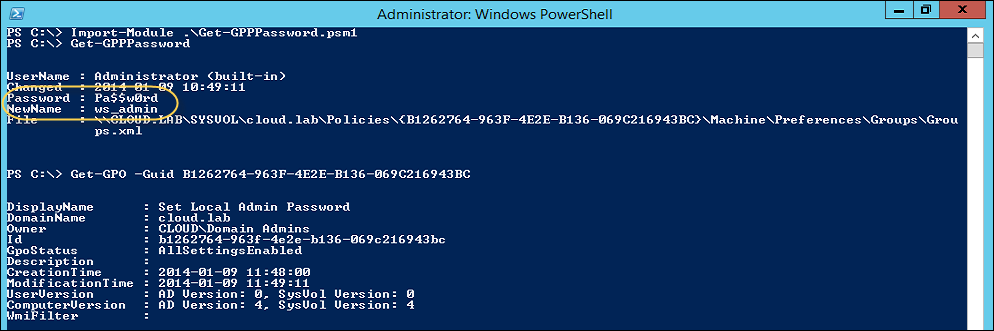
It actually gets worse from there… with the script which can be downloaded here, you can extract ALL passwords from ALL GPP’s you have since they are stored in XML files located on the sysvol in your domain.
OK, who have access to read those files then?
Authenticated Users, which means whoever that has an account in your domain can do this.
2014-01-09 11-50-01

Conclusion: do not change password with GPP unless you do it and remove the policy directly after the policy has successfully been applied.

In this blog post series from Microsoft PFE’s, you find a great solution to handle and store local admin passwords in a secure, yet manageble way.

/Johan

Create random test users in a domain with PowerShell

Keeping up with the PowerShell posts!

This is a quick one I’ve created based on another one I once found to make it faster for me to create a number of test users when doing demos/labs.
It uses a .csv file as input with some 400 first and lastnames, which then is used for generating random usernames. (3+3 letters and incrementing number if needed. Based on a solution that can be done in many ways… )
We are also picking departments from the array $Departments (if you have the luck of getting a extra nice firstname, you get another department)

The only thing you need to do in order to get it working in your own lab or test domain (except for the script and the .csv file), is to insert the an OU distinguishedName to the $OU variable.

It will by default create 100 users, but that can be changed to a number of your choice with the -Numusers parameter.

2014-01-08 14-43-32
Download the script and the csv file here

CreateTestADUsers.ps1

<#
.SYNOPSIS
    The Script creates test users to your demo domain based on first and last namnes from csv. 
.PARAMETER NumUsers
    Integer - number of users to create, default 100.
.NOTES
    File Name: CreateTestADUsers.ps1
    Author   : Johan Dahlbom, johan[at]dahlbom.eu
    Blog     : 365lab.net
    The script are provided “AS IS” with no guarantees, no warranties, and they confer no rights.    
#>
param ([parameter(Mandatory=$false)]
[int]
$NumUsers = "100"
)
#Define variables
$OU = "OU=TestUsers,OU=Cloud Inc.,DC=cloud,DC=lab"
$Departments = @("IT","Finance","Logistics","Sourcing","Human Resources")
$Names = Import-CSV FirstLastEurope.csv
$firstnames = $Names.Firstname
$lastnames = $Names.Lastname
$Password = "Password1"

#Import required module ActiveDirectory
try{
Import-Module ActiveDirectory -ErrorAction Stop
}
catch{
throw "Module ActiveDirectory not Installed"
}

while ($NumUsers -gt 0)
{
      #Choose a 'random' department Firstname and Lastname
      $firstname = $FirstNames | Get-Random
      $lastname = $LastNames | Get-Random

      if (($firstname -eq "Johan") -or ($firstname -eq  "Andreas")) {
                $Department = "Tailspintoys - 365lab.net"
            } else {
                $Department = $Departments | Get-Random
            }
      #Generate username and check for duplicates

      $username = $firstname.Substring(0,3).tolower() + $lastname.Substring(0,3).tolower()
      $exit = 0
      $count = 1
        do
        {
             try {
                 $userexists = Get-AdUser -Identity $username
                 $username = $firstname.Substring(0,3).tolower() + $lastname.Substring(0,3).tolower() + $count++
             }
             catch {
                 $exit = 1
             }
         }
        while ($exit -eq 0)

      #Set Displayname and UserPrincipalNBame
      $displayname = $firstname + " " + $lastname
      $upn = $username + "@" + (get-addomain).DNSRoot

      #Create the user
      Write-Host "Creating user $username in $ou"
      New-ADUser –Name $displayname –DisplayName $displayname `
                 –SamAccountName $username -UserPrincipalName $upn `
                 -GivenName $firstname -Surname $lastname -description "Test User" `
                 -Path $ou –Enabled $true –ChangePasswordAtLogon $false -Department $Department `
                 -AccountPassword (ConvertTo-SecureString $Password -AsPlainText -force)

      $NumUsers--
}

Feel free to edit or change as you wish!

/Johan

Get all GPO deployed Printers with PowerShell

As a follow up to my last post on GPP, and per request on Technet, I’ve now created Another script to make inventory of all printers in a domain deployed with GPO (both GPP and Deployed Printers). It can be a pain to use those settings some times, here you have a way to make inventory of them at least. 🙂
Just like the other one it’s based on the GroupPolicy PowerShell-Module which works from 2008R2 and up.

See below screenshots on how to run the script and what output you get. (similiar to the GPP Drive maps output)
2014-01-07 19-25-35
2014-01-07 19-26-04

If you want to export all printer information to a csv file, use below row.

.\Get-GPOPrinters.ps1 | select printerpath,gpotype,gponame,FilterGroup  | Export-Csv c:\printers.csv -NoTypeInformation

Get-GPOPrinters.ps1

<#
.SYNOPSIS     
The script finds all shared printers deployed with GPO (both deployed printers GPP.) in your domain. 
.NOTES     
           File Name: Get-GPOPrinters.ps1     
           Author   : Johan Dahlbom, johan[at]dahlbom.eu     
           The script are provided “AS IS” with no guarantees, no warranties, and it confer no rights. 
           Blog     : 365lab.net
#>
#Import the required module GroupPolicy
try
{
Import-Module GroupPolicy -ErrorAction Stop
}
catch
{
throw "Module GroupPolicy not Installed"
}
        $GPO = Get-GPO -All

        foreach ($Policy in $GPO){

                $GPOID = $Policy.Id
                $GPODom = $Policy.DomainName
                $GPODisp = $Policy.DisplayName
                $PrefPath = "\\$($GPODom)\SYSVOL\$($GPODom)\Policies\{$($GPOID)}\User\Preferences"

                    #Get GP Preferences Printers
                    $XMLPath = "$PrefPath\Printers\Printers.xml"
                    if (Test-Path "$XMLPath")
                    {
                         [xml]$PrintXML = Get-Content "$XMLPath"

                                foreach ( $Printer in $PrintXML.Printers.SharedPrinter )

                                    {New-Object PSObject -Property @{
                                        GPOName = $GPODisp
                                        PrinterPath = $printer.Properties.Path
                                        PrinterAction = $printer.Properties.action.Replace("U","Update").Replace("C","Create").Replace("D","Delete").Replace("R","Replace")
                                        PrinterDefault = $printer.Properties.default.Replace("0","False").Replace("1","True")
                                        FilterGroup = $printer.Filters.FilterGroup.Name
                                        GPOType = "Group Policy Preferences"
                                    }
                                }
                   }
                   #Get Deployed Printers
                   [xml]$xml = Get-GPOReport -Id $GPOID -ReportType xml
                   $User = $xml.DocumentElement.User.ExtensionData.extension.printerconnection
                   $Computer = $xml.DocumentElement.computer.ExtensionData.extension.printerconnection

                        foreach ($U in $User){
                            if ($U){

                                    New-Object PSObject -Property @{
                                        GPOName = $GPODisp
                                        PrinterPath = $u.Path
                                        GPOType = "GPO Deployed Printer - User"
                                    }
                            }

                        }

                        foreach ($C in $Computer){
                            if ($c){

                                    New-Object PSObject -Property @{
                                        GPOName = $GPODisp
                                        PrinterPath = $c.Path
                                        GPOType = "GPO Deployed Printer - Computer"
                                    }
                            }

                        }
           }

This was done very quick, will probably do some things a bit nicer later on. If you find any direct issues or bugs, let me know!

Enjoy!

/Johan

New kid on the block!

Great news!

We have a new kid on the block, Tailspintoys have as per today recruited a new writer, Andreas Lindahl. Andreas is also a Microsoft infrastructure guy that primarily focus on Office 365, Deployment and Active Directory. Read more about Andreas here.

Expect better continuity in amount of posts, since we now are two persons contributing!

/Johan

Quick Tip: Self signed certificates made easy with PowerShell!

Most solutions today require certificates in some way, which means we need them even when setting up a lab/test environment.
If you for some reason don’t have a PKI/CA infrastructure in your lab environment you will most likely end up with a self signed certificates for web sites or other parts of your environment.

Since Windows 8/8.1 or Server 2012/2012 R2 there is a really nice PowerShell cmdlet that does that for us, without no hassle.
It can even handle multiple SAN’s.
It’s just to use the New-SelfSignedCertificate cmdlet from an elevated PowerShell window.

Example 1: Create and export one certificate with the name test.365lab.net:

New-SelfSignedCertificate -DnsName test.365lab.net -CertStoreLocation cert:\LocalMachine\My
#Export certificate to c:\test_365lab_net.pfx with the password 'Password'. (the thumbprint is found in the output from the New-SelfsignedCertificate command.)
Export-PfxCertificate -Cert cert:\LocalMachine\My\5D46460D29FE8E0C3F644D8ABA3C707AA83AFC79 -FilePath c:\test_365lab_net.pfx -Password (ConvertTo-SecureString -String "Password" -Force -AsPlainText)

2014-01-04 15-57-46

Example 2: Create self signed SAN certificate with the names test.365lab.net,sts.365lab.net and 365lab.net:

New-SelfSignedCertificate -DnsName test.365lab.net,sts.365lab.net,365lab.net -CertStoreLocation cert:\LocalMachine\My

2014-01-04 16-06-34

To check out your newly create certificates in the GUI, fire up the Computer Certificates Store mmc, which from Windows 8 / Server 2012 and above can be started with ‘certlm.msc‘ (OH YES!).
2014-01-04 16-10-55

Note that I generally never recommend doing self signed certificates in production environments, they are only for testing purposes!

/Johan

Mail flow rules for alias email addresses in Exchange Online

Stumbled upon an ‘issue/feature’ with mail flow rules (transport rules) that I’ve encountered before a couple of days ago and thought it was a good idea sharing.
It’s always good to get a reminder of things from time to time, even if it might be a bit obvious 🙂
The ‘issue’ do of course apply to Exchange On premise environments as well.

Case:
The user Kalle Kula have three email addresses as following:
SMTP:kalle.kula@corp.365lab.net (primary)
smtp:kalle.kula@spam.365lab.net
smtp:kalle.kula@365lab.onmicrosoft.com

If an email is sent to the address kalle.kula@spam.365lab.net (one of the alias email address for the user), we want to append a disclamer that states “This email was sent to the domain spam.365lab.net”

How to do it:
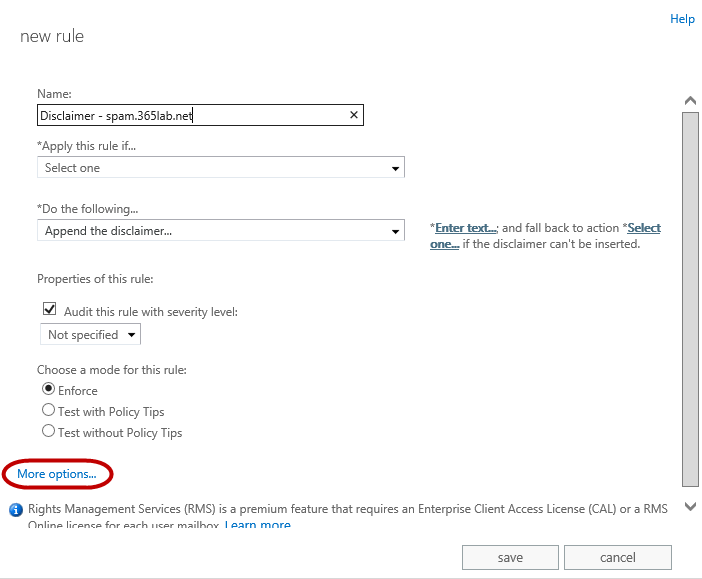
1. In Exchange Admin Center, under mail flow -> rules, create a new dislaimer rule.
2014-01-02 13-18-37
2. To be able to do more granular selection and actions, click “More Options” in the bottom left corner.

2014-01-02 13-22-46
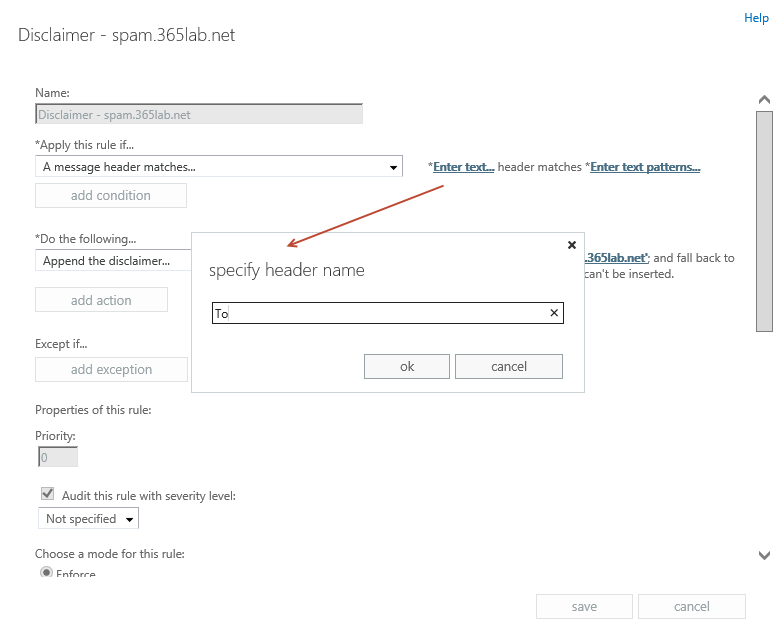
3. Then create your rule with the following options.

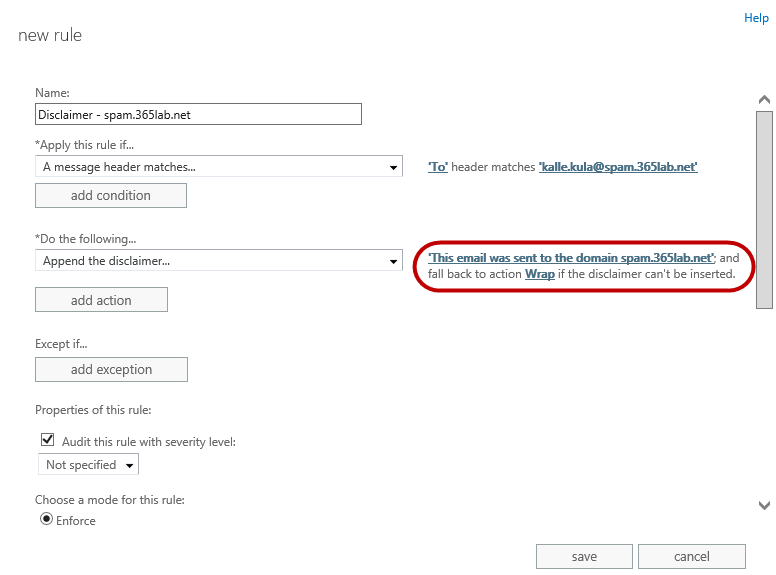
The logical thing here would have been to apply the rule if the recipient address matches my particular address, but that does only work for primary email addresses. So therefore we need to apply it on the header “To” and match the text pattern kalle.kula@spam.365lab.net (the alias address)

2014-01-02 13-36-072014-01-02 13-37-172014-01-02 13-39-00  

Add your disclaimer and set fall back action.
2014-01-02 13-42-27
The only thing you need to do now for the policy to be applied on future emails is to choose mode: Enforce, save it and you’re done!

If you want to check whether a rule has been used or not, you can use EAC as well.
2014-01-02 14-07-11

PowerShell version:
To do the same as above with PowerShell, you can use the following PowerShell lines:

 
#Connect to Exchange Online with PowerShell
$cred = Get-Credential
$O365 = New-PSSession -ConfigurationName Microsoft.Exchange -ConnectionUri https://ps.outlook.com/powershell -Credential $cred -Authentication Basic -AllowRedirection 
$importcmd = Import-PSSession $O365 
#Create the Mail Flow rule (transport rule)
New-TransportRule -Name "Disclaimer - spam.365lab.net" `
                   -HeaderMatchesPatterns {kalle.kula@spam.365lab.net} `
                   -HeaderMatchesMessageHeader To `
                   -ApplyHtmlDisclaimerText "This email was sent to the domain spam.365lab.net" `
                   -ApplyHtmlDisclaimerLocation Append `
                   -ApplyHtmlDisclaimerFallbackAction Wrap `
                   -Mode Enforce 

Further documentation on mail flow rules (transport rules) you find on http://technet.microsoft.com/en-us/library/dd351127(v=exchg.150).aspx.

/Johan

Getting all GPP Drive maps in a Domain with PowerShell

Group Policy Preferences are mostly great and frequently used to solve different kind of policy related problems in an it Environment.
There are a few PowerShell cmdlet for GPO’s (28 last time I checked) but only three of them are related to Group Policy Preferences.
2013-12-31 13-31-59.

Case and Solution
A customer of mine wanted to inventory their GPP Drive maps, and get information about what GPO, drive letter, drivepath, security Filtering and so on.

I know there are quite a few solutions that can do this for you, but why not use PowerShell when possible? 🙂

The script is using the GroupPolicy POSH-module which has been around since 2008R2, so this works even there.
It simply gets all Group policies in your domain, checks each policy for drive maps (by checking if Drives.xml exists) and gives you a bit of nice output. (ehh.. could be nicer, but anyway… )

See my examples below:
1. Gives you all Drive Map GPO’s plain and formats the output as a table.

2013-12-31 13-48-24
Note: The DriveAction object is not translated to a more friendly name at this time so U, stands for Update, D, for delete and so on. That is also applies on the DrivePersistent output (“Reconnect”).
Update: This is now updated so it gives you a bit of nicer output!

2. Searches for drive maps in a specific GPO.
2013-12-31 13-42-38

3. Exports the output to a csv.

.\Get-GPPDriveMaps.ps1 | Export-Csv DriveMaps.csv -NoTypeInformation

Get-GPPDriveMaps.ps1

<#
.SYNOPSIS     
           The script finds the GPP Drive Maps in your domain. 
.NOTES     
           File Name: Get-GPPDriveMaps.ps1     
           Author   : Johan Dahlbom, johan[at]dahlbom.eu     
           The script are provided “AS IS” with no guarantees, no warranties, and it confer no rights. 
#>
#Import the required module GroupPolicy
try
{
Import-Module GroupPolicy -ErrorAction Stop
}
catch
{
throw "Module GroupPolicy not Installed"
}
        $GPO = Get-GPO -All

        foreach ($Policy in $GPO){

                $GPOID = $Policy.Id
                $GPODom = $Policy.DomainName
                $GPODisp = $Policy.DisplayName

                 if (Test-Path "\\$($GPODom)\SYSVOL\$($GPODom)\Policies\{$($GPOID)}\User\Preferences\Drives\Drives.xml")
                 {
                     [xml]$DriveXML = Get-Content "\\$($GPODom)\SYSVOL\$($GPODom)\Policies\{$($GPOID)}\User\Preferences\Drives\Drives.xml"

                            foreach ( $drivemap in $DriveXML.Drives.Drive )

                                {New-Object PSObject -Property @{
                                    GPOName = $GPODisp
                                    DriveLetter = $drivemap.Properties.Letter + ":"
                                    DrivePath = $drivemap.Properties.Path
                                    DriveAction = $drivemap.Properties.action.Replace("U","Update").Replace("C","Create").Replace("D","Delete").Replace("R","Replace")
                                    DriveLabel = $drivemap.Properties.label
                                    DrivePersistent = $drivemap.Properties.persistent.Replace("0","False").Replace("1","True")
                                    DriveFilterGroup = $drivemap.Filters.FilterGroup.Name
                                }
                            }
                }
        }

The script can of course be extended with a lot more information, and make the output easier to read, but that’s a later project.

/Johan

Office 365 PowerShell tip: Automatically assign licenses based on AD attribute

Important note: The end of an era with licensing scripts is near… and the beginning of a new one with Azure AD Group Based Licensing is here. Group Based Licensing is now in preview and currently requires a paid Azure AD Subscription. Try it out and give Microsoft your feedback on how they can make it even better! 

Using DirSync in combination with Office 365 / Windows Azure Active Directory is great.
It automates user creation and makes you able to master all user creation changes from on premises.
There is just one(or two) things you need to do manually, assign licenses…
This can be done both in the portal or with PowerShell.

Depending on how your license structure looks like and how large environment you have, you might want to automate this in a more convenient way. There is a Wiki article on TechNet with a few examples on how to automate it as well (both with Security Groups and AD attributes). http://social.technet.microsoft.com/wiki/contents/articles/15905.how-to-use-powershell-to-automatically-assign-licenses-to-your-office365-users.aspx

Until Microsoft has come up with an integrated solution for this in DirSync or something else, we have to stick with PowerShell…

The case:
In my case we want to assign Office 365 licenses based on a local AD attribute of your choice fully automated and minimal input.
We also want a bit of logging so we are able to find and fix errors as easy as possible.

In order to assign a license in Office 365, we need to assign two attributes on a user(of course the user must exist…):
UsageLocation and Licenses
Also, if a user has a valid license assigned, the boolean IsLicensed will be set to True.
2013-12-30 15-26-24

The ‘Licenses’ attribute contains “tenantname:LICENSESKU”, which in my case above is “mstlegacy:ENTERPRISEPACK” for an E3 license.
So, when assigning a license with PowerShell we need to know the SKUID of the particular license we are using.

We can also disable specific parts of a license, for example SharePoint when we assign the license. More details about ‘manual’ PowerShell assignment of licenses in Office 365 you’ll find here.

Solution

My script activates Office 365 users based on the AD attribute of your choise.
It requires you to populated the AD attribute with a string that identifies the license type for the particular user.
Default AD attribute used in the script is employeeType.

Supported license types with AD attributes as below (attribute to the left):
E1 – Office 365 for Enterprises E1
E3 – Office 365 for Enterprises E3
K1 – Deskless user without Office
E2 – Deskless user with Office
A1S – Office 365 for Education A1 (Students)
A2S – Office 365 for Education A2 (Students)
A3S – Office 365 for Education A3 (Students)
A1F – Office 365 for Education A1 (Faculty)
A2F – Office 365 for Education A2 (Faculty)
A3F – Office 365 for Education A3 (Faculty)
2014-01-01 15-31-22
In case the AD attribute Country is populated in your AD, it will automatically use that attribute to populate UsageLocation of the user in Office 365, otherwise it will default back to the parameter $DefaultCountry.

It will log all changes and errors to the logfile MSOL-UserActivation.log within the same folder you run the script.
Running the script
Prereqs:

Example – first time use:
As a preparation have to change the default value of $AdminUser parameter or use the parameter -AdminUser to an actual adminuser of your tenant.
On first use it’ll then ask you for the password and then store encrypted with DPAPI to a file in the same folder where you run the script. This so you can run without user interaction in the future.

.\ActivateMSOLUser.ps1 -AdminUser DirSync@mstlegacy.onmicrosoft.com

2013-12-30 16-31-16
(Hopefully you will type in the correct password… 🙂 )

After you’ve finished with the first time configuration, you are ready to actually start assigning licenses.
Example 1 – Activate all K1,K2 and E3 licenses with default AD attribute (employeeType)

.\ActivateMSOLUser.ps1 -AdminUser dirsync@mstlegacy.onmicrosoft.com -Licenses K1,K2,E3

2013-12-30 16-45-58
As seen above, 2 unlicensed users were found in Office 365, but only one of them had the required local AD attribute (employeeType in this case), set to ‘E3’.
I also go two errors since I didn’t have any K1 or K2 licenses in my tenant.

Example 2 – Activate all E3 licenses with custom AD attribute (msDS-cloudExtensionAttribute1) and MasterOnPremise

.\ActivateMSOLUser.ps1 -AdminUser dirsync@mstlegacy.onmicrosoft.com -Licenses E3 -LicenseAttribute msDS-cloudExtensionAttribute1 -MasterOnPremise

2013-12-30 16-57-28
In the above example we found one user to activate, but with the switch -MasterOnPremise we looked in to our local ad instead checking Office 365 for unlicensed users, and reported back to the attribute when the license was successfully assigned.
This can be useful if you for some reason have a lot of unlicensed users in Office 365 that you intend to keep that way.

Note: Since the -MasterOnPremise function writes back to your AD, the account that runs the script will in that case need write permissions to that AD attribute.

2013-12-30 17-03-59

Next Step
In order to make this fully automated, you will also need to schedule this as a task that runs (preferably) as often as your DirSync goes which by default is every 3 hours, an article on how to do that is here.

I’ve been running the script for a while and it works very well, of course some parts can be done more efficient. If you find any bugs or other issues, let me know!

The script can be downloaded from here, or cut’n’paste it from below…

Happy Licensing!
/Johan

ActivateMSOLUsers.ps1

<# .SYNOPSIS     The script automatically assigns licenses in Office 365 based on AD-attributes of your choice. .DESCRIPTION     Fetches your Office 365 tenant Account SKU's in order to assign licenses based on them.     Sets mandatory attribute UsageLocation for the user in Office 365 based on local AD attribute Country (or default)     If switch -MasterOnPremise has been used:     Assigns Office 365 licenses to the user based on an AD-attribute and reports back to the same attribute if a license was successfully assigned.     If not:     Looks after unlicensed users in Office365, checks if the unlicensed user has the right attribute in ad to be verified, otherwise not. .PARAMETER MasterOnPremise     Switch, If used, it  Assigns Office 365 licenses to the user based on an AD-attribute and reports back to the same attribute if a license was successfully assigned.     .PARAMETER Licenses     Array, defines the licenses used and to activate, specific set of licenses supported. "K1","K2","E1","E3","A1S","A2S","A3S","A1F","A2F","A3F" .PARAMETER LicenseAttribute     String, the attribute  used on premise to identify licenses .PARAMETER AdminUser     Adminuser in tenant .PARAMETER DefaultCountry     Defaultcountry for users if not defined in active directory              .NOTES     File Name: ActivateMSOLUsers.ps1     Author   : Johan Dahlbom, johan[at]dahlbom.eu     The script are provided “AS IS” with no guarantees, no warranties, and they confer no rights.     #>
param(
[parameter(Mandatory=$false)]
[Switch]
$MasterOnPremise = $false,

[parameter(Mandatory=$false,HelpMessage="Please provide the SKU's you want to activate")]
[ValidateSet("K1","K2","E1","E3","A1S","A2S","A3S","A1F","A2F","A3F")]
[ValidateNotNullOrEmpty()]
[array]
$Licenses,

[parameter(Mandatory=$false)]
[string]
$LicenseAttribute = "employeeType",

[parameter(Mandatory=$false)]
[string]
$AdminUser = "admin@tenant.onmicrosoft.com",

[parameter(Mandatory=$false)]
[string]
$DefaultCountry = "SE"
)
#Define variables
$PSScriptRoot = Split-Path -Parent -Path $MyInvocation.MyCommand.Definition
$Logfile = ($PSScriptRoot + "\MSOL-UserActivation.log")
$TimeDate = Get-Date -Format "yyyy-MM-dd-HH:mm"
$SupportedSKUs = @{
                    "K1" = "DESKLESSPACK"
                    "K2" = "DESKLESSWOFFPACK"
                    "E1" = "STANDARDPACK"
                    "E3" = "ENTERPRISEPACK"
                    "A1S" = "STANDARDPACK_STUDENT"
                    "A2S" = "STANDARDWOFFPACK_STUDENT"
                    "A3S" = "ENTERPRISEPACK_STUDENT"
                    "A1F" = "STANDARDPACK_FACULTY"
                    "A2F" = "STANDARDWOFFPACK_FACULTY"
                    "A3F" = "ENTERPRISEPACK_FACULTY"

                    }

################################################
##### Functions

#Function to Import Modules with error handling
Function Import-MyModule
{
Param([string]$name)
    if(-not(Get-Module -name $name))
    {
        if(Get-Module -ListAvailable $name)
        {
            Import-Module -Name $name
            Write-Host "Imported module $name" -ForegroundColor Yellow
        }
        else
        {
            Throw "Module $name is not installed. Exiting..."
        }
    }
    else
    {
        Write-Host "Module $name is already loaded..." -ForegroundColor Yellow }
    }

#Function to log to file and write output to host
Function LogWrite
{
Param ([string]$Logstring)
Add-Content $Logfile -value $logstring -ErrorAction Stop
Write-Host $logstring
}
#Function to activate your users based on ad attribute
Function Activate-MsolUsers
{
Param([string]$SKU)

    begin {
        #Set counter to 0
        $i = 0
    }

        process {

            #Catch and log errors
            trap {
                $ErrorText = $_.ToString()
		        LogWrite "Error: $_"
                $error.Clear()
                Continue
            }

            #If the switch -MasterOnPremise has been used, start processing licenses from the AD-attribute

            if ($MasterOnPremise) {

		    $UsersToActivate = Get-ADUser -filter {$LicenseAttribute -eq $SKU} -Properties $LicenseAttribute,Country -ErrorAction Stop

                if ($UsersToActivate)
			    {
			    $NumUsers = ($UsersToActivate | Measure-Object).Count

			    LogWrite "Info: $NumUsers user(s) to activate with $SKU"
                foreach($user in $UsersToActivate) {

                          trap {
                                $ErrorText = $_.ToString()
		                        LogWrite "Error: $_"
                                $error.Clear()
                                Continue
                            }
                        $UPN = $user.userprincipalname
                        $Country = $user.Country
                        LogWrite "Info: Trying to assign licenses to: $UPN"
                                if (!($country)) {
                                    $Country = $DefaultCountry }

                        if ((Get-MsolUser -UserPrincipalName $UPN -ErrorAction Stop)) {

                                Set-MsolUser -UserPrincipalName $UPN -UsageLocation $country -Erroraction Stop
                                Set-MsolUserLicense -UserPrincipalName $UPN -AddLicenses $SKUID -Erroraction Stop
									#Verify License Assignment
									if (Get-MsolUser -UserPrincipalName $UPN | Where-Object {$_.IsLicensed -eq $true}) {
										Set-ADUser $user -Replace @{$LicenseAttribute=$SKU+' - Licensed at ' + $TimeDate}
										LogWrite "Info: $upn successfully licensed with $SKU"
                                        $i++;
									}
									else
									{
										LogWrite "Error: Failed to license $UPN with $SKU, please do further troubleshooting"

									}
                        }
				    }
			    }
            }
	#If no switch has been used, process users and licenses from MSOnline
            else {
			    $UsersToActivate = Get-MsolUser -UnlicensedUsersOnly -All
				    if ($Userstoactivate)
				    {
				    $NumUsers = $UsersToActivate.Count
				    LogWrite "Info: $NumUsers unlicensed user(s) in tenant: $($SKUID.ToLower().Split(':')[0]).onmicrosoft.com"
				    foreach ($user in $UsersToActivate) {
                                trap {
                                        $ErrorText = $_.ToString()
		                                LogWrite "Error: $_"
                                        $error.Clear()
                                        Continue
                                }

					        $UPN = $user.UserPrincipalName
					        $ADUser = Get-Aduser -Filter {userPrincipalName -eq $UPN} -Properties $LicenseAttribute,Country -ErrorAction Stop
					        $Country = $ADUser.Country
							    if (!($Country)) {
								$Country = $DefaultCountry
							    }
					        if ($ADUser.$LicenseAttribute -eq $SKU) {
						        LogWrite "Info: Trying to assign licenses to: $UPN"
						        Set-MsolUser -UserPrincipalName $UPN -UsageLocation $country -Erroraction Stop
						        Set-MsolUserLicense -UserPrincipalName $UPN -AddLicenses $SKUID -Erroraction Stop

						        #Verify License Assignment
						        if (Get-MsolUser -UserPrincipalName $UPN | Where-Object {$_.IsLicensed -eq $true}) {
							    LogWrite "Info: $upn successfully licensed with $SKU"
                                $i++;
						        }
						   else
						        {

                                LogWrite "Error: Failed to license $UPN with $SKU, please do further troubleshooting"

						        }
				        }
			        }
		        }
	        }
        }

    End{
    LogWrite "Info: $i user(s) was activated with $license ($SKUID)"
	}
}
################################################
#Import modules required for the script to run
Import-MyModule MsOnline
Import-MyModule ActiveDirectory

	#Start logging and check logfile access
	try
	{
		LogWrite -Logstring "**************************************************`r`nLicense activation job started at $timedate`r`n**************************************************"
	}
	catch
	{
		Throw "You don't have write permissions to $logfile, please start an elevated PowerShell prompt or change NTFS permissions"
	}

    #Connect to Azure Active Directory
	try
	{
		$PasswordFile = ($PSScriptRoot + "\$adminuser.txt")
		if (!(Test-Path  -Path $passwordfile))
			{
				Write-Host "You don't have an admin password assigned for $adminuser, please provide the password followed with enter below:" -Foregroundcolor Yellow
				Read-Host -assecurestring | convertfrom-securestring | out-file $passwordfile
			}
		$password = get-content $passwordfile | convertto-securestring -ErrorAction Stop
		$credentials = new-object -typename System.Management.Automation.PSCredential -argumentlist $adminuser,$password -ErrorAction Stop
		Connect-MsolService -credential $credentials -ErrorAction Stop
	}
	catch [system.exception]
	{
        $err = $_.Exception.Message
		LogWrite "Error: Could not Connect to Office 365, please check connection, username and password.`r`nError: $err"
        exit
	}

if (!$licenses) {
    LogWrite "Error: No licenses specified, please specify a supported license`r`nInfo: Supported licenses are: K1,K2,E1,E3,A1S,A2S,A3S,A1F,A2F,A3F!"
}
else
{

#Start processing license assignment
    foreach($license in $Licenses) {

        $SKUID = (Get-MsolAccountSku | Where-Object {$_.AccountSkuId -like "*:$($SupportedSKUs.Get_Item($license))"}).AccountSkuId

            if ($SKUID)
	        {
		        Activate-MsolUsers -SKU $license
	        }
	        else
	        {
		    LogWrite "Error: No $license licenses in your tenant!"
	        }
    }
}
LogWrite -Logstring "**************************************************"