Category Archives: PowerShell

Office 365: Start hybrid migrations and inform users

Lately I’ve been doing quite a few Hybrid setups.
One of the things that cause quite a lot of pain when doing migrations in general is getting information out to your users.
Even if you have a good communication plan, only 20% of your users read the information and only 5% of them reflect and understand it. 🙂

To make this a bit easier, I’ve created a small script that starts Hybrid migration batches and sends out information to the end user.
This is of course just an example, but gives you a good idea of what you are able to do with quite simple means.

HybridMigrationEmail

Getting started:

  • Review all relevant variables in the script
  • Change the text in BodyHybrid.txt to fit in to your needs, the html in that file will be the information sent in the email. The words ActiveSyncDevices,OWAAddress,EmailAddress and Firstname will automatically be replaced by its corresponding variables. (and no the css is not the best 🙂 )
  • Create the PDF Office365Info.pdf and put it in the same folder as the script, that file will be attached to the email.
  • Create input file Prepare-Mailboxes.csv with samAccountNames of the users that you want to migrate. (Note that I am assuming that the users Email Address and UserPrincipalName are the same in the script)
    Also note that the MoveRequest settings in the script might not fit your needs (Baditemlimit, Largeitemlimit).

As we are using the switch -SuspendWhenReadytoComplete in the script, the batches will autosuspend at 95% completion.
That means you’ll have to complete them manually with for example the following line:

Get-CloudMoveRequest | Where-Object {$_.Status -eq "AutoSuspended"} | Resume-CloudMoveRequest. 

Another good option to get in better control of your remote mailbox moves is to use Michael Halls excellent tool based on PowerShell and Excel that does that for you.

Start-HybridMigrations.ps1

<#
.SYNOPSIS
    Starts hybrid migrations based on input (samAccountName) from a csv file.
.DESCRIPTION
    The script starts hybrid migrations and sends out information emails based on the file "BodyHybrid.txt".
    PowerShell V3.0 required
.NOTES
    File Name: Start-HybridMigrations.ps1
    Author   : Johan Dahlbom, johan[at]dahlbom.eu
    The script are provided “AS IS” with no guarantees, no warranties, and they confer no rights.
#>

#Import Required Modules
Import-Module ActiveDirectory

#Define Mail Information and Logging
$Users = Get-Content Prepare-MailboxMoves.csv
$BodyHybrid = Get-Content BodyHybrid.txt -Raw
$OWAAddress = 'http://outlook.com/365lab.net'
$Attachment = Get-Childitem .\Office365Info.pdf
$PSScriptRoot = Split-Path -Parent -Path $MyInvocation.MyCommand.Definition
$Logfile = ($PSScriptRoot + "\HybridMigrations.log")

#Define Exchange Online Variables
$ExchServ = "exchangecas.corp.365lab.net"
$HybridServer = "webmail.365lab.net"
$DeliveryDomain = "365lab.mail.onmicrosoft.com"
$OnPremiseUsername = "cloud\svc_mailmigration"
$OnPremisePassword = ConvertTo-SecureString "password" -AsPlainText -Force
$CloudUsername = "svc-cloudmigration@365lab.onmicrosoft.com"
$CloudPassword = ConvertTo-SecureString "password" -AsPlainText -Force
$CloudCred = New-Object System.Management.Automation.PSCredential $CloudUsername, $CloudPassword
$OnPremCred = New-Object System.Management.Automation.PSCredential $OnPremiseUsername, $OnPremisePassword

#Connect to OnPremise Exchange
    if (!(Get-Command Get-ActiveSyncDeviceStatistics -ErrorAction SilentlyContinue)) {
    try {
        Add-PSSnapin Microsoft.Exchange.Management.PowerShell.E2010
    } catch {
            $Session = New-PSSession -ConfigurationName Microsoft.Exchange -ConnectionUri "http://$ExchServ/powershell" -Authentication Kerberos
            Import-PSSession -Session $Session -CommandName  Get-ActiveSyncDeviceStatistics -FormatTypeName * | Out-Null
        }
    }
#Connect to Exchange Online
    if (!(Get-Command New-CloudMoveRequest -ErrorAction SilentlyContinue))
    {
	    $session = New-PSSession -ConfigurationName Microsoft.Exchange -Authentication Basic -ConnectionUri https://ps.outlook.com/powershell -AllowRedirection:$true -Credential $CloudCred
	    Import-PSSession $session -Prefix Cloud
    }

function LogWrite {
Param ([string]$Logstring)
Add-Content $Logfile -value $logstring -ErrorAction Stop
Write-Host $logstring
}

function Send-MigrationMail {
param(
[Parameter(Mandatory=$true)]
[string]$Message,
[Parameter(Mandatory=$true)]
[string]$Recipient
)
    $emailFrom = "Office 365 Migration <office365@365lab.net>"
    $smtpserver = "smtpyrelay.365lab.net"
    $subject = "Email Migration Started"
    $cc = "migrator@365lab.net"

    Send-MailMessage -From $emailfrom -To $Recipient -Cc $cc -SmtpServer $smtpserver -Subject $subject -Body $Message -BodyAsHtml -Attachments $Attachment

}
LogWrite "$(get-date -Format u)"
foreach($aduser in $users) {
	$emailAddress = (Get-ADuser $aduser -properties UserPrincipalName).UserPrincipalName
	$firstname = (Get-ADuser $aduser).givenname
        #Find the number of Active ActiveSyncDevices that the user have in the local Exchange solution. If not, set to 0.
		$ActiveSyncDevices = (Get-ActiveSyncDeviceStatistics -Mailbox $aduser | Where-Object {$_.LastSuccessSync -gt (Get-Date).AddDays(-30)}).count
        if (!($ActiveSyncDevices)) {
            $ActiveSyncDevices = "0"
        }
	    #Start Email Migration for user
        try {
            New-CloudMoveRequest -Identity $emailaddress -Remote -RemoteHostName $HybridServer -RemoteCredential $OnPremCred -TargetDeliveryDomain $DeliveryDomain -BatchName $emailAddress -SuspendWhenReadyToComplete -BadItemLimit 50 -LargeItemLimit 50
	} catch {
            $err = $_
            Logwrite "ERROR: Failed to start migration on $($emailAddress)`r`n$($err)"
        }

        #Verify that the move request was successful and send information email
        if ((Get-CloudMoveRequest | Where-Object {$_.BatchName -eq $emailAddress} -ErrorAction SilentlyContinue)) {
            LogWrite "INFO: Started migration of user $($emailAddress) $(get-date -format u)"
            Send-MigrationMail -Recipient $emailAddress -Message $BodyHybrid.Replace('firstname',"$firstname").Replace('ActiveSyncDevices',"$ActiveSyncDevices").Replace("emailaddress","$emailaddress").Replace("OWAAddress","$OWAAddress")
        }else{
            LogWrite "ERROR: Could not start migration for user $($emailAddress), please verify that user exists"
        }
}

The script would of course be possible to extend with lots of things like license assignment, watching the mailboxes as they move and lots and lots of other things, but that’s for another day.
Just let me know if you have suggestions on improvements or other things that should be changed.
Download the script complete with the HTML-template and example csv file from here.

Happy migrations!

/Johan
WMI Eventing: Watch folder and send files as email attachments, Part II

In my previous post I described how to create a WMI Event to watch a folder for changes. In this post I will make the WMI Event permanent so that it will work also after a computer restart.

Our script will have three parts:

  1. A definition of an event filter. I will reuse the same filter I used in Part I of this post.
  2. An event consumer which handles our event, in this case I will use a CommandLine Event Consumer.
  3. A part that binds the filter and the consumer together.

Let’s look at our WMI Event Query again:

$Query = @"
Select * from __InstanceCreationEvent within 10
where targetInstance isa 'Cim_DirectoryContainsFile'
and targetInstance.GroupComponent = 'Win32_Directory.Name="C:\\\\Data"'
"@

We have defined a query that monitors the C:\Data folder for changes, with an interval of 10 seconds. Lets put this into a Event Filter:

$WMIEventFilter = Set-WmiInstance -Class __EventFilter `
    -NameSpace "root\subscription" `
    -Arguments @{Name="WatchFolder2EmailFilter";
                 EventNameSpace="root\cimv2";
                 QueryLanguage="WQL";
                 Query=$Query
                }

Next it is time for the Event Consumer. This is where we define what to do when the event is triggered. I will use the CommandLineEventConsumer that runs a command line. Another option would be to use ActiveScriptEventConsumer to run a script, but it only supports VBScript and we need PowerShell for our script.

If you want to read more about the different Event Consumers there’s more information on MSDN.

I have to define the Executable, CommandLine and the parameters to use for powershell.exe.

$WMIEventConsumer = Set-WmiInstance -Class CommandLineEventConsumer `
    -Namespace "root\subscription" `
    -Arguments @{Name="WatchFolder2EmailConsumer";
                 ExecutablePath = "C:\\Windows\\System32\\WindowsPowerShell\\v1.0\\powershell.exe";
                 CommandLineTemplate =" C:\\Windows\\System32\\WindowsPowerShell\\v1.0\\powershell.exe –ExecutionPolicy Bypass -File c:\\WatchFolder2Email.ps1"
                }

As you can see I run the script file WatchFolder2Email.ps1 which we created in Part I of this post. I also specify ExecutionPolicy on the command line to make sure that I can run the script file.

Finally we bind our Filter and Consumer together:

Set-WmiInstance -Class __FilterToConsumerBinding `
                -Namespace "root\subscription" `
                -Arguments @{Filter=$WMIEventFilter;
                             Consumer=$WMIEventConsumer
                            }

There we go! Now we have a persistent WMI Event that watches our folder for changes, and then triggers our script that sends an email with the files as attachments.

Now we know how to create a persistent WMI Event. To remove it just run the following lines:

Get-WmiObject __EventFilter -namespace root\subscription -filter "name='WatchFolder2EmailFilter'" | Remove-WmiObject
Get-WmiObject CommandLineEventConsumer -Namespace root\subscription -filter "name='WatchFolder2EmailConsumer'" | Remove-WmiObject
Get-WmiObject __FilterToConsumerBinding -Namespace root\subscription -Filter "Filter = ""__eventfilter.name='WatchFolder2EmailFilter'""" | Remove-WmiObject

/ Andreas

WMI Eventing: Watch folder and send files as email attachments, Part I

I got a question from one of my colleagues if I knew an application that watched a folder for files, and then emailed all files to a specific address. My immediate answer was that this can very easily be achieved with PowerShell.

Short version

First we define the action to trigger when a file is found. We simply enumerate all files with Get-ChildItem and then use the standard Send-MailMessage cmdlet to send them to the recipient.

WatchFolder2Email.ps1

$WatchFolder = "C:\Data"
$To = "admin@365lab.net"
$From = "noreply@365lab.net"
$Subject = "File transfer"
$Body = "Please check the attached file(s)."
$SMTPServer = "smtp.cloud.net"
 
$Files = (Get-ChildItem $WatchFolder).FullName
if ($Files) {
    Send-MailMessage -From $From -To $To -Subject $Subject -Body $Body -SmtpServer $SMTPServer -Attachments $Files
    Remove-Item $Files
}

Now we could call our problem solved. Just put the code in a .ps1 file and use Task Scheduler to run it every 10 minutes.

Advanced version

Another way of triggering the script is to use WMI Eventing. There are different types of events, I will use an intrinsic event which are events triggered on a change to the CIM database, for example a change in the file system. This is defined in a WQL Query that also defines an interval and which folder to watch.

SELECT * FROM __InstanceCreationEvent WITHIN 10 
WHERE TargetInstance ISA "CIM_DirectoryContainsFile" 
AND TargetInstance.GroupComponent = "Win32_Directory.Name=\"c:\\\\Data\""

Let’s put the script together and register the event.

$action = {
    $WatchFolder = "C:\Data"
    $To = "admin@365lab.net"
    $From = "noreply@365lab.net"
    $Subject = "File transfer"
    $Body = "Please check the attached file(s)."
    $SMTPServer = "smtp.cloud.net"
        
    $Files = (Get-ChildItem $WatchFolder).FullName 
    if ($Files) {
        Send-MailMessage -From $From -To $To -Subject $Subject -Body $Body -SmtpServer $SMTPServer -Attachments $Files 
        Remove-Item $Files
    }
}

$WQLQuery = 'SELECT * FROM __InstanceCreationEvent WITHIN 10 
             WHERE TargetInstance ISA "CIM_DirectoryContainsFile"
             AND TargetInstance.GroupComponent = "Win32_Directory.Name=\"c:\\\\Data\""'

Register-WmiEvent -Query $WQLQuery -SourceIdentifier "WatchFolder2Email" -Action $action  

Now we can put a file in the C:\Data folder. Within seconds it will be sent by email and then deleted.

To remove the Job we simply run

Unregister-Event -SourceIdentifier "WatchFolder2Email" 

Unfortunately this solution is limited to your PowerShell session only. When you close the window the job is terminated. In Part II of this blog post I will show how to create a Permanent WMI Consumer that will work also after computer restarts.

/ Andreas

Synchronizing users between two AD Domains without trust

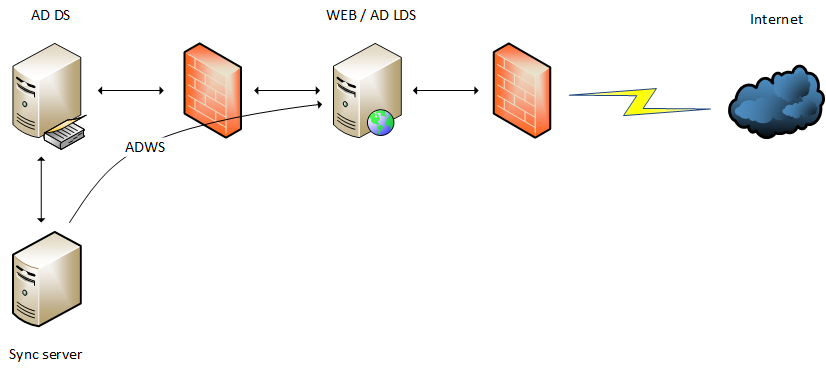
AD LDS SyncRecently I had an interesting job at a customer, who used a web application with an address book. The web application used LDAP queries to Active Directory to get all users addresses and phone numbers. This information was then searchable on a public web site located in DMZ.

The problem here is that we had an internet facing server. We could not allow it to make queries directly to the internal Active Directory. We decided to install a new AD LDS (Lightweight Directory Services) partition in the DMZ where we could ask our queries.

Next problem: We have to populate our new LDS partition with users. Normally this would be done with a system designed for it, like Forefront Identity Manager. Here we needed a quick-and-dirty solution to get started, and I therefore wrote a PowerShell script that copied the attributes we needed from our Active Directory.

One of the first things to solve was to find who and what to sync. With ten thousands of users in Active Directory we needed a solution to select users, even though they were spread across several OUs. Also, Swedish laws regulate what information to publish, so we had to filter sensitive information.

We ended up with a solution where only users in a specific OU were synced, but they also needed to be member of a specific group. We also filtered disabled users.

$ADUsers = Get-ADGroupMember -Identity "grp_ADSyncUsers" -Recursive | Get-ADUser -Properties `
     SamAccountName,GivenName,Surname,DisplayName,Title,Office,Department,Company,EmailAddress,Mobile,OfficePhone,Modified,Enabled | `
     Where-Object { $_.Enabled -eq $true -and $_.DistinguishedName -like "*$sourceou" }

We now have too much data. Our sync will be too slow, so we need to filter again.

There is no need to process accounts that haven’t been changed recently. We simply checked the Modified attribute in active directory and skipped these.

if ((get-date $modified) -ge ($(get-date).AddDays(-1.5))) {
    ...
}

We also needed a method to detect deleted accounts. Here we simply got all users in AD LDS and compared it with the users in AD DS. Any extra users were removed.

Compare-Object $PhoneBookUsers.Name $ADUserNames | Where-Object { $_.SideIndicator -eq "<=" } | ForEach-Object {
    $id="cn=$($_.InputObject),$destou"
    Remove-ADUser -Identity $id -Server $destserver -Credential $cred -Partition $destpartition -Confirm:$false
}

Below is the entire script, but as I wrote, it is a quick-and-dirty solution just to get started.

$destserver = "10.10.10.5"
$destpartition = "dc=cloud,dc=net"
$destou = "ou=PhoneBook,dc=cloud,dc=net"
$sourceou = "ou=MyBusiness,dc=contoso,dc=com"

$cred = Get-Credential
$i = 0

Import-Module ActiveDirectory

# Define users to process

    Write-Host "Collecting user information..."

    $ADUsers = Get-ADGroupMember -Identity "grp_ADSyncUsers" -Recursive | Get-ADUser -Properties `
            SamAccountName,GivenName,Surname,DisplayName,Title,Office,Department,Company,EmailAddress,Mobile,OfficePhone,Modified,Enabled | `
            Where-Object { $_.Enabled -eq $true -and $_.DistinguishedName -like "*$sourceou" }

    Write-Host "$($ADUsers.Count) user(s) found in Active Directory."

# Create/update users

    $ADUsers | ForEach-Object {

        $sam = $_.Name
        $givenname = $_.GivenName
        $surname = $_.Surname
        $displayname = $_.DisplayName
        $email = $_.EmailAddress
        $department = $_.Department
        $office = $_.Office
        $title = $_.Title
        $company = $_.Company
        $tele = $_.OfficePhone
        $mobil = $_.Mobile
        $modified = $_.Modified

        if ((get-date $modified) -ge ($(get-date).AddDays(-1.5))) {
            # Process user accounts modified the last 36 hours

            $i++;

            try {
                # Create new account in AD LDS
                New-ADUser -SamAccountName $sam -Name $sam -DisplayName $displayname -GivenName $givenname `
                    -SurName $surname -EmailAddress $email -Title $title -Office $office -Department $department `
                    -Company $company -OfficePhone $tele -MobilePhone $mobil `
                    -Enabled $false -Path $destou –Type iNetOrgPerson `
                    -Server $destserver `
                    -Credential $cred

                Write-Host "Creating user $sam"

            } catch [System.Exception] {
                switch($_.Exception.GetType().FullName) {
                    'Microsoft.ActiveDirectory.Management.ADException' {
                        # User already exists. Update existing account
                        Set-ADUser -Identity "cn=$sam,$destou" -DisplayName $displayname -GivenName $givenname -SurName $surname `
                            -EmailAddress $email -Title $title -Office $office -Department $department `
                            -Company $company -OfficePhone $tele -MobilePhone $mobil `
                            -Server $destserver `
                            -Credential $cred `
                            -Partition $destpartition
                        Write-Host "Updating user $sam"
                    }
                }
            }
        }
    }

# Remove deleted accounts

Write-Host "$i user(s) processed."
Write-Host "Searching for users to delete..."
$i=0

    $PhoneBookUsers = Get-ADUser -Server $destserver -SearchBase $destou -Filter * -Credential $cred | Select -Property Name
    $ADUserNames += $ADUsers.Name

    Compare-Object $PhoneBookUsers.Name $ADUserNames | Where-Object { $_.SideIndicator -eq "<=" } | ForEach-Object {
        $id="cn=$($_.InputObject),$destou"
        Remove-ADUser -Identity $id -Server $destserver -Credential $cred -Partition $destpartition -Confirm:$false
        Write-Host "Deleting user $($_.InputObject)"
        $i++
    }

Write-Host "$i user(s) deleted."
Write-Host "Done!"

/ Andreas

Create random test users in a domain with PowerShell

Keeping up with the PowerShell posts!

This is a quick one I’ve created based on another one I once found to make it faster for me to create a number of test users when doing demos/labs.
It uses a .csv file as input with some 400 first and lastnames, which then is used for generating random usernames. (3+3 letters and incrementing number if needed. Based on a solution that can be done in many ways… )
We are also picking departments from the array $Departments (if you have the luck of getting a extra nice firstname, you get another department)

The only thing you need to do in order to get it working in your own lab or test domain (except for the script and the .csv file), is to insert the an OU distinguishedName to the $OU variable.

It will by default create 100 users, but that can be changed to a number of your choice with the -Numusers parameter.

2014-01-08 14-43-32
Download the script and the csv file here

CreateTestADUsers.ps1

<#
.SYNOPSIS
    The Script creates test users to your demo domain based on first and last namnes from csv. 
.PARAMETER NumUsers
    Integer - number of users to create, default 100.
.NOTES
    File Name: CreateTestADUsers.ps1
    Author   : Johan Dahlbom, johan[at]dahlbom.eu
    Blog     : 365lab.net
    The script are provided “AS IS” with no guarantees, no warranties, and they confer no rights.    
#>
param ([parameter(Mandatory=$false)]
[int]
$NumUsers = "100"
)
#Define variables
$OU = "OU=TestUsers,OU=Cloud Inc.,DC=cloud,DC=lab"
$Departments = @("IT","Finance","Logistics","Sourcing","Human Resources")
$Names = Import-CSV FirstLastEurope.csv
$firstnames = $Names.Firstname
$lastnames = $Names.Lastname
$Password = "Password1"

#Import required module ActiveDirectory
try{
Import-Module ActiveDirectory -ErrorAction Stop
}
catch{
throw "Module ActiveDirectory not Installed"
}

while ($NumUsers -gt 0)
{
      #Choose a 'random' department Firstname and Lastname
      $firstname = $FirstNames | Get-Random
      $lastname = $LastNames | Get-Random

      if (($firstname -eq "Johan") -or ($firstname -eq  "Andreas")) {
                $Department = "Tailspintoys - 365lab.net"
            } else {
                $Department = $Departments | Get-Random
            }
      #Generate username and check for duplicates

      $username = $firstname.Substring(0,3).tolower() + $lastname.Substring(0,3).tolower()
      $exit = 0
      $count = 1
        do
        {
             try {
                 $userexists = Get-AdUser -Identity $username
                 $username = $firstname.Substring(0,3).tolower() + $lastname.Substring(0,3).tolower() + $count++
             }
             catch {
                 $exit = 1
             }
         }
        while ($exit -eq 0)

      #Set Displayname and UserPrincipalNBame
      $displayname = $firstname + " " + $lastname
      $upn = $username + "@" + (get-addomain).DNSRoot

      #Create the user
      Write-Host "Creating user $username in $ou"
      New-ADUser –Name $displayname –DisplayName $displayname `
                 –SamAccountName $username -UserPrincipalName $upn `
                 -GivenName $firstname -Surname $lastname -description "Test User" `
                 -Path $ou –Enabled $true –ChangePasswordAtLogon $false -Department $Department `
                 -AccountPassword (ConvertTo-SecureString $Password -AsPlainText -force)

      $NumUsers--
}

Feel free to edit or change as you wish!

/Johan

Get all GPO deployed Printers with PowerShell

As a follow up to my last post on GPP, and per request on Technet, I’ve now created Another script to make inventory of all printers in a domain deployed with GPO (both GPP and Deployed Printers). It can be a pain to use those settings some times, here you have a way to make inventory of them at least. 🙂
Just like the other one it’s based on the GroupPolicy PowerShell-Module which works from 2008R2 and up.

See below screenshots on how to run the script and what output you get. (similiar to the GPP Drive maps output)
2014-01-07 19-25-35
2014-01-07 19-26-04

If you want to export all printer information to a csv file, use below row.

.\Get-GPOPrinters.ps1 | select printerpath,gpotype,gponame,FilterGroup  | Export-Csv c:\printers.csv -NoTypeInformation

Get-GPOPrinters.ps1

<#
.SYNOPSIS     
The script finds all shared printers deployed with GPO (both deployed printers GPP.) in your domain. 
.NOTES     
           File Name: Get-GPOPrinters.ps1     
           Author   : Johan Dahlbom, johan[at]dahlbom.eu     
           The script are provided “AS IS” with no guarantees, no warranties, and it confer no rights. 
           Blog     : 365lab.net
#>
#Import the required module GroupPolicy
try
{
Import-Module GroupPolicy -ErrorAction Stop
}
catch
{
throw "Module GroupPolicy not Installed"
}
        $GPO = Get-GPO -All

        foreach ($Policy in $GPO){

                $GPOID = $Policy.Id
                $GPODom = $Policy.DomainName
                $GPODisp = $Policy.DisplayName
                $PrefPath = "\\$($GPODom)\SYSVOL\$($GPODom)\Policies\{$($GPOID)}\User\Preferences"

                    #Get GP Preferences Printers
                    $XMLPath = "$PrefPath\Printers\Printers.xml"
                    if (Test-Path "$XMLPath")
                    {
                         [xml]$PrintXML = Get-Content "$XMLPath"

                                foreach ( $Printer in $PrintXML.Printers.SharedPrinter )

                                    {New-Object PSObject -Property @{
                                        GPOName = $GPODisp
                                        PrinterPath = $printer.Properties.Path
                                        PrinterAction = $printer.Properties.action.Replace("U","Update").Replace("C","Create").Replace("D","Delete").Replace("R","Replace")
                                        PrinterDefault = $printer.Properties.default.Replace("0","False").Replace("1","True")
                                        FilterGroup = $printer.Filters.FilterGroup.Name
                                        GPOType = "Group Policy Preferences"
                                    }
                                }
                   }
                   #Get Deployed Printers
                   [xml]$xml = Get-GPOReport -Id $GPOID -ReportType xml
                   $User = $xml.DocumentElement.User.ExtensionData.extension.printerconnection
                   $Computer = $xml.DocumentElement.computer.ExtensionData.extension.printerconnection

                        foreach ($U in $User){
                            if ($U){

                                    New-Object PSObject -Property @{
                                        GPOName = $GPODisp
                                        PrinterPath = $u.Path
                                        GPOType = "GPO Deployed Printer - User"
                                    }
                            }

                        }

                        foreach ($C in $Computer){
                            if ($c){

                                    New-Object PSObject -Property @{
                                        GPOName = $GPODisp
                                        PrinterPath = $c.Path
                                        GPOType = "GPO Deployed Printer - Computer"
                                    }
                            }

                        }
           }

This was done very quick, will probably do some things a bit nicer later on. If you find any direct issues or bugs, let me know!

Enjoy!

/Johan

Managing Office 365 e-mail addresses easy with PowerShell when using DirSync

In most cases you uninstall your local Exchange server after migrating your e-mail to Exchange Online. If you also choose to implement DirSync you place the administration in your local domain instead of the Office 365 Administration Portal.

This means that there is no longer a GUI tool to handle some of the settings related to your mailboxes. Of course you can keep a machine with your old Exchange 2010 Management Console, but often the reason for moving to the cloud is to reduce the complexity and minimize the number of machines.

We don’t have the same problem with other attributes, for example displayname or phone numbers that you’ll find in Users and Computers or the Administrative Center introduced in Windows Server 2008. It does get a bit trickier when you are about to modify primary email address or add alias addresses.

Currently there are no available GUI tools from Microsoft to handle these types of updates easy (but keep your eyes open, things might change 😉 ). However, there are a few third-party tools to achieve this, unless you want to use the Attribute Editor in Users and Computers, or Adsiedit.

Since I’m a big fan of PowerShell I wanted to build a small set of tools to handle simple changes of email addresses. These functions are easy for you to use in your own scripts.

First of all, a function that lists all email addresses of a user:

function Get-O365AliasAddress {
<#
.SYNOPSIS
    Displays all email addresses assigned to a user.
.PARAMETER Identity
    The user to query.
.EXAMPLE
    Get-O365AliasAddress -Identity user01
.EXAMPLE
    Get-ADUser user01 | Get-O365AliasAddress
.NOTES
    Author: Andreas Lindahl
    Blog: 365lab.net
    Email: andreas.lindahl[at]jsc.se
    The script are provided “AS IS” with no guarantees, no warranties, and they confer no rights.
#>

    [CmdletBinding()]
    param (
        [Parameter(ValueFromPipelineByPropertyName=$true,Mandatory=$True,ValueFromPipeline=$True,
        HelpMessage="The name of the user to get addresses of")]
        [string]$Identity
    )

    Import-Module ActiveDirectory

    $result = @()

    (Get-ADUser -Identity $Identity -Properties proxyAddresses).proxyAddresses | foreach {
        $proxy =  $_.split(":")
        $object = New-Object System.Object
        $object | Add-Member –Type NoteProperty –Name Type –Value $proxy[0]
        $object | Add-Member –Type NoteProperty –Name Address –Value $proxy[1]
        $object | Add-Member –Type NoteProperty –Name IsPrimary –Value ($proxy[0] -ceq $($proxy[0].ToUpper()))
        $result += $object
    }
    return $result
}

Next, a function that adds an alias to an existing user

function Add-O365AliasAddress {
<#
.SYNOPSIS
    Adds an alias address to a user.
.PARAMETER Identity
    The user to modify.
.PARAMETER Address
    The address to add.
.PARAMETER Type
    The type of address. Default is smtp.
.PARAMETER SetAsDefault
    Indicates if the address should be de default address of the user
.EXAMPLE
    Add-O365AliasAddress -Identity user01 -Address test@365lab.net -SetAsPrimary
.NOTES
    Author: Andreas Lindahl
    Blog: 365lab.net
    Email: andreas.lindahl[at]jsc.se
    The script are provided “AS IS” with no guarantees, no warranties, and they confer no rights.
#>

    [CmdletBinding()]
    param (
        [Parameter(ValueFromPipelineByPropertyName=$true,Mandatory=$True,ValueFromPipeline=$True,
        HelpMessage="The name of the user")]
        [string]$Identity,

        [Parameter(Mandatory=$True,
        HelpMessage="The address to add")]
        [string]$Address,

        [Parameter(
        HelpMessage="The type of the address to add")]
        [string]$Type="smtp",

        [Parameter(
        HelpMessage="Indicates that the address will be set as the default address")]
        [switch]$SetAsDefault
    )

    Import-Module ActiveDirectory

    $Type = $Type.ToLower()

    $defaultaddress = ''
    $proxyaddresses = ''
    $proxyaddress = ''

    #Get all existing proxyAddresses of the same type
    $proxyaddresses = (Get-ADUser -Identity $Identity -Properties proxyAddresses).proxyAddresses | where-object { $_ -like "$Type*" }

    #Get current default address of this type
    foreach ($proxyaddress in $proxyaddresses) {
        $pa = $proxyaddress.split(':')
        if ($pa[0] -ceq $pa[0].ToUpper()) {
            $defaultaddress = $proxyaddress
        }
    }

    #If this is the first address, it will be the default
    if ($proxyaddresses.count -eq 0) {
        $SetAsDefault = $true
    }

    if ($SetAsDefault) {

        #New default address to set. Start by removing the old one, but keep it as alias.
        if ($defaultaddress) {
            $pa = $defaultaddress.split(':')
            $newdefaultaddress = "$($pa[0].ToLower()):$($pa[1])"
            Set-ADUser -Identity $Identity -Remove @{proxyaddresses=$defaultaddress} -Add @{proxyaddresses=$newdefaultaddress}
        }

        #Set new default address. In case it already exists, remove it first (it might already be used as alias)
        if ($Type -eq 'SMTP') {
            Set-ADUser -Identity $Identity -Remove @{proxyaddresses="$($Type.ToLower()):$Address" } -Add @{proxyaddresses="$($Type.ToUpper()):$Address" } -EmailAddress $Address
        } else {
            Set-ADUser -Identity $Identity -Remove @{proxyaddresses="$($Type.ToLower()):$Address" } -Add @{proxyaddresses="$($Type.ToUpper()):$Address" }
        }

    } else {
        #Just add the new address
        Set-ADUser -Identity $Identity -Add @{proxyaddresses="$($Type):$Address" }
    }
}

Finally we also need a script to delete addresses

function Remove-O365AliasAddress {
<#
.SYNOPSIS
    Removes an alias address from a user.
.PARAMETER Identity
    The user to modify.
.PARAMETER Address
    The address to remove.
.PARAMETER Type
    The type of address. Default is smtp.
.EXAMPLE
    Remove-O365AliasAddress -Identity user01 -Address test@365lab.net
.NOTES
    Author: Andreas Lindahl
    Blog: 365lab.net
    Email: andreas.lindahl[at]jsc.se
    The script are provided “AS IS” with no guarantees, no warranties, and they confer no rights.
#>

    [CmdletBinding()]
    param (
        [Parameter(ValueFromPipelineByPropertyName=$true,Mandatory=$True,ValueFromPipeline=$True,
        HelpMessage="The name of the user")]
        [string]$Identity,

        [Parameter(Mandatory=$True,
        HelpMessage="The address to remove")]
        [string]$Address,

        [Parameter(
        HelpMessage="The type of the address to remove")]
        [string]$Type="smtp"

    )

    Import-Module ActiveDirectory

    $Type = $Type.ToLower()
    $defaultaddress = ''
    $newdefaultaddress = ''
    $proxyaddresses = ''

    #Get all existing proxyAddresses of the same type
    $proxyaddresses = (Get-ADUser -Identity $Identity -Properties proxyAddresses).proxyAddresses | where-object { $_ -like "$Type*" }

    #Get current default address of this type
    foreach ($proxyaddress in $proxyaddresses) {
        $pa = $proxyaddress.split(':')
        if ($pa[0] -ceq $pa[0].ToUpper()) {
            $defaultaddress = $proxyaddress
        }
    }

    if ($defaultaddress -eq "$($Type):$Address") {
        #We are trying to remove the default address. Now it becomes a bit tricky...
        #First, find the next address of the same type that we can use as default address
        foreach ($proxyaddress in $proxyaddresses) {
            if ($proxyaddress -ne "$($Type):$Address") {
                $newdefaultaddress = $proxyaddress
                break
            }
        }
    }

    #Now we can remove the address
    Set-ADUser -Identity $Identity -Remove @{proxyaddresses="$($Type):$Address"}
    if ($Type -eq 'smtp' -and $defaultaddress -eq "$($Type):$Address") {
        Set-ADUser -Identity $Identity -Clear mail
    }

    if ($newdefaultaddress) {
        #Set $newdefaultaddress as new default address
        Write-Warning "New default address set: $newdefaultaddress"
        Add-O365AliasAddress -Identity $Identity -Address $newdefaultaddress.split(":")[1] -Type $Type -SetAsDefault
    }
}

Now we can play with these functions:

O365AliasAddress

I have put together a PowerShell Module for you to import. Just load it with the Import-Module cmdlet.

Import-Module O365ProxyAddresses

The module can be downloaded here.

I hope that you will find these functions useful in your daily user administration tasks. Please leave your comments below and feel free to suggest improvements.

Happy coding!

/ Andreas

Quick Tip: Self signed certificates made easy with PowerShell!

Most solutions today require certificates in some way, which means we need them even when setting up a lab/test environment.
If you for some reason don’t have a PKI/CA infrastructure in your lab environment you will most likely end up with a self signed certificates for web sites or other parts of your environment.

Since Windows 8/8.1 or Server 2012/2012 R2 there is a really nice PowerShell cmdlet that does that for us, without no hassle.
It can even handle multiple SAN’s.
It’s just to use the New-SelfSignedCertificate cmdlet from an elevated PowerShell window.

Example 1: Create and export one certificate with the name test.365lab.net:

New-SelfSignedCertificate -DnsName test.365lab.net -CertStoreLocation cert:\LocalMachine\My
#Export certificate to c:\test_365lab_net.pfx with the password 'Password'. (the thumbprint is found in the output from the New-SelfsignedCertificate command.)
Export-PfxCertificate -Cert cert:\LocalMachine\My\5D46460D29FE8E0C3F644D8ABA3C707AA83AFC79 -FilePath c:\test_365lab_net.pfx -Password (ConvertTo-SecureString -String "Password" -Force -AsPlainText)

2014-01-04 15-57-46

Example 2: Create self signed SAN certificate with the names test.365lab.net,sts.365lab.net and 365lab.net:

New-SelfSignedCertificate -DnsName test.365lab.net,sts.365lab.net,365lab.net -CertStoreLocation cert:\LocalMachine\My

2014-01-04 16-06-34

To check out your newly create certificates in the GUI, fire up the Computer Certificates Store mmc, which from Windows 8 / Server 2012 and above can be started with ‘certlm.msc‘ (OH YES!).
2014-01-04 16-10-55

Note that I generally never recommend doing self signed certificates in production environments, they are only for testing purposes!

/Johan

Getting all GPP Drive maps in a Domain with PowerShell

Group Policy Preferences are mostly great and frequently used to solve different kind of policy related problems in an it Environment.
There are a few PowerShell cmdlet for GPO’s (28 last time I checked) but only three of them are related to Group Policy Preferences.
2013-12-31 13-31-59.

Case and Solution
A customer of mine wanted to inventory their GPP Drive maps, and get information about what GPO, drive letter, drivepath, security Filtering and so on.

I know there are quite a few solutions that can do this for you, but why not use PowerShell when possible? 🙂

The script is using the GroupPolicy POSH-module which has been around since 2008R2, so this works even there.
It simply gets all Group policies in your domain, checks each policy for drive maps (by checking if Drives.xml exists) and gives you a bit of nice output. (ehh.. could be nicer, but anyway… )

See my examples below:
1. Gives you all Drive Map GPO’s plain and formats the output as a table.

2013-12-31 13-48-24
Note: The DriveAction object is not translated to a more friendly name at this time so U, stands for Update, D, for delete and so on. That is also applies on the DrivePersistent output (“Reconnect”).
Update: This is now updated so it gives you a bit of nicer output!

2. Searches for drive maps in a specific GPO.
2013-12-31 13-42-38

3. Exports the output to a csv.

.\Get-GPPDriveMaps.ps1 | Export-Csv DriveMaps.csv -NoTypeInformation

Get-GPPDriveMaps.ps1

<#
.SYNOPSIS     
           The script finds the GPP Drive Maps in your domain. 
.NOTES     
           File Name: Get-GPPDriveMaps.ps1     
           Author   : Johan Dahlbom, johan[at]dahlbom.eu     
           The script are provided “AS IS” with no guarantees, no warranties, and it confer no rights. 
#>
#Import the required module GroupPolicy
try
{
Import-Module GroupPolicy -ErrorAction Stop
}
catch
{
throw "Module GroupPolicy not Installed"
}
        $GPO = Get-GPO -All

        foreach ($Policy in $GPO){

                $GPOID = $Policy.Id
                $GPODom = $Policy.DomainName
                $GPODisp = $Policy.DisplayName

                 if (Test-Path "\\$($GPODom)\SYSVOL\$($GPODom)\Policies\{$($GPOID)}\User\Preferences\Drives\Drives.xml")
                 {
                     [xml]$DriveXML = Get-Content "\\$($GPODom)\SYSVOL\$($GPODom)\Policies\{$($GPOID)}\User\Preferences\Drives\Drives.xml"

                            foreach ( $drivemap in $DriveXML.Drives.Drive )

                                {New-Object PSObject -Property @{
                                    GPOName = $GPODisp
                                    DriveLetter = $drivemap.Properties.Letter + ":"
                                    DrivePath = $drivemap.Properties.Path
                                    DriveAction = $drivemap.Properties.action.Replace("U","Update").Replace("C","Create").Replace("D","Delete").Replace("R","Replace")
                                    DriveLabel = $drivemap.Properties.label
                                    DrivePersistent = $drivemap.Properties.persistent.Replace("0","False").Replace("1","True")
                                    DriveFilterGroup = $drivemap.Filters.FilterGroup.Name
                                }
                            }
                }
        }

The script can of course be extended with a lot more information, and make the output easier to read, but that’s a later project.

/Johan

Office 365 PowerShell tip: Automatically assign licenses based on AD attribute

Important note: The end of an era with licensing scripts is near… and the beginning of a new one with Azure AD Group Based Licensing is here. Group Based Licensing is now in preview and currently requires a paid Azure AD Subscription. Try it out and give Microsoft your feedback on how they can make it even better! 

Using DirSync in combination with Office 365 / Windows Azure Active Directory is great.
It automates user creation and makes you able to master all user creation changes from on premises.
There is just one(or two) things you need to do manually, assign licenses…
This can be done both in the portal or with PowerShell.

Depending on how your license structure looks like and how large environment you have, you might want to automate this in a more convenient way. There is a Wiki article on TechNet with a few examples on how to automate it as well (both with Security Groups and AD attributes). http://social.technet.microsoft.com/wiki/contents/articles/15905.how-to-use-powershell-to-automatically-assign-licenses-to-your-office365-users.aspx

Until Microsoft has come up with an integrated solution for this in DirSync or something else, we have to stick with PowerShell…

The case:
In my case we want to assign Office 365 licenses based on a local AD attribute of your choice fully automated and minimal input.
We also want a bit of logging so we are able to find and fix errors as easy as possible.

In order to assign a license in Office 365, we need to assign two attributes on a user(of course the user must exist…):
UsageLocation and Licenses
Also, if a user has a valid license assigned, the boolean IsLicensed will be set to True.
2013-12-30 15-26-24

The ‘Licenses’ attribute contains “tenantname:LICENSESKU”, which in my case above is “mstlegacy:ENTERPRISEPACK” for an E3 license.
So, when assigning a license with PowerShell we need to know the SKUID of the particular license we are using.

We can also disable specific parts of a license, for example SharePoint when we assign the license. More details about ‘manual’ PowerShell assignment of licenses in Office 365 you’ll find here.

Solution

My script activates Office 365 users based on the AD attribute of your choise.
It requires you to populated the AD attribute with a string that identifies the license type for the particular user.
Default AD attribute used in the script is employeeType.

Supported license types with AD attributes as below (attribute to the left):
E1 – Office 365 for Enterprises E1
E3 – Office 365 for Enterprises E3
K1 – Deskless user without Office
E2 – Deskless user with Office
A1S – Office 365 for Education A1 (Students)
A2S – Office 365 for Education A2 (Students)
A3S – Office 365 for Education A3 (Students)
A1F – Office 365 for Education A1 (Faculty)
A2F – Office 365 for Education A2 (Faculty)
A3F – Office 365 for Education A3 (Faculty)
2014-01-01 15-31-22
In case the AD attribute Country is populated in your AD, it will automatically use that attribute to populate UsageLocation of the user in Office 365, otherwise it will default back to the parameter $DefaultCountry.

It will log all changes and errors to the logfile MSOL-UserActivation.log within the same folder you run the script.
Running the script
Prereqs:

Example – first time use:
As a preparation have to change the default value of $AdminUser parameter or use the parameter -AdminUser to an actual adminuser of your tenant.
On first use it’ll then ask you for the password and then store encrypted with DPAPI to a file in the same folder where you run the script. This so you can run without user interaction in the future.

.\ActivateMSOLUser.ps1 -AdminUser DirSync@mstlegacy.onmicrosoft.com

2013-12-30 16-31-16
(Hopefully you will type in the correct password… 🙂 )

After you’ve finished with the first time configuration, you are ready to actually start assigning licenses.
Example 1 – Activate all K1,K2 and E3 licenses with default AD attribute (employeeType)

.\ActivateMSOLUser.ps1 -AdminUser dirsync@mstlegacy.onmicrosoft.com -Licenses K1,K2,E3

2013-12-30 16-45-58
As seen above, 2 unlicensed users were found in Office 365, but only one of them had the required local AD attribute (employeeType in this case), set to ‘E3’.
I also go two errors since I didn’t have any K1 or K2 licenses in my tenant.

Example 2 – Activate all E3 licenses with custom AD attribute (msDS-cloudExtensionAttribute1) and MasterOnPremise

.\ActivateMSOLUser.ps1 -AdminUser dirsync@mstlegacy.onmicrosoft.com -Licenses E3 -LicenseAttribute msDS-cloudExtensionAttribute1 -MasterOnPremise

2013-12-30 16-57-28
In the above example we found one user to activate, but with the switch -MasterOnPremise we looked in to our local ad instead checking Office 365 for unlicensed users, and reported back to the attribute when the license was successfully assigned.
This can be useful if you for some reason have a lot of unlicensed users in Office 365 that you intend to keep that way.

Note: Since the -MasterOnPremise function writes back to your AD, the account that runs the script will in that case need write permissions to that AD attribute.

2013-12-30 17-03-59

Next Step
In order to make this fully automated, you will also need to schedule this as a task that runs (preferably) as often as your DirSync goes which by default is every 3 hours, an article on how to do that is here.

I’ve been running the script for a while and it works very well, of course some parts can be done more efficient. If you find any bugs or other issues, let me know!

The script can be downloaded from here, or cut’n’paste it from below…

Happy Licensing!
/Johan

ActivateMSOLUsers.ps1

<# .SYNOPSIS     The script automatically assigns licenses in Office 365 based on AD-attributes of your choice. .DESCRIPTION     Fetches your Office 365 tenant Account SKU's in order to assign licenses based on them.     Sets mandatory attribute UsageLocation for the user in Office 365 based on local AD attribute Country (or default)     If switch -MasterOnPremise has been used:     Assigns Office 365 licenses to the user based on an AD-attribute and reports back to the same attribute if a license was successfully assigned.     If not:     Looks after unlicensed users in Office365, checks if the unlicensed user has the right attribute in ad to be verified, otherwise not. .PARAMETER MasterOnPremise     Switch, If used, it  Assigns Office 365 licenses to the user based on an AD-attribute and reports back to the same attribute if a license was successfully assigned.     .PARAMETER Licenses     Array, defines the licenses used and to activate, specific set of licenses supported. "K1","K2","E1","E3","A1S","A2S","A3S","A1F","A2F","A3F" .PARAMETER LicenseAttribute     String, the attribute  used on premise to identify licenses .PARAMETER AdminUser     Adminuser in tenant .PARAMETER DefaultCountry     Defaultcountry for users if not defined in active directory              .NOTES     File Name: ActivateMSOLUsers.ps1     Author   : Johan Dahlbom, johan[at]dahlbom.eu     The script are provided “AS IS” with no guarantees, no warranties, and they confer no rights.     #>
param(
[parameter(Mandatory=$false)]
[Switch]
$MasterOnPremise = $false,

[parameter(Mandatory=$false,HelpMessage="Please provide the SKU's you want to activate")]
[ValidateSet("K1","K2","E1","E3","A1S","A2S","A3S","A1F","A2F","A3F")]
[ValidateNotNullOrEmpty()]
[array]
$Licenses,

[parameter(Mandatory=$false)]
[string]
$LicenseAttribute = "employeeType",

[parameter(Mandatory=$false)]
[string]
$AdminUser = "admin@tenant.onmicrosoft.com",

[parameter(Mandatory=$false)]
[string]
$DefaultCountry = "SE"
)
#Define variables
$PSScriptRoot = Split-Path -Parent -Path $MyInvocation.MyCommand.Definition
$Logfile = ($PSScriptRoot + "\MSOL-UserActivation.log")
$TimeDate = Get-Date -Format "yyyy-MM-dd-HH:mm"
$SupportedSKUs = @{
                    "K1" = "DESKLESSPACK"
                    "K2" = "DESKLESSWOFFPACK"
                    "E1" = "STANDARDPACK"
                    "E3" = "ENTERPRISEPACK"
                    "A1S" = "STANDARDPACK_STUDENT"
                    "A2S" = "STANDARDWOFFPACK_STUDENT"
                    "A3S" = "ENTERPRISEPACK_STUDENT"
                    "A1F" = "STANDARDPACK_FACULTY"
                    "A2F" = "STANDARDWOFFPACK_FACULTY"
                    "A3F" = "ENTERPRISEPACK_FACULTY"

                    }

################################################
##### Functions

#Function to Import Modules with error handling
Function Import-MyModule
{
Param([string]$name)
    if(-not(Get-Module -name $name))
    {
        if(Get-Module -ListAvailable $name)
        {
            Import-Module -Name $name
            Write-Host "Imported module $name" -ForegroundColor Yellow
        }
        else
        {
            Throw "Module $name is not installed. Exiting..."
        }
    }
    else
    {
        Write-Host "Module $name is already loaded..." -ForegroundColor Yellow }
    }

#Function to log to file and write output to host
Function LogWrite
{
Param ([string]$Logstring)
Add-Content $Logfile -value $logstring -ErrorAction Stop
Write-Host $logstring
}
#Function to activate your users based on ad attribute
Function Activate-MsolUsers
{
Param([string]$SKU)

    begin {
        #Set counter to 0
        $i = 0
    }

        process {

            #Catch and log errors
            trap {
                $ErrorText = $_.ToString()
		        LogWrite "Error: $_"
                $error.Clear()
                Continue
            }

            #If the switch -MasterOnPremise has been used, start processing licenses from the AD-attribute

            if ($MasterOnPremise) {

		    $UsersToActivate = Get-ADUser -filter {$LicenseAttribute -eq $SKU} -Properties $LicenseAttribute,Country -ErrorAction Stop

                if ($UsersToActivate)
			    {
			    $NumUsers = ($UsersToActivate | Measure-Object).Count

			    LogWrite "Info: $NumUsers user(s) to activate with $SKU"
                foreach($user in $UsersToActivate) {

                          trap {
                                $ErrorText = $_.ToString()
		                        LogWrite "Error: $_"
                                $error.Clear()
                                Continue
                            }
                        $UPN = $user.userprincipalname
                        $Country = $user.Country
                        LogWrite "Info: Trying to assign licenses to: $UPN"
                                if (!($country)) {
                                    $Country = $DefaultCountry }

                        if ((Get-MsolUser -UserPrincipalName $UPN -ErrorAction Stop)) {

                                Set-MsolUser -UserPrincipalName $UPN -UsageLocation $country -Erroraction Stop
                                Set-MsolUserLicense -UserPrincipalName $UPN -AddLicenses $SKUID -Erroraction Stop
									#Verify License Assignment
									if (Get-MsolUser -UserPrincipalName $UPN | Where-Object {$_.IsLicensed -eq $true}) {
										Set-ADUser $user -Replace @{$LicenseAttribute=$SKU+' - Licensed at ' + $TimeDate}
										LogWrite "Info: $upn successfully licensed with $SKU"
                                        $i++;
									}
									else
									{
										LogWrite "Error: Failed to license $UPN with $SKU, please do further troubleshooting"

									}
                        }
				    }
			    }
            }
	#If no switch has been used, process users and licenses from MSOnline
            else {
			    $UsersToActivate = Get-MsolUser -UnlicensedUsersOnly -All
				    if ($Userstoactivate)
				    {
				    $NumUsers = $UsersToActivate.Count
				    LogWrite "Info: $NumUsers unlicensed user(s) in tenant: $($SKUID.ToLower().Split(':')[0]).onmicrosoft.com"
				    foreach ($user in $UsersToActivate) {
                                trap {
                                        $ErrorText = $_.ToString()
		                                LogWrite "Error: $_"
                                        $error.Clear()
                                        Continue
                                }

					        $UPN = $user.UserPrincipalName
					        $ADUser = Get-Aduser -Filter {userPrincipalName -eq $UPN} -Properties $LicenseAttribute,Country -ErrorAction Stop
					        $Country = $ADUser.Country
							    if (!($Country)) {
								$Country = $DefaultCountry
							    }
					        if ($ADUser.$LicenseAttribute -eq $SKU) {
						        LogWrite "Info: Trying to assign licenses to: $UPN"
						        Set-MsolUser -UserPrincipalName $UPN -UsageLocation $country -Erroraction Stop
						        Set-MsolUserLicense -UserPrincipalName $UPN -AddLicenses $SKUID -Erroraction Stop

						        #Verify License Assignment
						        if (Get-MsolUser -UserPrincipalName $UPN | Where-Object {$_.IsLicensed -eq $true}) {
							    LogWrite "Info: $upn successfully licensed with $SKU"
                                $i++;
						        }
						   else
						        {

                                LogWrite "Error: Failed to license $UPN with $SKU, please do further troubleshooting"

						        }
				        }
			        }
		        }
	        }
        }

    End{
    LogWrite "Info: $i user(s) was activated with $license ($SKUID)"
	}
}
################################################
#Import modules required for the script to run
Import-MyModule MsOnline
Import-MyModule ActiveDirectory

	#Start logging and check logfile access
	try
	{
		LogWrite -Logstring "**************************************************`r`nLicense activation job started at $timedate`r`n**************************************************"
	}
	catch
	{
		Throw "You don't have write permissions to $logfile, please start an elevated PowerShell prompt or change NTFS permissions"
	}

    #Connect to Azure Active Directory
	try
	{
		$PasswordFile = ($PSScriptRoot + "\$adminuser.txt")
		if (!(Test-Path  -Path $passwordfile))
			{
				Write-Host "You don't have an admin password assigned for $adminuser, please provide the password followed with enter below:" -Foregroundcolor Yellow
				Read-Host -assecurestring | convertfrom-securestring | out-file $passwordfile
			}
		$password = get-content $passwordfile | convertto-securestring -ErrorAction Stop
		$credentials = new-object -typename System.Management.Automation.PSCredential -argumentlist $adminuser,$password -ErrorAction Stop
		Connect-MsolService -credential $credentials -ErrorAction Stop
	}
	catch [system.exception]
	{
        $err = $_.Exception.Message
		LogWrite "Error: Could not Connect to Office 365, please check connection, username and password.`r`nError: $err"
        exit
	}

if (!$licenses) {
    LogWrite "Error: No licenses specified, please specify a supported license`r`nInfo: Supported licenses are: K1,K2,E1,E3,A1S,A2S,A3S,A1F,A2F,A3F!"
}
else
{

#Start processing license assignment
    foreach($license in $Licenses) {

        $SKUID = (Get-MsolAccountSku | Where-Object {$_.AccountSkuId -like "*:$($SupportedSKUs.Get_Item($license))"}).AccountSkuId

            if ($SKUID)
	        {
		        Activate-MsolUsers -SKU $license
	        }
	        else
	        {
		    LogWrite "Error: No $license licenses in your tenant!"
	        }
    }
}
LogWrite -Logstring "**************************************************"